Notes of SAP MM & PP, SAP MM & PP SAP TUTORIALS POINT - Study Material
Page 2 :
About the Tutorial, SAP is an enterprise resource planning software that was basically designed to, manage resources, information and activities that are required to complete, business processes such as procurement and managing orders, billing of orders, and management of human resources. SAP applications work with real-time, data. It has the ability to be configured according to the needs of the business., It allows a business to make rapid changes in its requirements through a, common set of programs., This tutorial adopts a step-by-step approach to acquaint the readers with the, SAP MM environment and how to make good use of its features. It will also help, learners to perform procurement of stock materials in SAP., , Audience, This tutorial has been designed for beginners without prior exposure to materials, management. With the customer demands changing rapidly, this tutorial will be, especially useful for those who want to learn how to manage the supply chain, management side of the business using SAP so that market demands can be met, in the shortest possible time., , Prerequisites, A basic knowledge of ERP concepts will help you in understanding the concepts, of SAP Material Management System described in this tutorial., , Copyright & Disclaimer, Copyright 2014 by Tutorials Point (I) Pvt. Ltd., All the content and graphics published in this e-book are the property of, Tutorials Point (I) Pvt. Ltd. The user of this e-book is prohibited to reuse, retain,, copy, distribute or republish any contents or a part of contents of this e-book in, any manner without written consent of the publisher., We strive to update the contents of our website and tutorials as timely and as, precisely as possible, however, the contents may contain inaccuracies or errors., Tutorials Point (I) Pvt. Ltd. provides no guarantee regarding the accuracy,, timeliness or completeness of our website or its contents including this tutorial., If you discover any errors on our website or in this tutorial, please notify us at,
[email protected], , i
Page 3 :
Table of Contents, About the Tutorial ····································································································································· i, Audience ···················································································································································· i, Prerequisites ·············································································································································· i, Copyright & Disclaimer ······························································································································ i, Table of Contents ······································································································································ ii, , 1. OVERVIEW····························································································································· 1, SAP Business Process ································································································································ 1, Features of SAP MM ································································································································· 1, , 2. SCREEN NAVIGATION ············································································································ 2, Login Screen ·············································································································································· 2, Standard Toolbar Icons ····························································································································· 2, Standard Exit Keys ···································································································································· 3, , 3. PROCUREMENT PROCESS ······································································································ 6, Basic Procurement ···································································································································· 6, Special Procurement ······························································································································· 10, , 4. ORGANIZATION STRUCTURE ······························································································· 12, SAP Implementation Guide ····················································································································· 12, SAP IMG Path ·········································································································································· 12, SAP IMG ·················································································································································· 14, Menu path for MM Configuration ··········································································································· 15, , 5. ENTERPRISE STRUCTURE ····································································································· 16, Client ······················································································································································ 17, Company Code ········································································································································ 17, Plant ······················································································································································· 18, , ii
Page 4 :
Storage Location ····································································································································· 18, Purchasing Organization ························································································································· 18, Purchasing Group···································································································································· 19, , 6. DEFINING ORGANIZATIONAL STRUCTURE ··········································································· 20, Create Company ····································································································································· 21, Create Company Code····························································································································· 23, Create Plant ············································································································································ 25, Create Storage Location ·························································································································· 27, Create Purchasing Organization ·············································································································· 29, Create Purchasing Group ························································································································ 31, , 7. ORGANIZATIONAL UNITS ····································································································· 33, Plant to Company Code··························································································································· 34, Purchasing Organization to Company Code ···························································································· 35, Purchasing Organization to Plant ············································································································ 37, Standard Purchasing Organization to Plant ····························································································· 38, , 8. MASTER DATA ····················································································································· 40, Material Master Data······························································································································ 40, , 9. PURCHASE INFO RECORD ···································································································· 61, Creation of Purchase Info Record ············································································································ 61, , 10. SOURCE DETERMINATION/LIST ··························································································· 65, Automatic Creation of Source List ··········································································································· 65, Manual Creation of Source List ··············································································································· 66, , 11. PROCUREMENT CYCLE ········································································································ 69, Determination of Requirement ··············································································································· 69, Creating Purchase Order ························································································································· 69, , iii
Page 5 :
Posting Goods Receipt ···························································································································· 71, Posting Invoice ········································································································································ 73, , 12. PURCHASE REQUISITION ····································································································· 75, Create Purchase Requisition ··················································································································· 75, Creating Purchase Order from Purchase Requisition ··············································································· 77, , 13. REQUEST FOR QUOTATION ································································································· 80, Manual Creation of RFQ ·························································································································· 80, Automatic Creation of RFQ from Purchase Requisition ··········································································· 83, , 14. OUTLINE AGREEMENT········································································································· 85, Contract ·················································································································································· 85, Scheduling Agreement ···························································································································· 88, , 15. QUOTA ARRANGEMENT ······································································································ 93, Create Quota Arrangement····················································································································· 94, , 16. POSTING PERIOD ················································································································· 97, Maintain Fiscal Year Variant ··················································································································· 97, Assign Company Code to Fiscal Year Variant ··························································································· 99, Define Variants for Open Posting Periods ····························································································· 101, Assign Variant to Company Code ·········································································································· 102, Open and Close Posting Periods ············································································································ 103, , 17. PURCHASE ORDER TYPES ·································································································· 106, Subcontracting Purchase Order············································································································· 107, Consignment Purchase Order················································································································ 108, Stock Transfer Purchase Order ·············································································································· 109, Service Purchase Order ························································································································· 110, , iv
Page 6 :
18. INVENTORY MANAGEMENT ······························································································ 112, Movement Type···································································································································· 112, Goods Receipt ······································································································································· 114, Reservation ··········································································································································· 119, Goods Issue··········································································································································· 122, , 19. INVOICE VERIFICATION ····································································································· 126, Posting of Invoice·································································································································· 126, Blocked Invoice ····································································································································· 128, Evaluated Receipt Settlement ··············································································································· 130, , 20. SERVICE MANAGEMENT···································································································· 134, Service Master Record ·························································································································· 134, Service Purchase Order ························································································································· 137, Service Entry Sheet ······························································································································· 139, , 21. VALUATION ······················································································································· 142, Split Valuation ······································································································································ 142, Split Valuation Configuration ················································································································ 144, , 22. ACCOUNT DETERMINATION ······························································································ 150, Define Valuation Control ······················································································································ 150, Group Together Valuation Areas ··········································································································· 152, Define Valuation Classes ······················································································································· 153, Configure Automatic Posting ················································································································ 158, , 23. CONFIGURATION··············································································································· 161, Assign Fields to Field Selection Groups ································································································· 161, Maintain Field Selection for Data Screens ····························································································· 163, Maintain Company Codes for Materials Management ·········································································· 164, , v
Page 7 :
Define Attributes of System Messages ·································································································· 166, Define Number Ranges – Purchase Requisition ····················································································· 168, Define Document Types – Purchase Requisition ··················································································· 170, Define Number Ranges – RFQ/Quotation ····························································································· 172, Define Document Types – RFQ/Quotation ···························································································· 173, , 24. TRANSACTION CODES ······································································································· 176, 24. INTERVIEW QUESTIONS ···································································································· 180, What is Next? ······································································································································· 183, , vi
Page 8 :
1. OVERVIEW, , SAP MM, , SAP ERP (Enterprise Resource Planning) is a commercial software that integrates, all the information in a single software, considering various factors such as time, and cost. Organizations can easily meet their business demands with the help of, SAP., , SAP Business Process, SAP MM is the short form for SAP Material Management system. The roles of SAP, MM in a business process are as follows:, , , A business process in SAP is termed as a “module”., , , , SAP MM is a part of logistics functions and it helps in managing the, procurement activities of an organization., , , , It supports all aspects of material management (planning, control, etc.)., , , , It is the backbone of logistics that incorporates modules such as Sales and, Distribution, Production Planning, Plant Maintenance, Project Systems,, and Warehouse Management., , Features of SAP MM, The features of a SAP MM system are as follows:, , , SAP MM is one of the modules of SAP that deals with material, management and inventory management., , , , Material Management as a process ensures no shortage of materials or, any gaps in the supply chain process of the organization. SAP MM speeds, up the procurement and material management activities, making the, business run smoothly with complete time and cost efficiency., , , , It deals with managing the materials (products and/or services) and, resources of an organization with the aim of accelerating productivity and, reducing costs. At the same time, SAP MM is quite versatile to, accommodate changes that are frequent in any business environment., , , , It deals with the Procurement Process, Master Data (Material & Vendor, Master), Account Determination & Valuation of Material, Inventory, Management, Invoice Verification, Material Requirement Planning, etc., , 1
Page 9 :
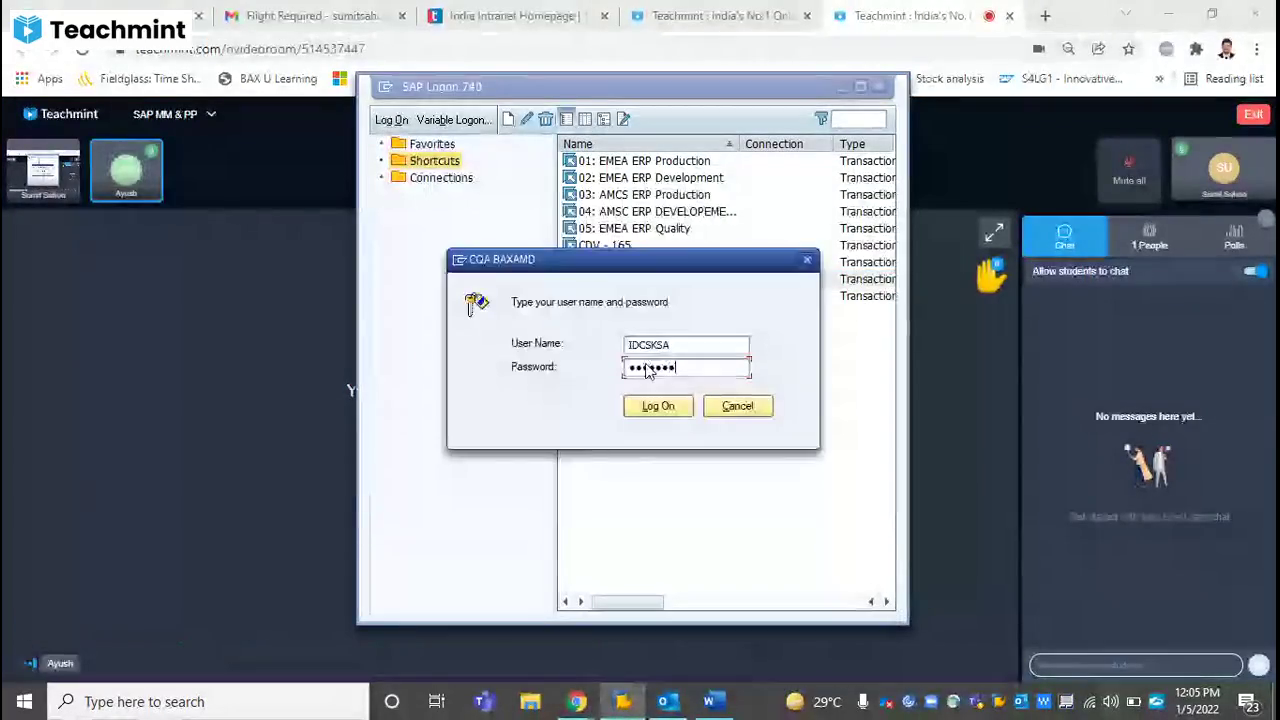
2. SCREEN NAVIGATION, , SAP MM, , The first step to understand SAP is to have a basic knowledge of its various, screens. The following sections describe how to navigate through the screens, available in SAP and how to use the functionalities of the standard toolbar., , Login Screen, Log on to the SAP ERP server. The SAP login screen will prompt you for the User, ID and the Password. Provide a valid user ID and password and press enter. The, user id and password are provided by the system administrator. The login screen, appears as follows:, , Standard Toolbar Icons, The following screenshot shows the toolbars available on the SAP screen., , 2
Page 10 :
SAP MM, , Given below is a brief description of the available toolbars:, , , Menu Bar - Menu bar is the topline of the dialog window in the SAP, system., , , , Standard Toolbar – This toolbar includes standard functions such as, save, top of page, end of page, page up, page down, print, etc., , , , Title Bar - Title bar displays the name of the application/business process, you are currently in., , , , Application Toolbar – Application-specific menu options are available on, this toolbar., , , , Command Field - To start a business application without navigating, through menu transactions, some logical codes are assigned to the, business processes. Transaction codes are entered in the command field, to start an application directly., , Standard Exit Keys, Exit keys are used to exit the module or to log off. They are used to go back to, the last accessed screen. The following screenshot highlights the standard exit, keys used in SAP:, , 3
Page 11 :
SAP MM, , New Session Icon, For creating a new session, we use the following keys shown in the screenshot, below:, , 4
Page 12 :
SAP MM, , Log Off, It is a good practice to log off from the SAP system when you finish your work., There are several ways to log off from the system, but it can be done using the, following instructions as shown in the screenshot below:, , 5
Page 13 :
SAP MM, , 3. PROCUREMENT PROCESS, , Every organization acquires material or services to complete its business needs., The process of buying materials and obtaining services from vendors or dealers, is called procurement. Procurement should be done in such a way that materials, are ordered in correct quantity, with a proper value at the proper time. It is, subdivided into following parts:, , , Basic Procurement, , , , Special Procurement, , Basic Procurement, Basic procurement is a process of acquiring goods or services in the right, quantity, at the right price, and at the right time. However it is critical to, maintain a right balance between quantity, price, and time. Consider the, following example:, , , Organizations try and keep inventory levels at a minimum, due to the, prices associated with high levels of inventory; at the same time, it can be, detrimental to stop production due to shortage of raw materials., , , , Getting the minimum price for a product or service is often necessary,, however it is equally important to maintain a balance between the product, availability, quality, and vendor (seller) relations., , Procurement Lifecycle, Procurement in most modern organizations follow some sequential steps which, are described below:, , Requirement and Information Gathering, Procurement process starts with gathering information about a product and its, quantity. Then for the required products and services, it is necessary to look for, suppliers who can satisfy the requirements., , Supplier Contact, After gathering the requirements, one looks for the suppliers who can fulfill, those requirements. Based on that, quotation requests or information requests, are sent to the suppliers or they are contacted directly., , 6
Page 14 :
SAP MM, , Background Review, Once the supplier is known, the product/service quality is checked, and any, necessities for services such as installation, warranty, and maintenance, parameters are investigated. Some samples of the products can be obtained for, quality examination., , Negotiation, Some negotiations with suppliers is made regarding the, delivery schedule of the products/services. Thereafter, a, is a binding legal document between the supplier and, contract will include all necessary information such as, material, delivery date, etc., , price, availability, and, contract is signed that, the ordering party. A, price and quantity of, , Order Fulfillment, Ordered material is shipped, delivered to the ordering party, and the supplier is, paid accordingly. Training and installation of product or services may also be, included., , Consumption, Maintenance, and Disposal, As the products/services are consumed, the performance of the products or, services is evaluated and any follow-up service support, if required, is analyzed., , Contract Renewal, Once the products or services are consumed or the contract expires and needs, to be renewed, or the product or service is to be re-ordered, the experience with, the vendors and service providers is reviewed. If the products or services are to, be re-ordered, the company decides whether to order from the previous supplier, or think about new suppliers., , Basic Procurement Activities, The following figure illustrates the flow of basic procurement activities:, , 7
Page 15 :
SAP MM, , A brief introduction of the procurement activities is given below:, Procurement Activities, , Description, , Determination of requirement, , It is the logical subdivision where it is, determined what material or services, are required, and which supplier can, fulfill the requirements., , Creating purchase requisition, , It is the phase in which the purchasing, department is informed about the, requirement of items or services. A, requisition is an internal document., , Creating purchase order, , It is the phase when an order is created, from requisition and it is approved and, assigned to a supplier., It is the phase in which the material is, received by the company and its, 8
Page 16 :
SAP MM, , Goods receipt/ Invoice received, , Invoice verification/Vendor Payment, , condition and quality are being, inspected. In this phase, an invoice is, received from the vendor (seller)., It is the phase in which the vendor, (seller) is paid from the company and, reconciliation of the invoice and PO is, accomplished., , Type of Basic Procurement, There are two types of basic procurement:, , , Procurement for Stock vs Consumption, , , , External vs Internal Procurement, , Procurement for Stock vs Consumption, The following points show the difference between Procurement for Stock vs., Consumption:, , , Procurement for Stock - A stock material is a material that is kept in, stock. These materials are kept in stock once received from the vendor., The stock of this material keeps on increasing or decreasing based on the, amount of quantity received or issued. To order a material for stock, the, material must have a master record within the system., , , , Procurement for Direct Consumption - When the procurement is for, direct consumption, i.e., it will be consumed as soon as it is received, the, user should specify the consumption purpose. To order a material for, consumption, the material may have a master record within the system., , External vs Internal Procurement, The following points show the difference, Procurement:, , , between External vs Internal, , External procurement - It is the process of procuring goods or services, from external vendors. There are three basic forms of external, procurement generally supported by the purchasing component of the IT, system., o One-time orders are generally used for material and services that are, , ordered irregularly., o Longer-term contracts with subsequent issue of release orders -, , For materials that are being ordered regularly and in large quantities,, we can negotiate a deal with the vendor (seller) for pricing or conditions, 9
Page 17 :
SAP MM, , and record them in a contract. In a contract, you also specify the, validity date., o Longer-term scheduling agreements and delivery schedules - If a, , material is ordered on an everyday basis and is to be delivered, according to an exact time schedule, then you set up a scheduling, agreement., , , Internal Procurement - Large corporate organizations may own multiple, separate businesses or companies. Internal procurement is a process of, getting material and services from identical companies. So, each of these, companies maintain a complete bookkeeping system with separate, Balance, Profit and Loss Statements, so that when any trade occurs, between them, it will be recorded., , Special Procurement, Special stocks are the stocks that are managed differently, as these stocks do, not belong to the company. Special stocks are kept at some particular location., Special procurement and special stock types are divided into the following, categories:, , Consignment Stocks, Consignment stocks are those material that is available at our store premises,, however it still belongs to the vendor (seller) of the material. If you utilize the, material from consignment stocks, then you have to pay to the vendor., , Third-party Processing, In third-party processing, a company passes on a sales order to the associate, external vendor (seller) who sends the goods directly to the customer. The sales, order is not processed by the company, but by the vendor (seller). Third-party, items can be entered in purchase requisitions, purchase orders, and sales, orders., , Pipeline Handling, In pipeline handling, the company need not order or store the material involved., It is obtainable as and when required via a pipeline (for example, oil or water),, or another style of cable (such as electricity). The material that is consumed is, settled with the vendor (seller) on a regular basis., , Returnable Transport Stock, The company orders goods from a vendor (seller). The goods are delivered with, returnable transport packaging (pallets, containers) that belongs to the vendor, 10
Page 18 :
SAP MM, , (seller) and is stored at the customer premises until they return it to the, company., , Subcontracting, The vendor (the subcontractor) receives components from the ordering party, with the help of which it produces a product. The product is ordered by your, company through a purchase order. The components required by the vendor, (seller) to manufacture the ordered product are listed in the purchase order and, provided to the subcontractor., , Stock Transfer Using Stock Transport Order, Goods are procured and supplied within a company. One plant orders the goods, internally from another plant (receiving plant/issuing plant). The goods are, procured with a special type of purchase order – the stock transport order. You'll, be able to request and monitor the transfer of goods with a stock transport, order., , 11
Page 19 :
SAP MM, , 4. ORGANIZATION STRUCTURE, , Organization structure is the framework of a company according to which, business is conducted in every company. Organization structure consists of, many levels having direct or indirect relationship with one another. Organization, structure is also referred as enterprise structure. Enterprise structure is made up, of many organizational units having relationship with one another., , SAP Implementation Guide, When a client purchases SAP, it comes in a CD in the form of a software. When, SAP is first installed, it has its standard setup that needs to be configured, according to the needs of the client, i.e., organization., Configuration of SAP is done with the help of an implementation guide, known as, IMG. It is used to add fields, to change field names, to modify dropdown lists,, etc. to adjust according to the functionality of an organization. IMG is where we, define the enterprise structure and other settings that are required for the, functioning of SAP according to the requirements of an organization., , SAP IMG Path, To perform any type of configuration according to the requirements of an, organization, the first step is to reach the implementation guide (IMG) screen., We can reach the implementation guide in two ways:, , , Menu path, , , , Transactional code, , Menu Path, We can navigate through the following path to reach out to IMG:, SAP Easy Access => Tools => Customizing => IMG => Execute Project, , 12
Page 20 :
SAP MM, , Transactional Code, The best and simple way to reach out any SAP screen is the TCode, i.e.,, transactional code. Transactional code is used to reach out to IMG: SPRO (SAP, Project Reference Object). Enter the transaction code in the command field and, then click on enter., , 13
Page 21 :
SAP MM, , SAP IMG, IMG screen can be reached out just by following the steps given below:, After SPRO, on the next screen, click on SAP Reference IMG., , 14
Page 22 :
SAP MM, , The next screen will appear as follows. This is the final screen from where we, can do configurations., , Menu path for MM Configuration, The main menu paths for MM area are as follows:, , , SAP Customizing Implementation Guide (IMG) => Enterprise Structure, => Definition, , , , SAP Customizing Implementation Guide (IMG) => Enterprise Structure, => Assignment, , , , SAP Customizing Implementation Guide (IMG) => Logistics => General, => Material Master, , , , SAP Customizing Implementation Guide (IMG) => Materials Management, , 15
Page 23 :
SAP MM, , 5. ENTERPRISE STRUCTURE, , Every organization has some framework or structure according to which the, whole business runs. An enterprise structure is the structure that represents an, enterprise in the SAP ERP system. It is subdivided into various organizational, units which, for legal reasons or business-related reasons, are grouped together., An enterprise structure defines various levels in an organization. These levels, are placed according to some hierarchy. Each level has some specific, functionality associated with it, which in a combined way describes the working, of an organization. In addition, an enterprise structure defines various, organizational units that are present in an enterprise. The organizational, structure in MM consists of the following organizational levels:, , , Client, , , , Company Code, , , , Plant, , , , Storage Location, , , , Purchasing Organization, , , , Purchasing Group, , The following diagram depicts one such organizational structure that describes, the levels incorporated in an organization. It puts the client at the topmost,, followed by multiple company code, followed by multiple plants, plants having, multiple storage location with their own or centralized purchasing organizations., , 16
Page 24 :
SAP MM, , In the following sections, we will look into each of the units that constitute an, enterprise structure., , Client, A client has the following attributes:, , , Client is a commercial organizational unit in R/3 system., , , , It has its own set of master data with independent table sets., , , , According to hierarchy, a client occupies the highest level in a SAP, system., , , , Data that is maintained at the client level is valid for all organizational, levels., , Company Code, A company code has the following attributes:, , , Within client, a company code is an independent accounting unit., , , , It is a legal entity that has its own profit, loss and balance statement., , , , It is the smallest unit in an organization for which a complete independent, account set can be replicated., 17
Page 25 :
SAP MM, , Plant, The basic points to be noted about a plant are as follows:, , , Plant is an organizational unit within a company where activities take, place. A plant will produce goods and make goods available for the, company., , , , It is a unit having manufacturing facility, warehouse distribution center, or, a regional sales office within logistic. It subdivides an enterprise in, different aspects., , Storage Location, A storage location has the following attributes:, , , Storage location is an organizational unit, which actually differentiates, between different material stocks in a plant., , , , Storage location is a place where stock is kept physically., , , , A plant can consist of multiple storage locations. All data is stored at, storage location level for a particular storage location., , Purchasing Organization, The points to be noted about a Purchasing Organization are as follows:, , , A purchasing organization is an organizational unit under a company or a, plant that is responsible for the procurement activities according to, requirements. It is responsible for external procurement., , , , A purchasing organization can be at the client level, which is known as a, centralized purchasing organization., , , , A purchasing organization can also be at the company or plant level,, which is known as company-specific or plant-specific purchasing, organization., , Different forms of purchasing can be described as follows:, , Centralized Purchasing, Purchasing organization is not assigned to any company code. It procures for all, company codes belonging to different client., , Company-Specific Purchasing, Purchasing organization is assigned to a company code only. The plant belonging, to the company code can purchase through this purchasing organization., 18
Page 26 :
SAP MM, , Plant-Specific Purchasing, Purchasing organization is assigned to a plant. Only this specific plant can, purchase through this purchasing organization., , Purchasing Group, The attributes of a purchasing group are as follows:, , , Purchasing group is an organizational unit responsible for the everyday, procurement activities within an organization., , , , It is a buyer or a group of buyers responsible for the procurement, activities in a purchasing organization., , 19
Page 27 :
SAP MM, , 6. DEFINING ORGANIZATIONAL, STRUCTURE, , An organization structure can be defined as the framework of a company that, describes the entire structure and functioning of the company. Organization, structures are split into different levels and each level is placed according to a, hierarchy. These levels have direct or indirect relationship with one another. The, various levels in a standard organization are as follows:, , , Company, , , , Company code, , , , Plant, , , , Storage location, , , , Purchasing organization, , , , Purchasing group, , All the Definitions in SAP are given through the Display IMG screen as shown, below:, , Path to reach Definition: IMG => Enterprise Structure => Definition, , 20
Page 28 :
SAP MM, , Create Company, Company is the topmost organizational unit after client, which incorporates, individual financial accounting statements of several company codes. A company, can have many company codes. In SAP, it is optional to create a company. The, following steps will take you through the procedure of creating company., , Path to Create Company:, IMG => Enterprise Structure=> Definition=> Financial Accounting=> Define Company, , TCode: OX15, Step 1: On the Display IMG screen, select Define Company execute icon by, following the above path., , 21
Page 29 :
SAP MM, , Step 2: Click the New Entries icon., , Step 3: Fill in all the necessary details such as name of the company, address of, the company with street number, city, country, and postal code., , Step 4: Click the Save icon after filling the required information. A new company, will be created., 22
Page 30 :
SAP MM, , Create Company Code, A Company Code is the smallest organizational unit after company, for which the, standalone financial accounting's profit and loss statements can be withdrawn., Many company codes can be assigned to one company. The following steps, depict how to create a company code., , Path to create Company Code:, IMG => Enterprise Structure=> Definition=> Financial Accounting=> Edit,, Copy, Delete, Check Company Code, TCode: OX02, Step 1: On the Display IMG screen, select Edit, Copy, Delete, Check Company, Code execute icon, by following the above path., , 23
Page 31 :
SAP MM, , Step 2: Click the New Entries button., , Step 3: Fill in all the necessary details like Company code, company name along, with city, country, currency, language., , Step 4: Click the Save icon after filling the required information. A new company, code will be created., , 24
Page 32 :
SAP MM, , Create Plant, A Plant is an organizational unit within a company where activities take place. A, plant will produce goods and make goods available for the company. The, following steps will take you through the procedure of creating a plant:, , Path to create Plant:, IMG => Enterprise Structure=> Definition=> Logistic General=>Define, Copy,, Delete check plant, TCode: OX10, Step 1: On the Display IMG screen, select Define, Copy, Delete check plant, execute icon, by following the above path., Select Define Plant icon to create a new plant., , 25
Page 33 :
SAP MM, , Step 2: Click the New Entries icon., , Step 3: Fill in all necessary details like plant name along with detailed, information like Language, House no., city, country, region, postal code., , 26
Page 34 :
SAP MM, , Step 4: Click the Save icon after filling the required information. A new plant will, be created., , Create Storage Location, A Storage Location is an organizational unit, which actually differentiates, between the different material stocks in a Plant. Storage location is a place, where stock is kept physically. A plant can consist of multiple storage locations., All data is stored at a storage location level for a particular storage location., Follow the steps given below to create a Storage Location:, , Path to Create Storage Location:, IMG => Enterprise Structure => Definition => Materials Management =>, Maintain Storage Location, TCode: OX09, Step 1: On the Display IMG screen, select Maintain Storage Location execute, icon, by following the above path., , 27
Page 35 :
SAP MM, , Step 2: Enter the name of the plant for which you want to create the storage, location., , Step 3: Click the New Entries icon., , Step 4: Enter the name of the storage location along with its description. Click, the Save icon after filling the required information. A new Storage Location will, be created., , 28
Page 36 :
SAP MM, , Create Purchasing Organization, A Purchasing Organization is an organizational unit under Company or Plant that, is responsible for procurement activities according to requirements. It is, responsible for external procurement. A purchasing organization can be specific, to a plant or a company. Following the steps given below to create a Purchasing, Organization:, Path to Create Purchasing Organization:, IMG => Enterprise Structure=> Definition=> Materials Management=> Maintain, Purchasing Organization, TCode: OX08, Step 1: On the Display IMG screen, select Maintain Purchasing Organization, execute icon, by following the above path., , 29
Page 37 :
SAP MM, , Step 2: Click the New Entries icon., , Step 3: Enter the name of the purchasing organization along with its, description., , Step 4: Click the Save icon after filling the required information. A new, Purchasing Organization will be created., 30
Page 38 :
SAP MM, , Create Purchasing Group, A Purchasing Group is an organizational unit that is responsible for the everyday, procurement activities within an organization. The steps given below depict how, to create a Purchasing Group:, , Path to Create Purchasing Group:, IMG =>Materials Management => Purchasing =>Create Purchasing Group, TCode: OME4, Step 1: On the Display IMG screen, select Maintain Purchasing Group execute, icon, by following the above path., , Step 2: Click the New Entries icon., , 31
Page 39 :
SAP MM, , Step 3: Enter the name of the purchasing group along with its description., , Step 4: Click the Save icon after filling the required information. A new, Purchasing Group will be created., , 32
Page 40 :
SAP MM, , 7. ORGANIZATIONAL UNITS, , All the organizational units combined together form the framework of a, company. These organizational units can be considered as different levels that, describe the structure of an enterprise. Every level has a particular functionality, associated with it. Also, every level in one or the other way is related to each, other. These levels are placed according to some hierarchy, Company being at, the top., To establish a relationship between these levels, we have to assign them to one, or other in such a way that they still lie in the same hierarchy. For example: As, Company is at the top level and plant is below it, it is necessary that the plant, has some relation with the company. As the plant is a sub-part or a smaller, division of the company, it will be assigned to the company. A standard SAP has, the following four basic and essential assignments:, , , Plant to company code, , , , Purchasing organization to company code, , , , Purchasing organization to plant, , , , Standard purchasing organization to plant, , All the assignments in SAP are done through the Display IMG screen, as shown, in the following screenshot., , Path to Reach Assignment: IMG => Enterprise Structure => Assignment, , 33
Page 41 :
SAP MM, , Plant to Company Code, Plant is one level below the company code. So, we need to assign a plant to a, company code. Follow the steps given below to assign a plant to a company, code:, , Path to assign plant to company code:, IMG => Enterprise Structure => Assignment => Assign plant to company code, TCode: OX18, Step 1: On the Display IMG screen, select Assign plant to company code, execute icon, by following the above path., , Step 2: Click the New Entries icon., , 34
Page 42 :
SAP MM, , Step 3: Enter the name of the plant and company code. Click the Save button., Plant is now assigned to company code., , Purchasing Organization to Company Code, A purchasing organization can be set at company code level; it is called a, centralized purchasing organization. So we need to assign this purchasing, organization to the company code. The following steps take you through the, procedure of assigning a purchasing organization to a company code:, , Path to assign purchasing organization to company code:, IMG => Enterprise Structure => Assignment => Materials Management =>, Assign Purchasing Organization to Company Code, TCode: OX01, Step 1: On the Display IMG screen, select Assign Purchasing Organization to, Company Code execute icon, by following the above path., , 35
Page 43 :
SAP MM, , Step 2: We can view an existing assignment and can change it accordingly., Click the Save button after making changes. Purchasing organization is now, assigned to the company code., , 36
Page 44 :
SAP MM, , Purchasing Organization to Plant, A purchasing organization can be plant specific, i.e., it can be set at the plant, level. In such cases, we need to assign the purchasing organization to a plant., Follow the steps given below to assign a purchasing organization to a plant:, , Path to assign purchasing organization to plant:, IMG => Enterprise Structure => Assignment => Materials Management =>, Assign Purchasing organization to Plant, TCode: OX17, Step 1: On the Display IMG screen, select Assign Purchasing Organization to, Plant, by following the above path., , 37
Page 45 :
SAP MM, , Step 2: Click the New Entries button., , Step 3: Enter the name of the plant and the purchasing organization. Click the, Save button. Purchasing organization is now assigned to plant., , Standard Purchasing Organization to Plant, Standard purchasing organization is the default purchasing organization. We can, sometimes assign the standard purchasing organization to some specific plant if, 38
Page 46 :
SAP MM, , we want to have the default purchasing organization for that plant. Follow the, steps given below to assign the standard purchasing organization to a plant:, , Path to assign standard purchasing organization to plant:, IMG => Enterprise Structure => Assignment => Materials Management =>, Assign Standard Purchasing Organization to Plant, TCode: OX15, Step 1: On the Display IMG screen, select Assign Standard Purchasing, Organization to Plant, by following the above path., , Step 2: We can view the existing assignment and can change it accordingly., Click the Save button after making changes. Standard purchasing organization is, now assigned to plant., , 39
Page 47 :
8. MASTER DATA, , SAP MM, , SAP R/3 works on real-time data, i.e., there is no time lag between data entry, and data availability. The important thing while creating any data is to maintain, data integrity. SAP R/3 data is categorized into two:, , , Master data - Data that is created centrally, and is valid for all, applications. It remains constant over time but we need to update it on a, regular basis. For example: Vendor is a type of master data that is used, for creating purchase orders or contracts., , , , Transactional data - Data that is associated with processing of business, transaction is transactional data., , SAP Master Data is of the following two types:, , , Material Master Data, , , , Vendor Master Data, , Material Master Data, The key points to note about material master data are as follows:, , , This is the enterprise main source of material-specific data. This data will, include information on the materials that a company can procure,, produce, store, or sell., , , , Since there are different departments in an enterprise and each, department works on some specific material, they will enter different, information regarding their material. So, each user department has its, own view of the material master record. The data screens that are used to, create material master can be divided into two categories:, o, , Main Data: It includes basic data (base unit of measure, weight),, purchasing data (over tolerance and under tolerance), and accounting, data (standard price, moving price)., , o, , Additional Data: It includes additional information such as short, description about material, currency, etc., , Material master has four characteristics, which we will discuss one by one in the, following sections., , Material Types, Materials with some common attributes are grouped together and they are, assigned to a material type. It differentiates the materials and allows, 40
Page 48 :
SAP MM, , organizations to manage different materials in a systematic manner in, accordance to a company’s requirement. For example, raw material and finished, products are some of the material types. Material type can be created by, following the steps given below., , Path to create material type:, IMG => Logistics General => Material Master => Basic Settings => Material, Types => Define Attributes of Material Types, TCode: OMS2, Step 1: On the Display IMG screen, select Define Attributes of Material Types,, by following the above path., , 41
Page 49 :
SAP MM, , Step 2: Click the New Entries button., , Step 3: Fill in the required information such as name of material type and, description. Click on Save. A new material type will be created., , 42
Page 50 :
SAP MM, , Material Groups, Material group is a wider range of material type. Materials with some common, attributes are taken together and they are assigned to a material group. For, example: We have some materials that are to be packaged, so the material type, can be electrical or food products, but we can group these material types and, put them in the packaged material group. Follow the steps given below to create, a Material Group., , Path to Create Material Group:, IMG => Logistic General => Material Master => Settings for Key Fields =>, Define Material Groups, TCode: OMSF, Step 1: On the Display IMG screen, select Define Material Groups, by following, the above path., , 43
Page 51 :
SAP MM, , Step 2: Click the New Entries button., , Step 3: Enter the name of the material group along with its description. Click, the Save button. A new material group will be created., , 44
Page 52 :
SAP MM, , Number Range, When we create a material master record, every material is recognized by a, unique number that is known as the material number. We can assign a number, to a material through two ways:, , , External number assignment - While creating a material, you have to, enter your own number (containing alphabets or digits), and that should, be unique., , , , Internal number assignment - While creating a material, you need not, enter any number. The system automatically generates a unique number, to that material., , Define Number Range, Internal number range can be defined by following the steps given below:, , Path to Create Number Range:, IMG => Logistic General => Material Master => Basic Settings => Material, Types => Define Number Range for Each material Type, TCode: MMNR, Step 1: On the Display IMG screen, select Define Number Range for Each, Material Type, by following the above path., , 45
Page 53 :
SAP MM, , Step 2: Click the Intervals button., , Step 3: We can define a number range here and EXT (external tab, if it is, checked, then an external number can be assigned in that material). Click the, Save button. Number Range is now defined for the material., , Assignment of Number Range, After defining, we need to assign it to a material group. Follow the steps given, below to assign a number range., 46
Page 54 :
SAP MM, , Step 1: On the same screen, select the Groups tab., , Step 2: For a particular material group, we can assign a number range here., Click on Save. The number range is now assigned to the material group., , Material Master Creation, Material master contains information on all materials that a company procures,, produces, or sells. It contains central data that is available at all the levels., Follow the steps given below to create a material master:, , Path to Create Material Master:, Logistics => Materials Management => Material Master => Material => Create Material, , TCode: MM01, Note: For any create transaction, we use 01, for edit 02, for display 03 as suffix., 47
Page 55 :
SAP MM, , Step 1: On the SAP Menu screen, click the create button by following the above, path., , Step 2: Fill in all the required details such as material number (if external, number assignment), material type, industry sector, etc., , 48
Page 56 :
SAP MM, , Step 3: Select the views you want to maintain for your material., , Step 4: Enter the name of the plant and the storage location., , Step 5: Enter the required information in your material views such as unit of, measure, currency, standard price, moving price, etc. Click on Save. A new, material will be created., 49
Page 57 :
SAP MM, , Vendor Master Data, The key points about vendor master are as follows:, , , Vendor Master Data is the enterprise main source of vendor-specific data., It includes information on vendors from which a company can procure, or, can sell., , , , A vendor master record contains information such as vendor's name,, address, etc., , , , Data in a vendor master record is divided into three categories:, o General Data: General data is maintained at the client level and it is, , valid for all organizational levels., o Accounting Data: Accounting data is maintained at the company level, , and it is valid for all plants belonging to that company., o Purchasing Data: Purchasing data is maintained at the purchasing, , organization level., Vendor master has three characteristics, which we will discuss one by one in the, following sections., , Vendor Account Group, Vendors are categorized according to their requirements. Some of the vendors, having similar characteristics are grouped together and placed in one category., 50
Page 58 :
SAP MM, , For example, all local vendors can be placed under one account group. Create a, Vendor Account group by following the steps given below., , Path to create Vendor Account Group:, IMG => Logistic General => Business Partner => Vendors => Control =>, Define Account group and field selection(vendor), TCode: OBD3, Step 1: On the Display IMG screen, select Define Account Groups and Field, Selection (Vendor), by following the above path., , 51
Page 59 :
SAP MM, , Step 2: Click the New Entries button., , Step 3: Fill in all necessary details such as name of account group, general data,, and field status. Click the Save button. A new Vendor Account Group will be, created., , 52
Page 60 :
SAP MM, , Number Range, When we create a vendor master record, every vendor is recognized by a unique, number known as the vendor number. As in the case of material master, we, have external as well as internal number assignments for vendor master., , Define Number Range, Number range can be defined by following the steps given below:, , Path to create Number Range:, IMG => Logistic General => Business Partner => Vendors => Control =>, Define Number Range for Vendor master record, TCode: XDN1, Step 1: On the Display IMG screen, select Define Number Range for Vendor, Master Record, by following the above path., , 53
Page 61 :
SAP MM, , Step 2: Click the Intervals button. It will create a number range for the, customer account., , Step 3: Click the Insert button., , Step 4: We can define a number range here and EXT (external tab, if it is, checked, then external number assignment can be done in that vendor). Click on, Save. A new Number Range will be created., , 54
Page 62 :
SAP MM, , Assignment of Number Range, After defining a number range, we need to assign it to a vendor group. Follow, the steps given below to assign the number range., Step 1: On the same screen as shown above, select the Number Range tab., , 55
Page 63 :
SAP MM, , Step 2: For a particular vendor group, assign a number range here. Click on, Save. Number range is now assigned to the vendor group., , Creation of Vendor Master, Vendor Master contains a list of vendors from where a company can procure or, sell goods. A Vendor Master can be created by following the steps given below:, , Path to create Vendor Master:, SAP Menu => Logistics => Material Management => Purchasing => Master, Data => Vendor => Central => Create, TCode: XK01, , 56
Page 64 :
SAP MM, , Step 1: On the SAP Menu screen, select Create for Central Vendor Data, by, following the above path., , 57
Page 65 :
SAP MM, , Step 2: Fill in all the required details such as company code, purchasing org,, and vendor number (if external number assignment)., , Step 3: Fill in all the details of vendor’s address such as street name, postal, code, country., , 58
Page 66 :
SAP MM, , Step 4: Fill in the necessary bank details of the vendor., , Step 5: Fill in the necessary accounting information of the vendor., , 59
Page 67 :
SAP MM, , Step 6: Fill in the terms of payment that are defined between the company and, the vendor. Click on Save. A new vendor master will be created., , 60
Page 68 :
SAP MM, , 9. PURCHASE INFO RECORD, , SAP R/3 works on all real-time data that includes material master and vendor, master. Material and vendor master are separate data records for keeping, information of materials and vendors from where material is procured. The, combined information of material and vendor altogether is kept in a record that, we call as purchase info record. The key points about purchase info record are, as follows:, , , Purchasing info record stores information on material and vendor,, supplying that material. For example, a vendor’s current price of a, particular material is stored in info record., , , , Purchase info record can be maintained at the plant level or at the, purchasing organization level., , , , Info record can be maintained for four procurement types, which are as, follows:, o Standard: Standard info record has information on standard orders, , (orders include details of vendor and material). This info record will, include vendor’s price for supplying a particular material., o Subcontracting: Subcontracting info record has the information on, , subcontract orders. It includes price for assembling the raw material, that is supplied by the ordering party., o Pipeline: Pipeline info record has information on material that is, , provided by vendor through pipes. For example, water, electricity, etc., o Consignment: Consignment info record has information on material, , that is kept at the premises of the ordering party. It contains vendor’s, price that is to be paid for withdrawing material from a consignment, stock., , Creation of Purchase Info Record, Follow the steps given below to create a Purchase Info Record., , Path to create Info Record:, Logistics => Material Management => Purchasing => Master Data => Info, Record => Create, TCode: ME11, , 61
Page 69 :
SAP MM, , Step 1: On the SAP Menu screen, select the Create icon, by following the above, path., , 62
Page 70 :
SAP MM, , Step 2: Enter the vendor number. In the info category, select standard or, subcontracting, or pipeline or consignment, according to the requirement., , Step 3: Fill in the required details such as material group, 1st/2nd/3rd, reminder, vendor material number, personal details, order unit, origin data, and, sort term., , 63
Page 71 :
SAP MM, , Step 4: Provide the info record note that can be called as info record, description. Click on Save. A new info record will be created., , 64
Page 72 :
SAP MM, , 10. SOURCE DETERMINATION/LIST, The combined information of material and vendor is kept in a record that is, known as purchase info record. But a particular material can be ordered from, different vendors in different time intervals. This information can be maintained, in a list that is called as the source list. The key points to note about a source, list are as follows:, , , Source list includes a list of possible sources of supply for a material over, a given framework of time., , , , Source list specifies the time period of ordering a particular material from, a given vendor., , , , Source list can be copied from one plant to another plant., , Source list can be created by the following two ways:, , , Automatically, , , , Manually, , Automatic Creation of Source List, Source list can be automatically created by changing a few settings in the, material master. Automatic source list can be created by following the steps, given below., Step 1: Go to MM02 (Edit mode of material master for which you want to create, source list automatically). Select all the views., , 65
Page 73 :
SAP MM, , Step 2: Inside purchasing view, check the box for source list. Click on Save., Source list will be created automatically for the material., , Manual Creation of Source List, Source list can be created manually by following the steps given below:, , Path to Maintain Source list:, Logistics => Material Management => Purchasing => Master Data => Source, List => Maintain, TCode: ME01, , 66
Page 74 :
SAP MM, , Step 1: On the SAP Menu screen, click Maintain by following the above path., , Step 2: Enter the material number for which you want to maintain the source, list and respective plant details., , 67
Page 75 :
SAP MM, , Step 3: Fill in all the necessary details such as valid periods, name of vendor,, purchasing organization, etc. Click on the Save icon. Source list for the material, is now maintained., , 68
Page 76 :
SAP MM, , 11. PROCUREMENT CYCLE, , Every organization acquires material or services to complete its business needs., The process of buying materials and obtaining services from vendors or dealers, is called procurement. The steps required to procure material forms the, procurement cycle. Every organization performs some common sequential steps, to procure material in the right quantity at the right price. The important steps, in a procurement cycle are as follows:, , , Determination of Requirement, , , , Creating Purchase Order, , , , Posting Goods Receipt, , , , Posting Invoice, , Determination of Requirement, This is the first step in a procurement cycle. It is the logical subdivision, where it, is determined what material or services are required by the company, and which, supplier can fulfill the requirement. A list of requirements is made and then it is, approved by a senior authority within the organization. After approval, a formal, list is made that is known as the purchase order with one more level of approval, which is sent to the vendor., , Creating Purchase Order, Purchase order is the formal and final confirmation of the requirements that is, sent to the vendor to supply material or services. A purchase order includes, important information such as name of the material with its corresponding plant,, details of purchasing organization with its company code, name of vendor, and, date of delivery. A purchase order can be created by following the steps given, below:, , Path to Create Purchase Order:, Logistics => Materials Management => Purchasing => Purchase Order =>, Create => Vendor/ Supplying Plant Known, TCode: ME21N, Step 1: On the SAP Menu screen, select Create Vendor/Supplying Plant Known, by following the above path., , 69
Page 77 :
SAP MM, , Step 2: Fill in all the necessary details such as name of the vendor, purchasing, organization, purchasing group, company code, and details of the material, for, example, material number, price, currency, and plant., , 70
Page 78 :
SAP MM, , Step 3: Fill in all the necessary details under Item, by selecting the tabs as, shown in the following screenshot:, , , Invoice/Delivery Tab (Provide the tax code, Payment terms and, conditions, and incoterms), , , , Assignment Tab (Provide a valid G/L code, business area, and WBS, element), , Click on Save. A new Purchase Order will be created., , Posting Goods Receipt, After processing the purchase order, the vendor delivers the material to the, ordering party and this process is called Goods Receipt. It is the phase where, the material is received by the ordering party and its condition and quality are, verified. Once the material is verified against the predefined quality, a goods, receipt is posted. Goods receipt can be posted by following the steps given, below., , Path to Post Goods Receipt:, Logistics => Materials Management => Inventory management => Goods, movement => Goods movement, TCode: MIGO, , 71
Page 79 :
SAP MM, , Step 1: On the SAP Menu screen, select Goods movement (MIGO) by following, the above path., , Step 2: Fill in all the necessary details such as movement type (101 for goods, receipt), name of the material, quantity received, details of storage location and, the plant where the material will be placed. Click on Save. Goods Receipt is now, posted for the material., , 72
Page 80 :
SAP MM, , Posting Invoice, Invoice is received from the vendor after goods receipt, and then the invoice is, verified by the ordering party. This is the phase where the vendor (seller) is paid, from the company and reconciliation of the invoice and PO is accomplished. An, invoice can be posted by following the steps given below:, , Path to Post Invoice:, Logistics => Materials Management => Logistic Invoice verification =>, Document Entry => Enter Invoice, TCode: MIRO, Step 1: On the SAP Menu screen, select Enter Invoice by following the above, path., , Step 2: Fill in all the necessary details such as invoice posting date, amount that, is paid to the vendor along with the quantity for which the amount is paid. Click, on Save. Invoice is now posted for the goods receipt., , 73
Page 81 :
SAP MM, , 74
Page 82 :
SAP MM, , 12. PURCHASE REQUISITION, , Procurement in every organization starts with gathering requirements. Once, requirements are gathered, we need to inform the purchasing organization. A, Purchase Requisition is a document that contains a list of requirements. The key, points to note about a purchase requisition are as follows:, , , A purchase requisition is a request that is made to the purchasing, organization to procure a certain list of materials., , , , It is an internal document and remains within the organization., , , , Purchase requisition needs approval from the purchasing organization., , , , If a purchase requisition has already been approved, then it can be, modified only to a limited extent., , , , Purchase requisition can be created for the following procurement types:, o Standard: Getting finished material from vendor., o Subcontracting: Providing raw material to vendor and getting finished, , material., o Consignment: Procuring material that is kept in company’s premises, , and paying to vendor for that., o Stock transfer: Getting material from within the organization., o External service: Getting services like maintenance from a third-party, , vendor., , Create Purchase Requisition, A Purchase Requisition can be created by following the steps given below:, , Path to Create Purchase requisition:, Logistics => Materials Management => Purchasing => Purchasing Requisition, => Create, TCode: ME51N, Step 1: On the SAP Menu screen, select the Create execute icon by following, the above path., , 75
Page 83 :
SAP MM, , Step 2: Fill in all the required details such as name of the material, quantity,, delivery date, material group, and plant. Click on Save. A new Purchase, Requisition will be created., , 76
Page 84 :
SAP MM, , After creating a purchase requisition, we need to send our requirements to the, vendor. It is done through a document that is known as the purchase order. A, purchase order can be directly created from a purchase requisition., , Creating Purchase Order from Purchase Requisition, Follow the steps given below to create a purchase order from a purchase, requisition., Step 1: Enter TCode to go to the purchase order home screen. Select Purchase, Requisition as shown in the following screenshot., TCode: ME21N, , Step 2: Provide the purchase requisition number for which you want to create a, purchase order. Then select the execute icon., 77
Page 85 :
SAP MM, , Step 3: Drag the standard reference Purchase Requisition to the cart next to the, NB Standard PO., , Step 4: Verify the details of the purchase order and do the necessary changes, as per requirement. Click on Save. You now have a purchase order from the, selected purchase requisition., 78
Page 86 :
SAP MM, , 79
Page 87 :
SAP MM, , 13. REQUEST FOR QUOTATION, , Vendor selection is an important process in the procurement cycle. Once, requirements are gathered, we start looking for possible suppliers who can fulfill, the requirements at the best possible price. So, a request is made to the, vendors to submit their quotations indicating the price of the material along with, their terms and conditions. This request is known as the request for quotation, (RFQ). Listed below are the key points to note about a request for quotation:, , , Request for quotation is a form of invitation that is sent to the vendors to, submit a quotation indicating their pricing and terms and conditions., , , , It contains details about goods or services, quantity, date of delivery, and, date of bid on which it is to be submitted., , , , Quotation is a reply by a vendor in response to a request for quotation., , An RFQ can be created by the following two ways:, , , Manually, , , , Automatically from a Purchase Requisition, , Manual Creation of RFQ, An RFQ can be created manually by following the steps given below:, , Path to Create RFQ:, Logistics => Materials Management => Purchasing => RFQ/Quotation =>, Request for Quotation => Create, TCode: ME41, Step 1: On the SAP Menu screen, select the Create execute icon by following, the above path., , 80
Page 88 :
SAP MM, , Step 2: Fill in all the required details such as type of RFQ (if standard, then AN),, language, date of RFQ, purchasing organization, and group., , 81
Page 89 :
SAP MM, , Step 3: Provide the name of the material, quantity of material, material group,, and quotation deadline date., , Step 4: Provide the quantity and delivery date for the material., , 82
Page 90 :
SAP MM, , Step 5: Provide the vendor address (street number, city, country, pin code) to, which you are addressing the RFQ. Click on Save. A new Request for Quotation, will be created., , Automatic Creation of RFQ from Purchase Requisition, RFQ can also be created with reference to purchase requisition by following the, steps given below:, Step 1: On the home screen of RFQ, select Reference to PReq tab., , 83
Page 91 :
SAP MM, , Step 2: Enter the requisition number for which you want to create an RFQ. Click, on Save. A new Request for Quotation will be created with reference to Purchase, Requisition., , 84
Page 92 :
SAP MM, , 14. OUTLINE AGREEMENT, , Vendor selection is an important process in the procurement cycle. Vendors can, be selected by quotation process. After having shortlisted a vendor, an, organization enters into an agreement with that particular vendor to supply, certain items with certain conditions. Typically when an agreement is reached, a, formal contract is signed with the vendor. So, an outline agreement is a longterm purchasing agreement with a vendor., The key points to note about an outline agreement are as follows:, , , An outline agreement is a long-term purchasing agreement with a vendor, containing terms and conditions regarding the material that is to be, supplied by the vendor., , , , The terms of an outline agreement are valid up to a certain period of time, and cover a certain predefined quantity or value., , An outline agreement can be of the following two types:, , , Contract, , , , Scheduling Agreement, , Contract, A contract is a long-term outline agreement between a vendor and an ordering, party over a predefined material or service over a certain framework of time., There are two types of contracts:, , , Quantity Contract: In this type of contract, the overall value is specified, in terms of the total quantity of material to be supplied by the vendor., , , , Value Contract: In this type of contract, the overall value is specified in, terms of the total amount to be paid for that material to the vendor., , Follow the steps given below to create a contract., , Path to Create Contract:, Logistics => Materials Management => Purchasing => Outline Agreement =>, Contract => Create, TCode: ME31K, , 85
Page 93 :
SAP MM, , Step 1: On the SAP Menu screen, select the Create execute icon by following, the above path., , Step 2: Provide the name of the vendor, type of contract, purchasing, organization, purchasing group, and plant along with the agreement date., , 86
Page 94 :
SAP MM, , Step 3: Fill in all the necessary details such as the agreement validity start date,, end date, and pay terms (i.e. terms of payment)., , Step 4: Provide material number along with the target quantity. Click on Save., A new Contract will be created., , 87
Page 95 :
SAP MM, , Scheduling Agreement, A scheduling agreement is a long-term outline agreement between the vendor, and the ordering party over a predefined material or service, which are procured, on predetermined dates over a framework of time. A scheduling agreement can, be created in the following two ways:, , , Creating scheduling agreement, , , , Maintain scheduling lines for the agreement, , Creating Scheduling Agreement, Follow the steps given below to create a scheduling agreement., , Path to Create Scheduling Agreement:, Logistics => Materials Management => Purchasing => Outline Agreement =>, Scheduling Agreement => Create => Vendor Known, TCode: ME31L, Step 1: On the SAP Menu screen, select the Create execute icon by following, the above path., , Step 2: Provide the name of the vendor, agreement type (LP for scheduling, agreement), purchasing organization, purchasing group, plant along with, agreement date., 88
Page 96 :
SAP MM, , Step 3: Fill in all the necessary details such as the agreement validity start date,, end date, and pay terms (i.e. terms of payment)., , 89
Page 97 :
SAP MM, , Step 4: Provide material number along with the target quantity, net price,, currency, and material group. Click on Save. A new Scheduling Agreement will, be created., , Maintain Scheduling Lines for the Agreement, Schedule lines can be maintained for a scheduling agreement by following the, steps given below., , Path to Maintain Schedule Lines:, Logistics => Materials Management => Purchasing => Outline Agreement =>, Scheduling Agreement => Delivery Schedule => Maintain, Step 1: On the SAP Menu screen, select the Maintain execute icon by following, the above path., , 90
Page 98 :
SAP MM, , Step 2: Provide the scheduling agreement number., , Step 3: Select the line item. Go to Item tab. Select Delivery Schedule., , 91
Page 99 :
SAP MM, , Step 4: Provide the delivery schedule date and the target quantity. Click on, Save. Schedule lines are now maintained for the scheduling agreement., , 92
Page 100 :
SAP MM, , 15. QUOTA ARRANGEMENT, , A particular material can be procured from different vendors depending upon the, requirement. In this way, the total requirement of a material is distributed to, different vendors, i.e., the quota is assigned to each source of supply. This is, known as quota arrangement. The key points to note about quota arrangement, are as follows:, , , Quota arrangement divides the total requirement of material among, certain sources of supply, i.e. vendors, and then assigns a quota to each, source., , , , This particular quota specifies the portion of material that is to be, procured from an assigned vendor or source., , , , Quota rating is used to determine the amount of material that is to be, assigned to a particular source or vendor. The source with the lowest, quota rating represents a valid source., , , , Quota rating can be calculated by using the following formula:, Quota rating = (Quota Allocated Quantity + Quota Base Quantity)/Quota, where Quota Allocated Quantity is the total quantity from all orders that is, procured from a particular source. Quota Base Quantity is the quantity, from a new source of supply. Quota is the total requirement of material, that is given to a particular source of supply., , , , The mandatory setting before creating a quota is that the info record and, the source list should be maintained for the particular material. Also, in, the material master, the source list and quota arrangement usage check, boxes should be checked. This setting can be made in the material master, by going to TCode MM03. In purchasing view, check the quota, arrangement usage and the source list. Setting is now maintained for, quota arrangement., , 93
Page 101 :
SAP MM, , Create Quota Arrangement, Quota arrangement divides the total requirement of a material among certain, sources of supply, i.e., vendors. Follow the steps given below to create a quota, arrangement., , Path to Create Quota Arrangement:, Logistics => Materials Management => Purchasing => Master Data => Quota, Arrangement => Maintain, TCode: MEQ1, Step 1: On the SAP Menu screen, select the Maintain execute icon by following, the above path., , 94
Page 102 :
SAP MM, , Step 2: Enter the material number and plant for which quota arrangement, needs to be maintained., , Step 3: Provide dates in ‘valid from’ and ‘valid to’ and value in ‘quantity split’., , 95
Page 103 :
SAP MM, , Step 4: Enter the name of vendors and the assigned allocated quantity to them., Click on Save. Quota arrangement is now maintained for the particular material., , 96
Page 104 :
16. POSTING PERIOD, , SAP MM, , SAP ERP systems were designed so that business can be conducted in an, efficient way. Documents such as purchase order, request for quotation, goods, receipt are essential elements in a business. These documents need security,, i.e., if any of the documents is posted incorrectly, then the business can get, affected at various levels. In order to secure these documents, we have a, concept known as the posting period., A posting period allows one to post and make changes in the documents only in, a specific time period. Sometimes you will get errors like “posting allowed only in, this time period for a certain company code”. It means for a particular company, code, a posting period is maintained and posting to that document is only, allowed within that period. A posting period for a company can be defined using, five fields which are as follows:, , , Maintain Fiscal Year Variant, , , , Assign Fiscal Year Variant to Company Code, , , , Define Variants for Open Posting Periods, , , , Assign Variant to Company Code, , , , Open and Close Posting Periods, , Maintain Fiscal Year Variant, Fiscal year variant is the time period during which financial statements are, withdrawn for a company. Different companies have different fiscal years. Fiscal, year variant can be maintained by following the steps given below., , Path to Maintain Fiscal Year Variant:, Financial accounting => Financial Accounting Global Settings => Ledgers =>, Fiscal Year and Posting Periods => Maintain Fiscal Year Variant, TCode: OB29, Step 1: On the Display IMG screen, select Maintain Fiscal Year Variant by, following the above path., , 97
Page 105 :
SAP MM, , Step 2: Click New Entries., , 98
Page 106 :
SAP MM, , Step 3: Provide the name of the fiscal year variant along with the description, and number of posting. Click on Save. A new Fiscal Year Variant will be created., , Assign Company Code to Fiscal Year Variant, Follow the steps given below to assign company code to the fiscal year variant., , Path to Assign Company Code to Fiscal Year Variant:, Financial accounting => Financial Accounting Global Settings => Ledgers =>, Fiscal Year and Posting Periods => Assign Company Code to Fiscal Year Variant, TCode: OB37, Step 1: On the Display IMG screen, select Assign Company Code to Fiscal Year, Variant by following the above path., , 99
Page 107 :
SAP MM, , Step 2: We can view the existing assignment and change it accordingly. Click on, Save. Fiscal Year Variant is now assigned to company code., , 100
Page 108 :
SAP MM, , Define Variants for Open Posting Periods, Follow the steps given below to define variants for open posting periods., , Path to Define Variants for Open Posting Periods:, Financial accounting => Financial Accounting Global Settings => Ledgers =>, Fiscal Year and Posting Periods => Posting Periods => Define Variants for Open, Posting Periods, TCode: OBBO, Step 1: On the Display IMG screen, select Define Variants for Open Posting, Periods by following the above path., , Step 2: Click New Entries., , 101
Page 109 :
SAP MM, , Step 3: Enter the name of the variant. Click on Save. A new Variant will be, created for open posting periods., , Assign Variant to Company Code, Follow the steps given below to assign a variant to company code., , Path to Assign Variant to Company Code:, Financial accounting => Financial Accounting Global Settings => Ledgers =>, Fiscal Year and Posting Periods => Posting Periods => Assign Variants to, Company Code, TCode: OBBP, Step 1: On the Display IMG screen, select Assign Variants to Company Code by, following the above path., , 102
Page 110 :
SAP MM, , Step 2: We can view the existing assignment and change it accordingly. Click on, Save. Variant is now assigned to company code., , Open and Close Posting Periods, Posting period allows you to post and make changes in the documents only in a, specific time period. Open and close posting periods can be maintained by, following the steps given below., , Path to Open and Close Posting Periods:, Financial accounting => Financial Accounting Global Settings => Ledgers =>, Fiscal Year and Posting Periods => Posting Periods => Open and Close Posting, Periods, TCode: OB52, Step 1: On the Display IMG screen, select Open and Close Posting Periods by, following the above path., , 103
Page 111 :
SAP MM, , Step 2: Click New Entries., , 104
Page 112 :
SAP MM, , Step 3: Provide the name of variant, account details, and the year allowed for, posting. Click on Save. Posting Period is now maintained for the variant., , 105
Page 113 :
SAP MM, , 17. PURCHASE ORDER TYPES, , SAP ERP was introduced so that procurement can be done efficiently in terms of, time and cost. Procurement can be done for various types of goods and services., Procurement starts with creating a purchase order, i.e., a formal document, given to vendors and it includes a list of goods and materials that are to be, procured. Accordingly, purchase orders can be created for different types of, procurement. The type of procurement can be maintained in a field that is, known as item category as shown below., , 106
Page 114 :
SAP MM, , For different procurement types, there are four types of purchase orders, which, are as follows:, , , Subcontracting Purchase Order, , , , Consignment Purchase Order, , , , Stock Transfer Purchase Order, , , , Service Purchase Order, , Subcontracting Purchase Order, In subcontracting, the vendor (the subcontractor) receives components from the, ordering party with the help of which it produces a product. The product is, ordered by your company through a purchase order. The components required, by the vendor (seller) to manufacture the ordered products are listed in the, purchase order and provided to the subcontractor., Follow the steps given below to create a subcontracting purchase order., TCode to create Purchase Order: ME21N, Subcontracting Item Category: L, 1. Provide the TCode in the command field., 2. It will take you to the purchase order screen., 3. Provide all the necessary details such as the name of the vendor, item, category, name of material, plant for which material is procured, and the, date of delivery., 4. Click on Save. Subcontracting Purchase order will be created., , 107
Page 115 :
SAP MM, , Consignment Purchase Order, In consignment, material is available at the organization store premises,, however it still belongs to the vendor (seller)/Owner of the material. If you, utilize the material from the consignment stocks, then you have to pay to the, vendor., Follow the steps given below to create a consignment purchase order., TCode to create Purchase Order: ME21N, Consignment Item Category: K, 1. Provide the TCode in the command field., 2. It will take you to the purchase order screen., 3. Provide all the necessary details such as the name of the vendor, item, category, name of material, plant for which material is procured, and the, date of delivery., 4. Click on Save. Consignment Purchase order will be created., 108
Page 116 :
SAP MM, , Stock Transfer Purchase Order, In stock transfer, goods are procured and supplied within a company. One plant, orders the goods internally from another plant (receiving plant/issuing plant)., The goods are procured with a special type of purchase order known as the, stock transport order., Follow the steps given below to create a stock transfer purchase order., TCode to create Purchase Order: ME21N, Stock Transfer Item Category: U, 1. Provide the TCode in the command field., 2. It will take you to the purchase order screen., 3. Provide all the necessary details such as the name of the vendor, item, category, name of material, plant for which material is procured, and the, date of delivery., 4. Click on Save. Stock Transfer Purchase order will be created., 109
Page 117 :
SAP MM, , Service Purchase Order, In service, a third party provides services to a company. These services include, maintenance functions such as electricity and oiling of machines. Follow the, steps given below to create a service purchase order., TCode to create Purchase Order: ME21N, Service Item Category: D, 1. Provide the TCode in the command field., 2. It will take you to the purchase order screen., 3. Provide all the necessary details such as the name of the vendor, item, category, name of material, plant for which material is procured, and the, date of delivery., 4. Click on Save. Service Purchase order will be created., 110
Page 118 :
SAP MM, , 111
Page 119 :
SAP MM, , 18. INVENTORY MANAGEMENT, , Procurement process starts with gathering requirements and ends with procuring, goods from vendors. Once the goods are procured from a vendor, they need to, be placed in the company’s premises in correct place so that they can be, consumed when required. Inventory management deals with placing and, handling the stock received from the vendors in correct place within the, company’s premises., Listed below are the points to note about inventory management:, , , Inventory management deals with the management of stock, either on, value or quantity basis., , , , It includes planning, entry, and keeping records of all the movements of, goods., , , , Goods movement creates a document that updates all the stock quantity, and value in the inventory that is known as the material document., , , , A material document is referred by a document number and document, year., , One normally, management:, , comes, , , , Movement Type, , , , Goods Receipt, , , , Reservation, , , , Goods Issue, , across the, , following, , terms, , while, , doing, , inventory, , Movement Type, Movement type describes the type of stock posting in inventory. It represents, whether the posting in stock is against goods receipt or goods issue. The, important movement types in SAP MM are as follows:, , , 101 - Goods receipt for purchase order or order., , , , 103 - Goods receipt for purchase order into GR blocked stock., , , , 201 - Goods issue for a cost center.261 - Goods issue for an order., , , , 301 - Transfer posting plant to plant in one step., , , , 305 - Transfer posting plant to plant in two steps - placement in storage., 112
Page 120 :
SAP MM, , , , 311 - Transfer posting storage location to storage location in one step., , , , 313 - Stock transfer storage locations to storage location in two steps removal from storage., , Movement types can be reached out by following the steps given below:, , Path to Reach Movement Type:, Logistics => Materials Management => Inventory Management => Goods, Movement => Goods Movement (MIGO), TCode: MIGO, Step 1: On the SAP Menu screen, select Goods Movement (MIGO) by following, the above path., , 113
Page 121 :
SAP MM, , Step 2: Select GR Goods Receipt drop-down. You will get a lot of standard, movement types and you can choose one according to your requirement., , Goods Receipt, Goods receipt is the phase where the material is received by the ordering party, and its condition and quality are verified. Depending upon the movement type,, stock is posted in inventory with the help of goods receipt. Goods receipt will, show the increase in warehouse stock. Goods receipt has two scenarios:, , , Creation of Goods Receipt, 114
Page 122 :
SAP MM, , , , Cancellation of Goods Receipt, , Creation of Goods Receipt, Goods receipt can be posted by following the steps given below., , Path to Post Goods Receipt:, Logistics => Materials Management => Inventory Management => Goods, Movement => Goods Movement (MIGO), TCode: MIGO, Step 1: On the SAP Menu screen, select Goods Movement (MIGO) by following, the above path., , Step 2: Goods receipt can be posted against various documents. Select the, required document from the drop-down. In this case, we are selecting purchase, order. Select the movement type according to the requirement., , 115
Page 123 :
SAP MM, , Step 3: It will fetch all the details from the selected reference document such as, material, quantity, plant, etc. Select check tab to check the document. Then, click on Save. A material document number will be generated. Goods receipt is, now posted against a purchase document., , 116
Page 124 :
SAP MM, , Cancellation of Goods Receipt, Sometimes a goods receipt is not posted correctly, in which case, it is to be, cancelled. Follow the steps given below to cancel a goods receipt., , Path to Cancel Goods Receipt:, Logistics => Materials Management => Inventory Management => Goods, Movement => Goods Movement (MIGO), TCode: MIGO, , 117
Page 125 :
SAP MM, , Step 1: On the MIGO screen, select Cancellation against a Material Document, Number from the drop-down. Provide the material document number., , Step 2: It will fetch all the details from the material document. Select the check, tab to check the document. Then click on Save. A material document number, will be generated. Goods receipt is now cancelled., , 118
Page 126 :
SAP MM, , Reservation, Sometimes, stocks are to be blocked in advance so that they can be made, available at a particular point of time. This is known as reservation., Reservation ensures that availability of stock at a particular time. Reserved, quantity can be viewed by TCode MMBE. Provide the material number and plant., Reserved quantity can be seen in the reserved tab as shown below., , 119
Page 127 :
SAP MM, , Follow the steps given below to create a Reservation., , Path to Create Reservation:, Logistics => Materials Management => Inventory Management => Reservation, => Create, TCode: MB21, , 120
Page 128 :
SAP MM, , Step 1: On the SAP Menu screen, select the Create execute icon by following, the above path., , Step 2: Enter the date, movement type, and the plant for which reservation is, to be made., , 121
Page 129 :
SAP MM, , Step 3: Enter the order number against which you want to make a reservation., Provide the details of material and the quantity that is to be reserved. Click on, Save. Reservation is now made for the order., , Goods Issue, Goods issue means moving a stock out of inventory that may be due to several, reasons like withdrawing of material for sampling or returning the goods back to, the vendor. A goods issue results in a decrease in quantity in the warehouse., Follow the steps given below to post a goods issue., , Path to Post Goods Issue:, Logistics => Materials Management => Inventory Management => Goods, Movement => Goods Movement (MIGO), TCode: MIGO, , 122
Page 130 :
SAP MM, , Step 1: On the SAP Menu screen, select Goods Movement (MIGO) by following, the above path., , 123
Page 131 :
SAP MM, , Step 2: Select goods issue from the drop-down. Goods issue can be posted, against various documents. Select the required document from the drop-down., For example, in this case, we are selecting purchase order. Select the movement, type according to the requirement., , 124
Page 132 :
SAP MM, , Step 3: It will fetch all the details from the selected reference document such as, material, quantity, plant, etc. Select the check tab to check the document. Then, click on Save. A material document number will be generated. Goods Issue is, now posted against a purchase document., , 125
Page 133 :
SAP MM, , 19. INVOICE VERIFICATION, , Every organization acquires goods or services to complete its business needs., Once goods are procured from a vendor and placed in company’s premises, through goods receipt, we need to pay to the vendor for the acquired goods and, services. The amount to be paid along with the details of the material is, provided by the vendor in the form of a document that is known as the invoice., Before paying to the vendor, we need to verify the invoice. This process of, verifying the invoice before making a payment is known as invoice, verification. The key points to note about invoice verification are as follows:, , , Invoice verification marks the end of procurement, after purchase order, and goods receipt., , , , Invoice posting updates all the related documents in financials and, accounting., , , , Blocked invoice that vary from actual invoice can be processed through, invoice verification., , One normally comes across the following terms in invoice verification:, , , Posting of Invoice, , , , Blocked Invoice, , , , Evaluated Receipt Settlement (ERS), , Posting of Invoice, Posting of invoice is done after having received the goods from the vendor and, after having completed the goods receipt. The invoice received from a vendor is, verified against cost, quantity, and quality by the ordering party, and then the, invoice is posted against that purchase order., This is the phase where the vendor (seller) is paid from the company and, reconciliation of the invoice and PO is accomplished. Follow the steps given, below to post an invoice., , Path to Post Invoice:, Logistics => Materials Management => Logistic Invoice Verification =>, Document Entry => Enter Invoice, TCode: MIRO, , 126
Page 134 :
SAP MM, , Step 1: On the SAP Menu screen, select Enter Invoice by following the above, path., , 127
Page 135 :
SAP MM, , Step 2: Fill in all the necessary details such as invoice posting date, amount that, is paid to the vendor along with the quantity for which the amount is paid. Click, on Save. Invoice is now posted for the goods receipt., , Blocked Invoice, Sometimes the accounting department may not be able to pay a vendor as per, the invoice raised. This may happen in the following scenario. You try to post an, invoice, however the system expects certain default value against the purchase, order or the goods receipt and the posted invoice differs from the default value., This may lead to invoice blocking. Invoice blocking is caused due to:, , , Variance in amount at item level., 128
Page 136 :
SAP MM, , , , Variance in quantity at item level., , It is difficult to analyze small variances in invoice. So, tolerance limits are set up, in the system and if the variance in the invoice is within the tolerance limit, then, the system accepts the invoice. If the variance exceeds the tolerance limit, then, it may lead to invoice blocking. In such cases, we need to manually unblock or, release the blocked invoice if it has to be processed. Follow the steps given, below to unblock an invoice., , Path to Release Blocked Invoice:, Logistics => Materials Management => Logistic Invoice verification => Further, Processing => Release Blocked Invoice, TCode: MRBR, Step 1: On the SAP Menu screen, select Release Blocked Invoices by following, the above path., , 129
Page 137 :
SAP MM, , Step 2: Provide necessary details such as company code, invoice document, number, vendor, posting date, and purchasing group. Then click the execute, button. The blocked invoice will be released., , Evaluated Receipt Settlement, Evaluated Receipt Settlement (ERS) is an easy method of settling goods receipt, automatically. If the ordering party has agreed with the vendor on all financial, terms and condition, then it need not verify the invoice. Invoice will be posted, automatically from the information present in the purchase order and the goods, receipt. Given below are the advantages of having an ERS:, , , Purchase orders can be settled and closed quickly., 130
Page 138 :
SAP MM, , , , It reduces human efforts, as there is no need to verify the invoice., , , , Amount and quantity variances in invoice can be avoided with the help of, ERS., , To implement ERS, some mandatory settings are to be done in the vendor, master., 1. Go to XK02 (Change mode of vendor master)., 2. Select Control data tab., 3. Check the AutoEvalGRSetmt Del. and AutoEvalGRSetmt Ret box., 4. Click on Save. Now the particular vendor is enabled for ERS., , Follow the steps given below to create an ERS., , Path to Create ERS:, Logistics => Materials Management => Logistic Invoice verification =>, Automatic Settlement => Evaluated Receipt Settlement (ERS), TCode: MRRL, 131
Page 139 :
SAP MM, , Step 1: On the SAP Menu screen, select Evaluated Receipt Settlement (ERS) by, following the above path., , 132
Page 140 :
SAP MM, , Step 2: Fill in all the necessary details such as company code, plant, goods, receipt document number and date, vendor, and purchasing document. Click on, Save. ERS will be created for the corresponding purchase order and goods, receipt., , 133
Page 141 :
SAP MM, , 20. SERVICE MANAGEMENT, , Besides procurement of goods, an organization may occasionally require some, kind of services. Such services include small maintenance tasks such as, changing the lights, painting, and housekeeping. These services are carried out, by external contractors and hence the whole process of procurement of services, is known as service management. The key points to note about service, management are as follows:, , , Services are meant for direct consumption instead of keeping them in, inventory., , , , Service description along with its unit of measure is stored as master data, in a record that is known as the service master record., , , , The system stores the services that have been procured as a record in a, sheet that is called as the service entry sheet., , , , Service procurement can be of the following two types:, o Planned Services - In planned services, at the time of procurement,, , specifications like quantity and price are known. It means the nature, and scope of service is clear before the procurement., o Unplanned, , Services - In unplanned services,, procurement, specifications like quantity and price, means the nature and scope of service is not, procurement. These services can be extended as per, , at the time of, are not known. It, clear before the, requirement., , Service management deals with the following terms:, , , Service Master Record, , , , Service Purchase Order, , , , Service Entry Sheet, , Service Master Record, Service master record contains the details of all the services that can be, procured from an external vendor within an organization. It contains the, description of services along with their unit of measure. Service master record, serves as a reference for creating service purchase order, but it is not necessary., Service purchase order can also be created manually without reference. Follow, the steps given below to create a service master record., , 134
Page 142 :
SAP MM, , Path to Create Service Master Record:, Logistics => Materials Management => Service Master => Service => Service, Master, TCode: AC03, Step 1: On the SAP Menu screen, select Service Master by following the above, path., , 135
Page 143 :
SAP MM, , Step 2: Click the Create New Service icon as shown below., , 136
Page 144 :
SAP MM, , Step 3: Fill in all the necessary details such as service category, base unit of, measure, and valuation class. Click on Save. A new Service will be created., , Service Purchase Order, In SAP MM, services are accomplished with the help of service purchase order., The requirement of service with its description along with quantity is given to a, third party in the form of service purchase order. In a service purchase order,, the most important field is ‘item category’. For service, item category will be D., Follow the steps given below to create a service purchase order., , Path to Create Purchase Order:, Logistics => Materials Management => Purchasing => Purchase Order =>, Create => Vendor/ Supplying Plant Known, TCode: ME21N, Service Item Category: D, , 137
Page 145 :
SAP MM, , Step 1: On the SAP Menu screen, select Vendor/ Supplying Plant Known by, following the above path., , 138
Page 146 :
SAP MM, , Step 2: Provide all the necessary details such as the name of the vendor, item, category, name of material, plant for which material is procured, and the date of, delivery. Click on Save. Service Purchase order will be created., , Service Entry Sheet, A service entry sheet stores a record of all the services that have been procured., In case of goods procured, we maintain a goods receipt document; whereas in, case of services, we maintain a service entry sheet. It accommodates the, charges that we need to pay to the vendor. Follow the steps given below to, create a service entry sheet., , 139
Page 147 :
SAP MM, , Path to Create Service Entry Sheet:, Logistics => Materials Management => Service Entry Sheet => Maintain, TCode: ML81N, Step 1: On the SAP Menu screen, select the Maintain execute icon by following, the above path., , 140
Page 148 :
SAP MM, , Step 2: Provide all the necessary details such as purchase order number,, service number, quantity, and price. Click on Save. A new Service Entry Sheet, will be created for the corresponding purchase order., , 141
Page 149 :
21. VALUATION, , SAP MM, , Procurement process starts with creating a purchase order and ends with invoice, verification. In the whole process, one of the important parts is material, valuation. While creating purchase orders, material price is a mandatory field, and it is automatically determined. It happens because material valuation is, maintained in the SAP system in the material master. Material valuation, represents integration between MM & FI (Financial Accounting) modules, since it, updates the general ledger accounts in financial accounting. The key points to, note about material valuation are as follows:, , , Material valuation helps in determining the price of the material, and in, which general ledger account it needs to be posted., , , , Material valuation can happen at company code level or plant level., , , , Material can be valuated based on different types of procurement; it is, known as split valuation., , Split Valuation, Split valuation helps in valuating the stocks of a material in the same valuation, area (company or plant) differently. Some of the examples where split valuation, is required are as follows:, , , Stock that is procured externally from a vendor has a different valuation, price than the stock of an in-house production., , , , Stock obtained from one vendor is valuated at a different price than the, stock obtained from another vendor., , , , Same material having different batch may have different valuation prices., , Split Valuation needs to be activated before setting any other configuration., Follow the steps given below to activate split valuation., , Path to Activate Split Valuation:, IMG => Materials Management => Valuation and Account Assignment => Split, Valuation => Activate Split Valuation, TCode: OMW0, , 142
Page 150 :
SAP MM, , Step 1: On the Display IMG screen, select Activate Split Valuation by following, the above path., , Step 2: Click the option Split Material Valuation Active. Click on Save. Split, valuation is now activated., , 143
Page 151 :
SAP MM, , Some important terms under split valuation are as follows., , , Valuation Area: Material may be valuated at plant level or at company, code level. The level at which materials are valuated is known as valuation, area., , , , Valuation Category: Valuation category is the criteria on which material, is split valuated., , , , Valuation Type: Valuation type specifies the features of a valuation, category., , Split Valuation Configuration, Follow the steps given below to do split valuation configuration such as defining, valuation category and valuation type., , Path to Configure Split Valuation:, IMG => Materials Management => Valuation and Account Assignment => Split, Valuation => Configure Split Valuation, TCode: OMWC, Step 1: On the Display IMG screen, select Configure Split Valuation by following, the above path., , 144
Page 152 :
SAP MM, , Step 2: Click Global Types to create valuation type., , Step 3: Click the Create button., , Step 4: Provide the name of the valuation type. Click on Save. A new Valuation, Type will be created., , 145
Page 153 :
SAP MM, , Step 5: Now go to the same screen and click Global Categories to create, valuation category., , Step 6: Click the Create button., , 146
Page 154 :
SAP MM, , Step 7: Provide the name of the valuation category. Click on Save. A new, Valuation Category will be created., , Step 8: Now go to the same screen and click Local Definitions to map valuation, type and valuation category., , 147
Page 155 :
SAP MM, , Step 9: Click the Cats. -> OU button., , Step 10: Provide valuation type, valuation category, and set the status as, active, and then click the Activate button. Valuation category and valuation type, are now mapped and both are activated., , 148
Page 156 :
SAP MM, , After maintaining the valuation type and valuation category, you can mention, them in the material master as shown below., Go to mm02 (Change screen for material master). Here you can maintain the, valuation category and valuation class in accounting view. On this basis,, valuation of the material will be done in a purchase order., , 149
Page 157 :
SAP MM, , 22. ACCOUNT DETERMINATION, , In SAP MM, procurement process involves the cost of goods and services that, needs to be paid to the vendor by an organization. The cost being paid must be, posted in an organization necessarily in a correct general ledger (G/L) account., It is quite impossible to recollect and feed the correct G/L account every time, during procurement. To avoid this inconvenience, the SAP system can be, configured so that the system will automatically determine the correct G/L, account that needs to be posted. G/L account is posted when goods receipt is, done as well as during clearing the invoice verification. Account determination, deals with the following terms:, , , Define Valuation Control, , , , Group together Valuation Areas, , , , Define Valuation Classes, , , , Configure Automatic Posting, , Define Valuation Control, Valuation areas can be grouped together and can be assigned to one grouping, code, if they belong to the same G/L account. For example, different plants, under one company code can be assigned the same valuation grouping code and, vice versa. Before this, valuation grouping code must be activated and this can, be done by following the steps given below., , Path to Activate Valuation Grouping Code:, IMG => Materials Management => Valuation and Account Assignment =>, Account Determination => Account Determination without Wizard => Define, Valuation Control, TCode: OMWM, , 150
Page 158 :
SAP MM, , Step 1: On the Display IMG screen, select Define Valuation Control by following, the above path., , Step 2: Select Valuation grouping code. Click on Save. Valuation grouping code, is now activated., , 151
Page 159 :
SAP MM, , Group Together Valuation Areas, In valuation grouping, valuation area and valuation grouping code are assigned, to the company code. This can be done by following the below steps., , Path to Define Valuation Area and Valuation Grouping Code:, IMG => Materials Management => Valuation and Account Assignment =>, Account Determination => Account Determination without Wizard => Group, Together Valuation Areas, TCode: OMWD, Step 1: On the Display IMG screen, select Group Together Valuation Areas by, following the above path., , 152
Page 160 :
SAP MM, , Step 2: Here you can define a valuation area with grouping code, and assign, them to a company code. Click on Save. Valuation area and valuation grouping, code are now defined for a company code., , Define Valuation Classes, Valuation class categorizes the G/L account on the basis of material type. For, example, raw material will have different G/L account than the finished material,, as the costs will be different in both the cases. Account reference is also, maintained along with the valuation class. Account reference and valuation class, can be defined by following the steps given below., , Path to Define Account Reference and Valuation Class:, IMG => Materials Management => Valuation and Account Assignment =>, Account Determination => Account Determination without Wizard => Define, Valuation Classes, TCode: OMSK, 153
Page 161 :
SAP MM, , Step 1: On the Display IMG screen, select Define Valuation Classes by following, the above path., , Step 2: Click the Account Category Reference button., , 154
Page 162 :
SAP MM, , Step 3: Click New Entries., , Step 4: Provide the name of ARef (Account reference) along with its description., , 155
Page 163 :
SAP MM, , Step 5: Now go to same screen and click Valuation Class., , Step 6: Click New Entries., , 156
Page 164 :
SAP MM, , Step 7: Provide the name of valuation class, ARef (Account reference), and, description of valuation class., , Step 8: Now go to the same screen and click Material Type/Account Category, Reference., , 157
Page 165 :
SAP MM, , Step 9: Here you can map material type with ARef (Account reference). Click on, Save. G/L account can now be posted for different material types., , Configure Automatic Posting, G/L account is automatically determined for each of the transactions. It happens, so because automatic postings are configured in the SAP system. Automatic, posting can be configured by following the steps given below., , Path to Configure Automatic Posting:, IMG => Materials Management => Valuation and Account Assignment =>, Account Determination => Account Determination without Wizard => Configure, Automatic Postings, TCode: OMWB, , 158
Page 166 :
SAP MM, , Step 1: On the Display IMG screen, select Configure Automatic Postings by, following the above path., , Step 2: Click Account Assignment., , 159
Page 167 :
SAP MM, , Step 3: Here you can maintain the transaction for which automatic account, determination is there. Click on Save. Automatic posting for transactions is now, configured., , 160
Page 168 :
23. CONFIGURATION, , SAP MM, , SAP MM is flexible enough to allow its configurations to be modified in the, background to suit the business requirements of an organization. Configurations, help in making custom enhancements in the structure. This chapter describes, some of the important configurations in SAP MM., , Assign Fields to Field Selection Groups, This configuration allows one to make some fields optional, hidden, or, mandatory in the master record. Follow the steps given below to set this, configuration., , Path to Assign Fields to Field Selection Groups:, IMG => Logistic General => Material Master => Field Selection => Assign Fields, to Field Selection Groups, TCode: OMSR, Step 1: On the Display IMG screen, select Assign Fields to Field Selection, Groups by following the above path., , 161
Page 169 :
SAP MM, , Step 2: Select the entry in which you want to make the changes., , Step 3: Here you can change the properties of the fields as hidden, display,, required entry, or optional entry. Click on Save. Field Groups are now set with, the desired field entries., , 162
Page 170 :
SAP MM, , Maintain Field Selection for Data Screens, This configuration allows one to make some data screens in the master data as, optional, hidden, or mandatory. Follow the steps given below to set this, configuration., , Path to Maintain Field Selection for Data Screens:, IMG => Logistic General => Material Master => Field Selection => Maintain, Field Selection for Data Screens, TCode: OMS9, Step 1: On the Display IMG screen, select Maintain Field Selection for Data, Screens by following the above path., , 163
Page 171 :
SAP MM, , Step 2: Select the field selection group in which you want to make changes., Here you can make changes in the field reference as hidden, display, required, entry, or optional entry. Click on Save. Field selection for data screens is now, maintained., , Maintain Company Codes for Materials Management, This configuration allows one to maintain company codes with a period along, with the fiscal year. Follow the steps given below to set this configuration., , Path to Maintain Company Codes for Materials Management:, IMG => Logistic General => Material Master => Basic Settings => Maintain, Company Codes for Materials Management, TCode: OMSY, , 164
Page 172 :
SAP MM, , Step 1: On the Display IMG screen, select Maintain Company Codes for, Materials Management by following the above path., , 165
Page 173 :
SAP MM, , Step 2: Provide details such as name, company code, along with the fiscal year, and the period for that. Click on Save. Company code is now maintained for, materials management., , Define Attributes of System Messages, Sometimes the system does not allow us to save a document when its, information is incomplete. In such cases, the system issues some messages to, indicate the probable cause of error. These system messages can be set up by, following the steps given below., , Path to Define Attributes of System Messages:, IMG => Logistic General => Material Master => Basic Settings => Define, Attributes of System Messages, TCode: OMT4, Step 1: On the Display IMG screen, select Define Attributes of System Messages, by following the above path., , 166
Page 174 :
SAP MM, , Step 2: Here you can maintain type of message (warning or error), message, number along with the description of message. Click on Save. System messages, are now maintained., , 167
Page 175 :
SAP MM, , Define Number Ranges – Purchase Requisition, When we create a purchase requisition, every requisition is recognized by a, unique number that is known as the purchase requisition number. We can define, a number range manually, otherwise the system can automatically assign the, same. Follow the steps given below to define a number range for purchase, requisition., , Path to Define Number Ranges:, IMG => Materials Management => Purchasing => Purchase Requisition =>, Define Number Ranges, TCode: OMH7, Step 1: On the Display IMG screen, select Define Number Ranges by following, the above path., , 168
Page 176 :
SAP MM, , Step 2: Select edit mode of Intervals tab., , Step 3: Here you can maintain a number range accordingly. Then click on Save., Number range for purchase requisition is now maintained., , 169
Page 177 :
SAP MM, , Define Document Types – Purchase Requisition, Different types of documents are created for purchase requisition. Follow the, steps given below to maintain document types for purchase requisition., , Path to Define Document Types:, IMG => Materials Management => Purchasing => Purchase Requisition =>, Define Document Types, Step 1: On the Display IMG screen, select Define Document Types by following, the above path., , 170
Page 178 :
SAP MM, , Step 2: Click New Entries., , Step 3: Provide details such as the name of the document type with its, description. Click on Save. Document types for purchase requisition are now, defined., , 171
Page 179 :
SAP MM, , Define Number Ranges – RFQ/Quotation, When we create RFQ/Quotation, every quotation is recognized by a unique, number known as quotation number. We can define a number range manually,, otherwise the system can automatically assign the same. Follow the steps given, below to define a number range for RFQ/Quotation., , Path to Define Number Ranges:, IMG => Materials Management => Purchasing => RFQ/Quotation => Define, Number Ranges, TCode: OMH6, Step 1: On the Display IMG screen, select Define Number Ranges by following, the above path., , 172
Page 180 :
SAP MM, , Step 2: Select edit mode of Intervals tab., , Step 3: Here you can maintain a number range accordingly. Then click on Save., Number range for RFQ/Quotation is now maintained., , Define Document Types – RFQ/Quotation, Different types of documents are created for RFQ/Quotation. Follow the steps, given below to maintain document types for RFQ/Quotation., , 173
Page 181 :
SAP MM, , Path to Define Document Types:, IMG => Materials Management => Purchasing => RFQ/Quotation => Define, Document Types, Step 1: On the Display IMG screen, select Define Document Types by following, the above path., , 174
Page 182 :
SAP MM, , Step 2: Click New Entries., , Step 3: Provide details such as document type with its description. Click on, Save. Document types for RFQ/Quotation are now defined., , 175
Page 183 :
24. TRANSACTION CODES, , SAP MM, , SAP MM provides some shortcuts to save time and effort. These are known as, transaction codes. Transaction codes are the shortcut codes that take us directly, to the screen desired. These codes are provided in the command field. Some of, the important transaction codes are as follows., T-Code, , Description, , OX15, , Create Company, , OX02, , Create Company Code, , OX10, , Create Plant, , OX09, , Create Storage Location, , OX08, , Create Purchasing Organization, , OME4, , Create Purchasing Group, , OX18, , Assign Plant to Company Code, , OX01, , Assign Purchasing Organization to Company Code, , OX17, , Assign Purchasing Organization to Plant, , MM01, , Create Material, , MM02, , Change Material, , MM03, , Display Material, , MB51, , Material Document List, , MMDE, , Delete All Materials, 176
Page 185 :
SAP MM, , ME21N, , Create Purchase Order, , ME22N, , Change Purchase Order, , ME23N, , Display Purchase Order, , ME29N, , Release Purchase Order, , ME59N, , Automatic generation of Purchase Order, , MIGO, , Post Goods Movement, , MB1A, , Goods Withdrawal, , MB1B, , Transfer Posting, , MB1C, , Post Other Goods Receipts, , MB01, , Post Goods Receipt for Purchase Order, , OMJJ, , Customizing: Define New Movement Types, , MIRO, , Enter Incoming Invoice, , MIRA, , Fast Invoice Entry, , MR8M, , Cancel Invoice Document, , MRBR, , Release Blocked Invoices, , OMR6, , Tolerance limits: Invoice Verification, , MIR5, , Display List of Invoice Documents, , MIR6, , Invoice Overview, , MIR7, , Park Invoice, 178
Page 187 :
SAP MM, , 24. INTERVIEW QUESTIONS, , Dear readers, these SAP MM Interview Questions have been designed, especially to get you acquainted with the nature of questions you may encounter, during your interview for the subject of SAP MM. As per our experience, good, interviewers hardly plan to ask any particular question during an interview., Normally questions start with some basic concepts on the topics and later, they, continue based on what you answer., Q: What do you know about SAP?, A: SAP is an enterprise resource planning software that was produced by a, German corporation. It was basically designed to manage resources,, information, and activities that are required to complete business processes such, as procurement and managing orders, billing of orders, and management of, human resources., Q: What are the organizational levels in SAP R/3?, A: The top level of the organizational structure is the client, followed by, company code, which represents a unit with its own accounting unit. The next, level down is plant where procurement activities take place. A plant produces, goods and makes goods available for the company. The purchasing organization, is legally responsible for the procurement transactions. This group is further, subdivided into purchasing groups., Q: What are the important steps in the procurement life cycle?, A: Procurement starts with gathering requirements, then creating a purchase, requisition, followed by creating a purchase order that has to be sent to the, vendor. After this, goods will be supplied by the vendor and goods receipt is, done along with invoice verification. Then the vendor is paid for the supplied, goods and services., Q: What do you mean by special stocks?, A: Special stocks are stocks that are managed differently, as these stocks do not, belong to the company and these are being kept at some particular location., Q: How stock is being transferred from one plant to another plant?, A: Stock within plants is transferred with the help of stock transport order. One, plant orders the goods internally from another plant (receiving plant/issuing, plant) with the help of stock transport order., Q: What are some of the movement types for stock transport order?, A: One step transfers of materials can be posted using movement type 301., Other movement types are 303, 351, 641, or 643 in the stock transport order., 180
Page 188 :
SAP MM, , Q: What is the difference between purchase requisition and purchase, order?, A: Purchase requisition is an internal document; it is a request that is made to, the purchasing organization to procure a certain list of material. Purchase order, is a formal document that is given to the vendor containing the list of items to, be procured from the vendor., Q: What is an RFQ and how is it different from quotation?, A: RFQ is a request for quotation and it is a form of invitation that is sent to the, vendors to submit quotations indicating their pricing and terms and conditions,, while quotation is a reply by a vendor in response to the request for quotation., Q: What are the transactions that cause change in stock?, A: Goods receipt and goods issue will cause change in stock, as goods receipt, will increase the warehouse stock and goods issue will decrease the warehouse, stock., Q: What do you mean by reservation?, A: Sometimes, a stock has to be blocked in advance so that it can be made, available at a particular point of time. This is known as reservation. Reservation, ensures availability of stock and it can be used when required. Reserved, quantity can be viewed by tcode MMBE., Q: Can you manually create a purchase requisition with reference to, documents such as purchase order or scheduling agreement?, A: No, purchase requisition cannot be created with either of these, as it is an, internal document which is controlled by the purchase organization., Q: Is material and vendor data available at all organizational levels?, A: Yes, material and vendor data is available at all levels, as it is normally, created for company and it is valid for the levels below company., Q: What do you mean by release procedure?, A: Release procedure means approval of documents like purchase orders and, purchase requisition manually by the criteria defined in the configuration., Q: If you have multiple line items in a purchase order, can you release, that purchase order line by line?, A: No, release is done only at the header level in a combined way for all the line, items in case of purchase order., Q: What do you mean by material type?, A: Materials with some common attributes are grouped together and they are, assigned to a material type. This will differentiate materials and allow an, 181
Page 189 :
SAP MM, , organization to manage different materials in a systematic manner in accordance, to the company’s requirement., Q: What is a source list?, A: Source list includes a list of possible sources of supply for a material over a, given framework of time. A particular material can be ordered from different, vendors in different time intervals. This information can be maintained in a, source list., Q: What do you mean by consignment stock?, A: In consignment, material is available at the company’s premises, however it, still belongs to the vendor (seller)/Owner of the material. If we utilize the, material from consignment stocks, then we have to pay to the vendor., Q: What is invoice verification?, A: Once goods are procured from the vendor and placed in company’s premises, through goods receipt, we need to pay to the vendor for the acquired goods and, services. The amount to be paid along with the details of material is provided by, the vendor in the form of an invoice. Before paying to the vendor, we need to, verify the invoice. This process of verifying the invoice and paying to the vendor, is known as invoice verification., Q: What do you mean by outline agreement?, A: Outline agreement is a long-term purchasing agreement with the vendor, containing the terms and conditions regarding the material that is supplied by, the vendor. Outline agreement is valid up to a certain period of time and covers, a certain predefined quantity or value., Q: What is the difference between contract and scheduling agreement?, A: Contract is a long-term outline agreement between the vendor and the, ordering party over a predefined material or services over a certain framework, of time. Scheduling agreement is a long-term outline agreement between the, vendor and the ordering party over a predefined material or service, which are, procured on predetermined dates over a framework of time., Q: What is the difference between planned and unplanned services?, A: In planned services, at the time of procurement, specifications like quantity, and price are known. It means the nature and scope of service is clear before, the procurement, whereas in unplanned services, specifications like quantity and, price are not known at the time of procurement. It means the nature and scope, of service is not clear before the procurement. These services can be extended, as per requirement., Q: What is quota arrangement?, A: A particular material can be procured from different vendors depending upon, the requirement. So, the total requirement of a material is distributed among, 182
Page 190 :
SAP MM, , different vendors, i.e. quota is assigned to each source of supply. This is known, as quota arrangement., Q: What do you understand by posting period?, A: Documents such as purchase order, request for quotation, goods receipt are, essential in a business. These documents need security, i.e., if any of these, documents is posted incorrectly, then the business can get affected at various, levels. In order to secure these documents, we have a concept of posting period., Posting period allows us to post and make changes in the documents only in a, specific time period., , What is Next?, Further, you can go through the examples which you have practiced with the, subject, and make sure you are able to speak confidently on them. If you are a, fresher, then the interviewer does not expect you to answer very complex, questions, rather you have to keep your fundamentals strong., Secondly, it really doesn't matter much if you could not answer a few questions,, but it matters how you answer the ones that you do. Be confident during your, interview. We at tutorialspoint wish you all the very best., , 183



 Learn better on this topic