Page 1 :
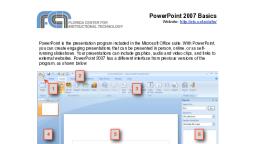
Dear Students, Do this work in your fair notebook. Also make section page., , Unit- 5 Digital Presentation, Concept learned, 1. Digital Presentation : Digital presentation refer to method of, presenting information in the form of slides., 2. Menu bar : It appears below the Title Bar. It shows the menu, items like File, Edit, View, Insert, Format, etc. On selecting a, menu item, its submenu will open., 3. Formatting text : Formatting Text refers to the formatting of, paragraphs and characters. To do the formatting, first select, the text and then apply the required text formatting features., 4. Print preview : Print preview is useful to check the document, before printing. A user can check that how the document will, look like after printing., 5. Zoom : It allows to change the scale of the text and pictures in, the document only for view., 6. Status bar : It is located at the bottom of the workspace. It, displays the number of pages, words, the language used,, zooming, etc., Questions – Answers
Page 2 :
Q1. List the possible multimedia contents that are included while, creating a presentation., Ans. Possible multimedia contents that are included while creating a, presentation are :, 1., 2., 3., 4., , Audio, Video, Image, Animation, , Q2. List the important points to be considered while making an, effective presentation., Ans. Important points to be considered while making an effective, presentation are :, (a) On one page or slide try to include only 5 to 8 lines., (b) In presentation keep the font size appropriate so that the, audience can easily read the contents., (c) The grammar and language should be correct in your, presentation., (d) Try to avoid inserting more than two graphics (images, drawings,, tables or charts) in any slide., (e) Do not include more than one animation or video in one slide., (f) Pay attention to target group to meet the requirements of the, target audience., Q3. What objects can be inserted to slides in Impress?, Ans. Various objects can be inserted to slides in Impress are :, 1. Tables, 2. Shapes, 3. Textbox, 4. Charts
Page 3 :
Q4. What are the steps to add picture or object to the slide?, Ans. To insert an image in your document, position the cursor where, you want to insert the file, select Insert → Image., OR, Click on the insert image icon, located below the Formatting Toolbar., Select the image file and click on Open button or just double click on, the image file. The image will get inserted in the file., Q5. Describe the use of fields available in header and footer., Ans. Fields available in header and footer are :, 1. Header : A header is a text/section which appear at the, top of the slide., 2. Footer : A footer is a text/section which appear at the, bottom of the slide., 3. Date & Time : This option helps to add Date and Time in, header section of slide., 4. Page Number : This option helps to add page number on, slide., Q6. Write down the steps to add slide transition in your, presentation., Ans. Steps to add slide transition in your presentation are :, 1. In the Sidebar, select the Slide Transition icon., 2. Select the slides to apply the transition. If you want to, apply the transition to all the slides, do not select any, slides., 3. Select a sound from the Sound list., 4. Select how to advance to the next slide: manually (By, mouse click) or automatically., 5. To apply transition to all slides, click Apply to All Slides., 6. Click Slide show to view the applied transition.
Page 4 :
Q7.Write down the steps to create a table in a presentation., Ans. Steps to create a table in a presentation are :, 1. Click on slide where you want to insert table., 2. Select Insert — > Table, 3. Specify the number of rows and columns, 4. Click OK, Q8. What are the five views of presentation?, Ans. Five views of presentation are :, 1. Normal View, 2. Outline View, 3. Notes View, 4. Slide Sorter View, 5. Handout