Page 1 :
“%, , MICROSOFT EXCEL 2016, , | LEARNING IN THIS CHAPTER lo asta, , © Features of Excel f= Entering data in a Worksheet, Types of data, , s ji A re, i patting Excel 2016, Components of a Worksheet ® Performing calculations, Working with a Worksheet, cving around the Spreadsheet ® Saving a Workbook, , Microsoft Excelisa Popular spreadsheet component of Microsoft Office Suite that allows youto store, Organise, calculate, and manipulate the available data. It is widely used to perform mathematica, calculations. The data is spread in a tabular form, consisting of rows and columns. It provides inbuilt, , features and tools, suchas formulae, functions, and data analysis tools that make it easier to work with, large amount of data., , ® FEATURES OF EXCEL, , » Formulae are mainly used for performing simple and complex mathematical calculations. Functions, , are the built-in formulae used for calculating percentage, interest, average, etc., » Formatting features improve the appearance of data., » The data is automatically recalculated in the entire worksheet if any change is made ina single cell., » The data can be searched quickly and if required replaced instantly., » Quick data entry can be done ina large series of cells by using the Auto Filloption., , > The data can be viewed in a graphical form, such as charts, which help to understand, analyse, and, compare data inan effective manner., , These advanced features have made Microsoft Excel, the first choice for professionals to quickly, perform lengthy accounting and financial tasks, that help in taking promptactions., , ® STARTING EXCEL 2016, To start with Excel 2016, follow the given, , 3, Click on, Excel 2016, , , , , steps:, , , , My Cashflow Stock Analysis, , ltl, Ze, , tearied vn KiPS <2>>, , , , _ a, , Scanned with CamScanner
Page 2 :
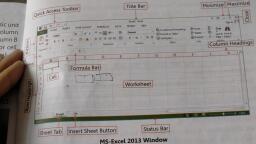
a, , ou open Excel 2016, the Start Screen appears. Select the Blank, ook thumbnail from the screen. A new blank workbook named Book1, open before you., , 9 pasic WORKSHEET AND WORKBOOK CONCEPTS, , 4 excel window that appears on the screen is called a Workbook. It is, ned a temporary name as Book1. Workbook is like a notebook, which, mas of a number of pages called Worksheets. A Worksheet is a grid-like, 1e2) made up of rows and columns, where you can enter and work with data., z default, an Excel workbook displays a single worksheet, with the name, gheet. We can add any number of worksheets in a workbook according to, thelimits of memory available on a computer., , aworksheet consists of 1,048,576 rows and 16,384 columns. Columns are, represented by alphabets on the top and rows by numbers on the left side of, theworksheet., , , , , , , , , , , , , , Worksheet, iew Option:, , , , , , , , , , (ae, , Figure 8.2: The Spreadsheet Window, , > COMPONENTS OF A WORKSHEET, CELL, , Nellis. an intersection of a column and row in a worksheet. Each cell is, , itentified by its column letter and row number, which is known as Cell Address., Learning, , Computers with Kips <3>, , ~~, , , , , , , The First electronic, spreadsheet was VisiCalc,, which was created by, Daniel Bricklin (R) and, Bob Frankston (L) in the, early 1980s., , , , , , , , , , Let’s Know More, , You can apply a, background to the Excel, sheet., , Click on the Page Layout, tab > Background option, in the Page Setup group., , , , , , , Quick View, , To create a shortcut of, Excel, select the Microsoft, Excel option from the, Start menu and drag it on, the desktop., , , , , , , , Quick View, , You can use Ctrl + F1 key, combination to hide and, display the ribbon as per, the requirement,, , , , , , , , Know the Fact, , Merge & Center button, on the Home tab lets you, place the content in the, centre of cells across a, number of columns/rows., , , , , , Scanned with CamScanner
Page 3 :
Forexample, AS refers tothe cellat theintersectionofcolumnAand, text, numbers, formulae, functions, etc. Acellcancontain upt, , ACTIVE CELL, , When you click ona cell, a thick black border appears around it, w, the cells. This highlighted box is called Cell pointer. It indicates th, , be entered only inthe active cell., , RANGE, , Arangeis a group of contiguous cells, which form the shape of, cell or as big as an entire worksheet. You can specify a rang!, followed by the ending cell address, both separated by a colon (:). For example,, , 032,767 characters., , arectangl, , range starting from C1 cell address and ending in C10 cell address., , NAME BOX, , Name Box is located just above the Column heading on t, , the location of the cell pointer., , FORMULA BAR, , The Formula Bar is located to the right of the Name Bo, , that you enterinan active cell., , COLUMN HEADINGS, , Alphabets across the top border of each wor, identify columns with letters A to Z, AA.... AZ, BA, , contains 16,384 columns., ROWHEADINGS, , Row headings a!, represent each row of it., , STATUS BAR, , The Status bar is!, select, warning messages., , ® MOVING AROUND THE SPREADSHEET, , To input dataina, , various keys definedin the given table., >. eau win KiPS <a, , x, This bar shows the characters and formulae, , ksheet are called column headings. These headings, BZ, ....XAA....XFD. Every worksheet in Excel, , re the numbers marked from 1 to 1,048,576 along the left border of the worksheet to, , located at the bottom of the Excel window. It gives us information about the current, ion. It includes the name of the currently selected command or current activity. It also displays, , worksheet, we have to move the cell pointer from one cell to another with the help of, , Scanned with CamScanner, , row5.Acellis usedto store data, su,, 5, , hich differentiates it from the restoy, at the current cell is active. Data ca,, , e. Itcan be as smallasa single, , e by writing the starting cell addres,, C1:C10 indicates 3, , he left side of the window. This area displays, , , , , , be
Page 4 :
Moves one row up, , Moves one row down, , Moves the active cell highlight to first row of the spreadsheet, and can be used as an alternative to scroll up the worksheet, , pwn | Moves the active cell highlight to the next sheet and can be used, , | Pag | as an alternative to scroll down the worksheet, , Me | ioverthe cal Gate row, ctri+Home Moves the cell pointer to the first cell of the topmost row, i.e., Al, , —erleend _| Moves the cell pointer to the last used cell on a spreadsheet, , , , » ENTERING DATA, , follow the given steps to enter data ina worksheet as shown in Figure 8.3., , > Openanew workbook by selecting the blank workbook thumbnail from, the Start Screen., , > Click on the cell D1 and type ‘Weekly Expense’. Now, select the cell range, where you entered the text. Click on the Merge & Center button in the, Alignment group on the Home tab. The selected cells will be merged and, thetext will be centred., , > Click on the cell A2 and, type ‘Items’. Press the, Right arrow key. Type, ‘Monday’ in B2 and, ‘Tuesday’ in C2. Likewise,, enter data in the rest of, the cells as displayed in, Figure 8.3., , ‘Center button, sara) i, , fe Bsc HO H4ER0FGS, , gorcetp! o (eat s i, WEEKLY EXPENSES, , , , > Click on the cell A3. Type, ‘Eatables’ and press the, Enter key. The cell, Pointer shifts to cell Ad., , , , Figure 8.3: Entering Data, , Type ‘Cold Drink’ and press Down arrow key to move to cell A5 and type, ‘Milk’, Similarly, enter the remaining data., , Learning, , Computers with, , , , , , , , , , Quick View, , We can expand or collapse, the formula bar by using, Ctrl + Shift + U, , key combination., , , , , , , , , , , Quick View, , , , , To open a workbook, click, ‘on the Open option[3], on the File tab menu or, press Ctrl+O key, combination., , , , Quick View, , To insert a new worksheet,, press Shift + F11., , , , , , , , , , , , , , Quick View, , To go toa specific cell, use, Ctrl + G or press F5, function key. Type the cell, reference in the, Reference field of Go To, dialog box., , Kips <25>, , , , , , , Scanned with CamScanner
Page 5 :
> TYPES OF DATA, , Three types of data can be entered ina Microsoft Excel worksheet. T, > Formulae, , hey areas follows:, , > Numbers ~ Fee, NUMBERS, like +,~ 4 @, $,%, 4, &, etc, They, , Numbers are values that consist of numerals from 0 to 9 and characters, ;, res date and time as numbers,, , can be used in calculations. In addition to actual numbers, Excel also sto, By default, numbers are right aligned ina cell., , TEXT, , cial characters. Text data is not used ip, , Text data can contain alphabets, numbers, spaces, and spe, text entries are used for worksheet, , calculations. By default text datais left aligned ina cell. Most often,, headings, names, andidentifying columns of data., , FORMULAE, , Formulae are mathematical equations involving number values,, performing calculations on a worksheet. Formulae can range from b, complex calculations. Formulae begin with an equal to (=) sign., , operators, and cell addresses used for, asic mathematical operations to, , , , , , , , , , , , , , » PERFORMING CALCULATIONS 8, Excel has a powerful feature to perform m2 z, calculations on the data. We can perform addition, = * gowe “ cate |, subtraction, multiplication, and division of |e “~=j#|x v # Lcancnonenncs, * . . . 4 A is cur | D poe je co foue +, numbers, either using formulae or using functions. a TCLUDGENSES!, The result of the calculation is displayed in the cell [Firm ae |, : 4 ott vin 70 oe eee |, where the formulais entered. jai ow a eee eee, sfeeet 3 5 3 3 3 ia, To calculate the total expense in H3, type = B3 ten os mg |, y oo 0, + C3 + D3 + E3 + F3 + G3 and press the Enter |io}roatcipenes 5 BB |, 4] |, SMB ey, The sum of the values in cells B3 to. G3 iS [Tsar | sme [Sew [> 5 a, tat ~ a, , , , , , , , Example calculated and displayed in the cell H3., Figure 8.4: Applying Formula, , > Wecanuse either upper-or lower-case letters while entering the cell address ina formula., , Excel also provides a quicker and easier way of performing calculations. Click on the AutoSum, button & present either on the Formulae tab or the Home tab. Excel suggests a range, which we, , caneitheraccept orselecta different range., ake use of the AutoSum option, move the cell pointer to cell H4. Click on the AutoSum button, , > Tom, cept the range by pressing the Enter key. The sum of the values, , Excel suggests the range B4: G4. Ac, , abel with Kips <36>, , Scanned with CamScanner