Page 1 :
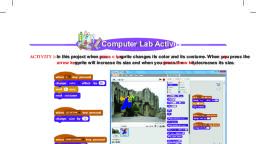
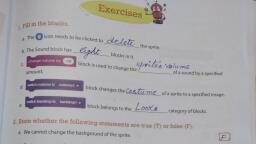
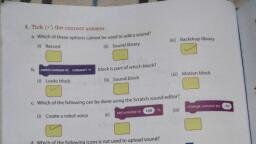
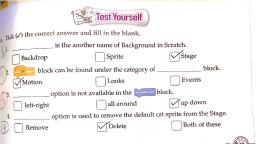
6. Changing Costumes and Backdrops in Scratch, Exercises, 1.Fill in the blanks., a. The trash icon needs to be clicked to delete the sprite., b. The sound blocks has eight blocks in it., c. Change volume by (-10). block is used to change the Volume of a sound by a specified amount., d. Switch costume to costume1 block changes the costume of a sprite to a specified image., e. Switch bockdrop to backdrop1. block belongs to the Looks category of blocks., 2.State whether the following statements are true (T) or false (F)., a. We cannot change the background of the sprite., False, b. Costumes cannot be edited., False, c. We can record our voice and add as the background sound on scratch program., True, d. Only 10 sprites can be added to the stage at a time., False, e. Costume can be coded for the backdrop as well as the sprite., True, 3. Match the following., a. Sounds tab (v) (i) move (10) steps, b. Costumes tab (iv) (ii) clear sound effects, C. Sound block (ii) (iii) next backdrop, d. Looks block (iii) (iv) Upload costume, e. Motion block (i) (v) Record sound, 4. Tick () the correct answer., a. Which of these options cannot be used to add a sound?, (iii) Backdrop library, b. switch costume to costume1 - block is part of which block? (i) Looks block, c. Which of the following can be done using the Scratch sound editor?, (i) Create a robot voice, d. Which of the following icons is not used to upload sound?, (ii), e. Which of the following shows the extension for an exported costume?, (ii) .svg, f. The sound block option enables us to add in our program. (ii) sound effects, g. Every sprite has minimum of costume pre-designed in Scratch., (i) one, 5. Answer the following questions., a. Write down the steps to add a new backdrop to a program., Ans- Steps to add a new backdrop to a program:, Click Choose a Backdrop option on the bottom right corner., Select the backdrop of your choice. The new backdrop will appear., Background can be added by going on the Backdrops tab on the palette as well., b. What are the different Sound blocks? Explain any four of these., Ans- The sound block option enables us to add sound effects in our program. It has 8 blocks. The following blocks control the playing of these sounds:, Play sound ( ) until done: This block is used to play a sound, wait for it to finish playing, and then carry on with the next line in script/code., Start sound ( ): This block is used to play the sound in the background, alongside running the rest of the lines of the code., Stop all sounds: This block is used to cancel all sounds currently playing., Set volume to (100) %: This block is used to set a sprite’s volume to a certain percentage level., c. What is a backdrop? Can we paint a backdrop? If yes, how?, Ans- The backdrop is an image used to change the background of the stage., Yes, we can draw the backdrop using the drawing tools provided by Scratch., Click on the icon called Paint new backdrop to the right of the Sprites panel., Use the drawing tool in the Backdrops tab to paint your backdrop., (iii) When you are finished, don’t forget to give your new backdrop a sensible name., d. Write the steps to add a sound in the background of a program., Ans-Steps to add a sound in the background of a program:, Add the sound to the program from the Sounds tab., Add the start sound () or play sound () until done blocks (depending on the Program’s requirement) and select the sound suitable for the backdrop., We can add the sound to our program either by coding the backdrop or the sprite.