Page 1 :
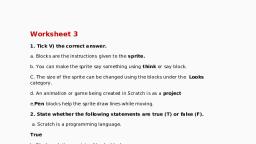
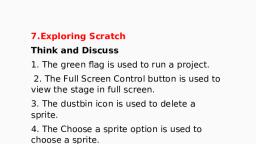
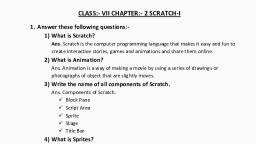
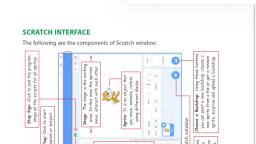
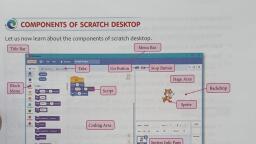
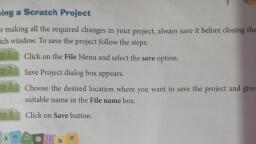
6. Introduction to Scratch, Think and Discuss, a. Hello- English b. Namaskar-Hindi, c. Bonjour-Spanish d. Hola-French, I can do! (Page 72), a. Upload a backdrop, b. Surprise, c. Paint, d. Choose a backdrop, Exercises, 1.Fill in the blanks using the given words, a. The current version of Scratch as of 2020 is 3.6.0, b. Sprites are the images you use in your program., c. You can save the project using the File menu, d. The red flag is used to stop the program from running., e. Block-based coding is a form of coding mostly used for beginners., 2. State whether the following are true or false., a. The default scratch backdrop cannot be changed., False, b. MIT Scratch is used by kids throughout the world., True, c. You can paint your own sprite using the paint editor., True, d. A Scratch program is saved with .sb3 extension., True, e. A dog is the default sprite in scratch., False, 3. Match the following, a. (iii) i) Sprite, b. (iv) ii) Run the program, c. (i) iii) Change language, d. (ii) iv) Stop running a program, Q. 4 Draw the default sprite of the Scratch application in the box, 5. Name the various parts of the scratch environment using the words, a. Blocks palette b. Sprite list area, c. Menu bar d. Backdrop area, e. Script area f. Stage, 6.Answer the following questions., a. what is block-based coding?, Ans-Block-based coding is a type of programming language where instructions are given by dragging and dropping blocks in the coding area., b. Name all the parts of the scratch desktop window., Ans-The basic parts of the Scratch window are as below:, Title Bar, Menu Bar, Blocks Palette, Scripts Area, Stage, The Sprite List Area and Backdrop Area., c. What are the four-option available to change the default sprite?, Ans-The four options to change the default sprite are as below:, Add a new sprite from your desktop, Get a surprise sprite, Paint your own sprite using paint editor, Find a new sprite from scratch library, d. Name any three types of blocks available in the blocks palette., Ans- The blocks available in the blocks palette are:, 1. Motion 2. Looks 3. Sound 4. Events, e. Give the steps of saving a scratch project., Ans-Following are the steps for saving a Scratch project:, Click File → Save to your computer., The Save As dialog box will open., Go to the folder you want to save the file in. Change the file name of the file and click the Save button., The project will be saved with an extension.sb.