Page 1 :
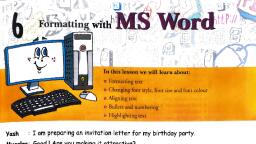
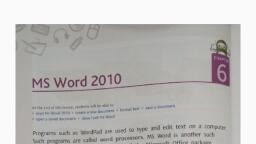
Formatting in MS Word, , , , , , 4, , , , pter, you will be, , , , After going through this cha, able to—, , * format a word document;, , * change the font, font size, font colour of text in, , aword document; and _, * explore different ways to align and highlight the, , text., , , , , , , In the previous chapter, Asmita typed a letter to her grandparents. She then took a, printout with the help of her uncle. She now takes the letter to her school to show itto, , her teacher, Ms Kapoor., Ms Kapoor is very impressed with Asmita’s work and praises her in front of the class., Asmita is delighted., , Ms Kapoor is now ready to introduce some new features of MS Word. She shows, Asmita’s letter to the class. She tells the class that a document in Word can be made, , more attractive., MS Word lets you change the size and colour of the text. You can highlight the, important words or sentences. You can also add some effects to the text., , She further explains, ‘Changing the appearance of the document refers to formatting:, , —
Page 2 :
Changing Font and Font Size, , Ms Kapoor takes students to the computer lab. The students switch on their computers, and open MS Word., , Ms Kapoor is typing Asmita’s letter on her computer in the lab. She types the following, text., , , , Giegeai 7 - a ee eS, ery-mxe &-7-4- BS=, fee =, , AE Pata Whar, , , , Bi September IS, , Fig.,7.1 Word.document, P|, +n Tv Sp’ pe, Now she shows to the class how to’change the appearance of the text. She selects, , the first two lines and then clicks on the Font drop-down button. She then selects the, Times New Roman option., , , , , , , , , Theme Fonts, | oa oman Remember, , | ae The Font and Font, ane New } Size drop-down, pera ae ) commands are, oven j present in the Font, , (Ee | group under the, , “Times New Roman Home tab., , ¥ Fig. 7.2 Font drop-down list, , Ms Kapoor further tells the class that some font faces are serif while others are, , sans serif. The serif fonts use small lines as the decorative marks at the end of each, character. The sans serif font faces do not use these decorative lines.
Page 3 :
This is a serif font., , This ‘is a sans serif font., , Fig. 7.3 Examples of Serif and Sans Serif font, e class that the number displayed to the right of the Font, , ¢ the text. She follows these steps to, , Ms Kapoor explains to th, ze-ot the tex’, , drop-down button is used to-change the-si, change the size of the text., 1. She clicks on the Font Size drop-down button., , 2. She selects 18 from the list. The size of the text, , She then shows the formatting done on those two, , changes., , lines of text., , , , , , H 6-0 =, i rae insert Design Layout RI, ‘Calibri (Body) ee K, Brurve® }i¢, wat Painter 9 al, Clipboard fe 10 |, f jn |, 3 2, 2 a fr “, a ! iF A-41 Palam Vihar, 3 c " New Delhi, > 120 Ea Bi September 2018, a) b), , Fig. 7.4 Changing font size, , Asmita’s classmate Abram asks Ms Kapoor, ‘What is a font?’, The teacher defines font as follows— :, ‘The.characters.displayed-in-a-specific size and design used for typing the text are, , uGglledfermtsMiee, She further adds, ‘By default, the font size is 11 and font type is Calibri (body).’, , Changing Text Colour, , Ms Kapoor continues to type the letter. She h, , E : aS Now writt . d, of the letter. She decides to change the colour of the ee few lines of ea, steps to the class. . She explains the follo, , 1. She selects the text and clicks on the Font Colour A+ E P, rop-down arrow., , 2. A list of pre-defined colours appears. She selects the blue colour from the list, ur fro’ .
Page 4 :
a: maxes —, Sie si all, HB Automatic, Theme Colors, , a i Did You Know?, ‘ bibaaal You can select the, , font, font colour, and, Standard Colors, , font size before you, EEE SRE eee type the text to avoid, More Colors. selecting the text, Gradient, , later., », Fig. 7.5 Font Color menu, , , , , , , , 3, The colour of the selected text changes., _ A-41 Palam Vihar ae, | New Delhi, _ 23 September 2018, , | Dear Grandpa,, , , , Fig. 7.6 Changing the font colour of the text, , Bold, Italics, and Underline, , : f the letter., , Ms Kapoor has finished typing the body ©, , ¥ p that there are some features that are used to emphasize and, : € explains to the “ me important information. She explains the given steps to, , Taw attention towards SO!, , Use these features., , 1. Select the text., , 2 Click on the Bold button |B, , : [ rse, 3. Click on the Italic button 7 ele, the right., , 4c: . button . ts, 5 lick on the Underiing h button [a to cross out the text by drawing a line, » Click on the Strikethroug” ~ —, , through it. oo ae, , -, the Font group. The text will become bold (thick)., in, lecting the text. The text appears slanting to, , \y to place a line under the text.
Page 5 :
wn below., Ms Kapoor now formats the letter as sho, , , , , , , , , , , , ‘A-41 Palam Vihar, ‘New Delhi, Bold —+23 September 2018, Dear Grandpa,, _How are you and Grandma? | want to thank you for gifting foe ne Books, Underline it has beautiful colourful pictures. ! love Baloo, the ee 8 ae, "back panther. Mowgli is so sweet and brave. He fights the ni, “I cannot wait to visit ‘you next month. Give my LOTNOCIRTAM ES _, Fig. 7.7 Formatting text, Quick Tip Did You Know?, You can use the There is a dropfollowing keyboard _down arrow near the, shortcuts: Underline button, Bold—Ctrl + B that allows you to, ¢ underline the text in, peu | different ways and., Underline—Ctrl + U change the colour of, the line. :, Highlighting Text, , Ms Kapoor further explains that the important points in, the document c can be highlighted. She demonstrates the, , , , et, , BB geo, , lick-the- ‘drop-down arrow of the Eg Ey gE a a, ia No Color, , Text Highlight Color “command., = The colour pale npoas, Select the desired colour [Senter, ighlight the ~~ Fig. 7.8 Text Highlight Color me”, , , , , , , , , , , , , wish to highlight.