Page 1 :
UNIT : 4, WEB APPLICATION AND SECURITY
Page 2 :
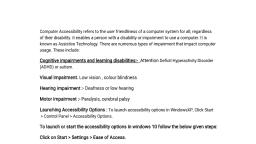
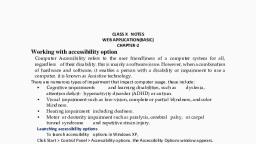
SESSION 1: WORKING WITH ACCESSIBILITY OPTIONS, , Computer Accessibility:, It refers to the user friendliness of a computer system for, all, regardless of their disability. This is mainly a, software issue. However, when a combination of, hardware and software, it enables a person with a, disability or impairment to use a computer. It is known as, Assistive Technology., 2
Page 3 :
SESSION 1: WORKING WITH ACCESSIBILITY OPTIONS, , Types of impairment that impact computer usage:, ●, Cognitive impairments and learning disabilities, such as, dyslexia, attention deficit-hyperactivity disorder (ADHD) or, autism., ●, Visual impairment such as low-vision, complete or partial, blindness, and colour blindness., ●, Hearing impairment including deafness., ●, Motor or dexterity impairment such as paralysis, cerebral palsy,, or carpal tunnel syndrome and repetitive strain injury, 3
Page 4 :
SESSION 1: WORKING WITH ACCESSIBILITY OPTIONS, , Accessibility Options in Control Panel are used to, customize the way your keyboard, display, or mouse, function., , ➢, , ➢, , 4, , Keyboard Tab, ●, Sticky Keys, ●, Filter Keys, ●, Toggle Keys
Page 5 :
SESSION 1: WORKING WITH ACCESSIBILITY OPTIONS, ●, , 5, , Sticky Keys: Sticky Keys is an accessibility feature, to help computer users with physical disabilities, but it, is also used by others as a means to reduce repetitive, strain., Sticky Keys allows the user to press and release a, modifier key, such as Shift, Ctrl, Alt, or the Windows, key, and have it remain active until any other key is, pressed.
Page 6 :
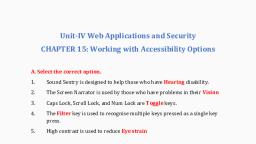
SESSION 1: WORKING WITH ACCESSIBILITY OPTIONS, , Filter Keys: It is an accessibility function that tells the, keyboard to ignore brief or repeated keystrokes, making, typing easier for people with hand tremors., ●, Toggle Keys: is designed for people who have vision, impairment or cognitive disabilities. When ToggleKeys is, turned on, computer emits sound cues when the locking keys, (Caps Lock, Num Lock, or Scroll Lock) are pressed. A high, sound is emitted when the keys are switched on and a low, sound is emitted when they are switched off., ●, , 6
Page 7 :
SESSION 1: WORKING WITH ACCESSIBILITY OPTIONS, , ➢, , 7, , Sound Tab, • Sound Sentry, • Show Sounds
Page 8 :
SESSION 1: WORKING WITH ACCESSIBILITY OPTIONS, , Sound Sentry: Sound Sentry is designed to help users, with auditory impairments. Sound Sentry generates visual, warnings, such as a blinking title bar or a flashing border,, whenever the computer generates a sound., ●, Show Sounds: Show Sounds instructs applications that, convey information by sound, to also provide information, visually, through text captions or informative icons., ●, , 8
Page 9 :
SESSION 1: WORKING WITH ACCESSIBILITY OPTIONS, , ➢, , 9, , Display Tab, • High Contrast, • Cursor Option
Page 10 :
SESSION 1: WORKING WITH ACCESSIBILITY OPTIONS, , High Contrast: High Contrast is an accessibility feature, to assist people with vision impairment. You can change, the size and colour of fonts and the background for ease, of viewing., ●, Cursor Options: Cursor option is also an accessibility, feature that assists people with vision impairment by, changing the blink rate and width of the cursor., ●, , 10
Page 11 :
SESSION 1: WORKING WITH ACCESSIBILITY OPTIONS, ➢, , 11, , Mouse Tab, • Mouse Keys: It is an accessibility feature that, assists people who have difficulty using a mouse., This option uses the keyboard (especially numeric, keypad) as a pointing device instead of a mouse.
Page 12 :
SESSION 1: WORKING WITH ACCESSIBILITY OPTIONS, ➢, , 12, , General Tab, • Serial Keys: It is an accessibility feature that, assists people that have difficulty using a keyboard, or a mouse (or both). They can use special devices, such as Sip, Puff and Breath Switches to provide, input to the computer through Serial Ports.