Page 1 :
Class X – IT (402) Board Practical File, Class X – IT (402), Board Practical File, , Submitted by :, Class & Section :, Roll number :
Page 2 :
Q1 Write the steps to create table with minimum five fields on an entity "STUDENT", in design view., Ans. We will design the following table, Field Name, ID, Name, Address, Phone, DOB, , Data Type, Integer, Varchar, Varchar, Varchar, Date, , Constraints, Primary Key, , 1. Click on Create Table in Design View… option available under Tasks and a Table, Design window appears as shown below, , 2. Specify the field name and data type of the field to be created as shown below, 3. In the grey box at the left of the line, right-click and select Primary Key, bringing up, a key icon in the box.


Page 3 :
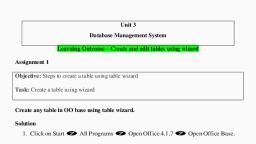
4. Save the table (File > Save), Q2 Write the steps to create Employee record Table using wizard Option., The following are the steps to create a table, 1 Click on Tables > Use Wizard to Create Table , the window shown below will open, , 2 Click the Select Fields > Choose Category > Select the table (in the picture shown below, “Business” category and “Employee” table has been chosen) > Click on Next Button.
Page 4 :
3 Select the fields as per the requirements and select on buttons to add the predefined, columns or select to remove the fields from the Selected Fields Box. After selecting the, fields click on Next Button., , 4 Set data type and formats for each field and click NEXT
Page 5 :
5 Set primary key for the field according to your own choice and click on FINISH ,Table has, been created. Enter the data in the field of a table.
Page 6 :
Q3. Write the command for the following table Student., Roll_no, 1, 2, 3, 4, , Class, XII, X, X, XI, , Name, Sumit, Amit, Anuj, Mini, , Phone number, 112345, 345789, 678890, 806788, , 1. Display all the records of table Student., 2. Insert record of your choice, 3. Display record of student whose roll number is 3, 4. Display record of students who are in class 'X, 5. Display the record of 'Anuj', Ans, , 1. SELECT* FROM student;, 2. INSERT INTO student VALUES(5, 'XI' , 'Suman' , 6953245) ;, 3. SELECT * FROM student WHERE Roll no = 3;, 4. SELECT * FROM student WHERE Class = 'X';, 5. SELECT* FROM student WHERE Name = 'Anuj';
Page 7 :
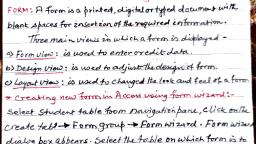
Q4 Write the steps to create a form using a wizard view., A4 The following are the steps to create a forms, 1 )Click on Tables > Use wizard view to Create Form , the window shown below will open, , 2 )Click Use Wizard to Create Form… option under Tasks group. The Form Wizard dialog, box appears as shown below.
Page 8 :
3 )You can select selective fields to be sent onto the form by selecting the field name and, clicking >button., 4 )You can select individual fields in a database or all fields in a database., , 5) Click Next >. You see the Set up a sub form step dialog box of the wizard as shown below., , 6 )You can select the option Add Sub form if you need to insert the contents in the table in a, separate form. Click Next>.
Page 9 :
Now you need to arrange selected fields in a form. You can use different styles from the list, displayed below, , 7) Once you have selected a style, click Next > A dialog box appears where you can select, the data entry model., , 8 )Click Next >. You should see a dialog box wherein you can specify the styles to be used in, the form
Page 10 :
9) Click Next >. You see a dialog box where you can specify the name of the form. Click, Finish.
Page 11 :
A form window appears. Notice that the records in the table are displayed automatically, within the form that you just created.