Page 1 :
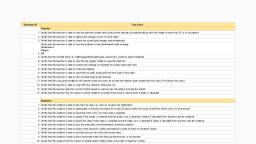
Testcase ID, , Use Case, Teacher, 1 Verify that the teacher is able to see the preview screen with correct time and day scheduled along with the mode in which the VC is to be played, 2 Verify that the teacher is able to adjust the settings of the mic and video, 3 Verify that the teacher is able to share the screen,pdf,images and whiteboard, Verify that the teacher is able to use the toolbars of the whiteboard while sharing:, Whiteboard, Images, 4 pdf, 5 Verify that the shared items as :pdf/image/whiteboard gets saved if it's saved to study materials, 6 Verify that the teacher is able to use the low quality mode to save the internet, 7 Verify that the teacher is able to control the settings of students for audio,video and chat, 8 Verify that the teacher is able to mute all students, 9 Verify that the teacher is able to start the live polls along with the time span of the polls, , 10 Verify that the teacher is able to do live streaming using Youtube, 11 Verify that the class gets ended as the teacher ends the class for all and the teacher gets exited from the class if he leaves the class, 12 Verify that the teacher is able to chat with the students during the VC, 13 Verify that the teacher gets the count of hand raised as well as has the option to lower the hands, 14 Verify that the teacher has the option to allow students to speak if the hand is raised even if audio is disabled, Students, 1 Verify that the student is able to join the live class as soon as he gets the notification, 2 Verify that the student is able to participate in the poll and select the A,B,C,D option within the span of time for which poll is to be finished, 3 Verify that the student is able to send the chat in the VC if the chat is enabled, 4 Verify that the student is able to speak if the audio is enabled and the audio icon is disabled if audio is disabled from teacher side for students, 5 Verify that the student is able to share the video if the video is enabled and the video icon is disabled if audio is disabled from teacher side for students, 6 Verify that the student is able to see the video,files and whitebaord shared by teacher, 7 Verify that the student is able to listen to the teacher's audio and teacher is able to listen to student's audio, 8 Verify that the student is able to exit the class as he clicks the Leave class, 9 Verify that the student is able to raise hand and lower the hand by themselves or by teacher, 10 Verify that the student has the option to enable audio mode where only audio of teacher is there
Page 2 :
Testcase ID, , Use Case, , Release Version, , Jira ticket, , 17 Verify that there is a toggle button in the test creation page, , 5.3.0, , https://teachmint.atlassian.net/browse/TT-1241, , 18, , 5.3.0, , https://teachmint.atlassian.net/browse/TT-1241, , 15 Verify that the assignment tab is replaced with Homework, , 5.3.0, , https://teachmint.atlassian.net/browse/TT-1081, , 16 Verify that the assignment tab is replaced with Homework, , 5.3.0, , https://teachmint.atlassian.net/browse/TT-1081, , 17 Verify that there is no submission marks for those students for which teacher has not set the marks, , 5.3.0, , https://teachmint.atlassian.net/browse/TT-1081, , Summary, 1 Should display the list of subjects that has been selected during creating the classroom, 2 Should be able to copy/paste the classroom ID when clicked on the copy icon under Classroom ID, 3 Should be able to share the classroom details and invite students over whatsapp and other sharing platforms when clicked on Invite students for Teacher, 4 Should display the list of attendees and absentees for teacher after clicking on Attendance button, 5 Should be able to download the attendance for the period of last 7, 6 should display the list of timetable and doubt session slots and tests and assignemts scheduled for that particular week, 7 Verify that the teacher is able to create doubt session for students with multiple times in a single day, 8 Verify that the students are able to ask for a doubt session to teacher with text along with an image attached, 9 should be able to join the live class after clicking on join live button, 10 should be able to view the recordings and study material from learn section by navigating to the particular tabs, , Test, 1 Verify that the all types of test can be created:(Subjective,Manual MCQ,ML mcq,Normal MCQ,ML mcq)with flexi date and without flexi date, 2 Verify that the students gets the notifications for the tests created/edited date and time, 3 Verify that the students are able to attempt the test within the timeline, 4 Veriy the the marks calculated is correct for tests attempted, 5 Verify that the teacher is able to view submissions for the tests finished by students, 6 Verify that the teacher is able to evaluate the subjective test+assignment, 7 Verify whether the score displayed for tests under test tab is correct, 8 Verify whether the tests created by teacher are displaying the same for students including questions, scores and answers(after submission), 9 Verify whether instructions are displaying correctly in test instruction page, 10 Verify whether images uploaded by teacher are not breaking for students, 11 Verify whether clilcking on submit button submits the test for students, 12 Verify whether notifications are displayed for students after their tests are evaluated, 13 Verify whether teacher are able to share the tests after clicking on share icon, 14 Verify whether teachers are not able to create/edit their tests by selecting the past dates, 15 Verify whether teachers are able to create the question paper only after selecting the answers, 16 Verify whether ranks displayed for students is in proper order ( students who got higher marks should be ranked first), , Chat, 1 Verify that the teacher is able to chat with students privately and vice versa, 2 Verify that the teacher is able to send chat on group, 3 Verify that the teacher is able to send text,audio,images,pdf in group chat and private chat with students, 4 Verify that the student is able to send text,audio,images,pdf in private chat but only text,audio in private chat, 5 Verify that the group chat is not visible to students if the chat is disabled by teacher but the private chat is visible, Assignments, 1 Verify that the students gets the notifications for the assignnments created/edited date and time, 2 Verify that the students are able to attempt the assignments within the timeline, 3 Verify that the teacher is able to view submissions for the assignments finished by students, 4 Verify that the teacher is able to evaluate the assignment, 5 Verify whether the score displayed for assignments under test tab is correct, 6 Verify whether the assignments created by teacher are displaying the same for students (date, marks and image), 7 Verify whether instructions are displaying correctly in test instruction page, 8 Verify whether images uploaded by teacher are not breaking for students, 9 Verify whether notifications are displayed for students after their assignments are evaluated, 10 Verify whether teacher are able to share the assignments after clicking on share icon, 11 Verify whether teachers are not able to create/edit their assignments by selecting the past dates, 12 Verify whether teacher are able to upload the maximum number of attachments, 13 Verify whether solutions uploaded by teachers are displayed to students, 14 Verify whether teacher is able to download the submissions which should be in csv format, , Notice board, 1 Verify whether announcement details are displayed as per creation in notice board tab, 2 Verify whether after downloading the image displays clearly in the preview section, 3 Verify whether image and description is not overlapping if the content is long, 4 Verify whether clicking on delete button displays the pop up and if confirmed should delete the announcement and by clicking cancel should return to the notice board tab, 5 Verify whether notifications are displayed to students once the announcements are posted by teacher, 6 Verify whether teachers are able to upload only one attachment in Add notice page, 7 Verify whether announcements are not posted if the description field is empty or entered less than 5 characters, Students, 1 Verify whether the list of enrolled students are displayed on 'students enrolled' list and students who have given request are displayed in 'enrolment requests' list, 2 Verify whether the date is displayed for teachers in enrolment request list for a particular student when they had given the request, 3 Verify whether clicking on enroll option accepts the students to the classroom and declining the request declines the students to join the classroom, 4 Verify whether respective profile picture of students are displayed, 5 Verify whether phone number of a student is displayed to teachers alone, 6 Verify whether teachers are able to search students in search field, 7 Verify whether teachers are able to call/chat/remove the student after clicking on the action icon, 8 Verify whether profile picture are getting updated for teachers if students changes their photo, 9 Verify whether teachers are able to invite the students by clicking on invite students option, Study Material, 1 Verify that the image from gallery is shareable to study material through app, 2 Verify that the PDF is shareable to study material through app, 3 Verify that the max pdf and image to be shared is 1, 4 Verify that the public url is generated when the image/pdf is shared, 5 Verify that the students are able to download and view the pdf and image shared by teacher, 6 Verify that study material is uploaded from live class too
Page 3 :
7 Verify whether teachers are able to copy the study material to other classrooms and edit and delete, 8 Verify whether respective document is displayed in thumbnail after downloading the document, 9 Verify whether respective document type is displayed in thumbnail before downloading, 10 Verify that the teacher is able to upload video from the local system, 12 Verify that the maximum mb allowed is 150 mb and if more than 150 is uploaded it throws the error message, 13 Verify that the image/pdf is shareable through the teachmint app to the classroom selected in the study material folder, 14 Verify that the image/pdf is only allowed to share through the teachmint, Recording, 1 Verify whether it automatically records live classes when clicked on "record classes when you go live" toggle button, 2 Verify whether user is able to edit the title and description of the lecture as per character limit, 3 Verify whether warning pop up is displayed after clicking on delete button, 4 Verify whether recordings are displayed under recording tab once recording stops in live class, 5 Verify whether recorded date is displayed under recordings tab, 6 Verify whether downloaded recordings are displayed under download manager, 7 Verify whether recorded lecture is not breaking down. Should display the full recorded lecture, 8 Verify whether recordings can be shared on youtube and other platforms, 9 Verify whether share warning pop up is displayed while sharing and while adding to the website, 10 Verify whether privacy settings can be set while sharing on youtube platform, 11 Verify whether speed of the recording can be changed after playing the video, 12 Verify whether the respective thumbnail and the duration of the recording is displayed correctly, 13 Verify whether clicking on remove option removes the recording from the website, 14 Verify whether progress bar is displayed for students, 15 Verify whether the video plays only from where it is left off, For offline notifications:, 1 When there is no student, 2 When there is 1 student, 3 When there is no timetable, 4 When there is timetable +when there is timetable with multislot, 5 When test is created and due date is changed, 6 Check for account, 7 When the study material is copied to list of classes +test is copied to other classes, Syllabus-Phase 1, 1 Verify that there is option to create syllabus at teacher side, 2 Verify that the syllabus is created using NCERT and Practice test, 3 Verify that the popup comes to exit and save while creating syllabus if the user clicks back button, 4 Verify that the teacher is able to delete and edit the syllabus after it has been created, 5 Verify that the syllabus is created for english language only, 6 Verify that the notification is sent to students once the syllabus has been created, 7 Verify that the student is able to view the syllabus created
Page 4 :
Testcase ID, , Use Case, Login, 1 Verify that an admin is able to create a new account with a phone number., 2 Verify that an Admin is able to login to his existing account., 3 Verify that the Resend OTP button is working., 4 Verify that an admin is not allowed to login with an incorrect OTP, 5 Verify that a new admin is asked to create a new institute when he is logged in., 6 Verify that for a new admin, after asking to create a new institute, Add Teacher is working., 7 Verify that the right dashboard opens after logging in for a particular institute., Home Page, 1 Verify that when a new admin joins, he is a non-premium member., 2 Verify that for a new user, the dashboard shows the welcome message and the How-to-use graphics., 3 Verify that the Home page has the name of the institute along with the Institute id., 4 Verify that the Home page loads with all the sections - Dashboard, Statistics, Today's schedule, Attendence, 5 Verify that the Home page has the Automated Insights tab., 6 Verify that the Home page has a the side dashboard consisting of Today's Schedule, Pending Requests, Classrooms, Teachers, Students and Attendence., 7 Verify that copying the Institute ID copies the complete invite that can be sent out., 8 Verify that Edit Institute Details button let's the user edit their name and Institute name., 9 Verify that the Help section on the sidebar contains Help, Send Feedback, Contact us and Logout., , 10 Non Premium Members - Verify that Teacher's attendence tab + Admin tab is locked., 11 Premium Members - Verify that Teacher's attendence tab + Admin tab is clickable and is opening correct., Pending Requests, 1 Verify that when a teacher sends a request to join an institiute, a pending request pops up on the home page and the Pending request tab., 2 Verify that when a teacher sends a request to remove an institiute, a pending request pops up on the home page and the Pending request tab., 3 Verify that when a teacher wants to connect multiple classrooms to an institute, a combined request pops up on the home page and the Pending request tab., 4 Verify that when a teacher wants to remove multiple classrooms from an institute, a combined request pops up on the home page and the Pending request tab., 5 Verify that accepting a Teacher's request adds the Teacher, Classroom and students to the respective tabs., 6 Verify that rejecting a Teacher's request removes the Teacher, Classroom and students to the respective tabs., 7 Verify that accepting a few requests and rejecting a few requests adds and removes the classroom accordingly, Today's Schedule, 1 Verify that Ongoing, Upcoming, Completed and Scheduled tabs show the right classes according to calender., 2 Verify that when a class is live, it's showing up in Ongoing tab and on home page, under the ungoing tab., 3 Verify that when a scheduled class is live, a 'Join Live' button comes up next to that class in all the tabs., 4 Verify that View Classroom button next to the classroom redirects to the right classroom., 5 Verify that the schedule and the number of students show up correctly in the classrooms., Teachers, 1 Verify that a list of all the teachers added to the institute shows up here, along with the subjects they teach and number of classrooms., 2 Verify that the Search works correctly on the search bar., 3 Verify that when a new Teacher is added, the teacher recieves a popup request to get added to the institute., 4 Verify that the status of the Teachers added are shown on the Teachers tab. Accepted/Rejected/Pending -> As per the action on the popup., Students, 1 Verify that a list of all the students added to the institute shows up here, along with their phone numbers., 2 Verify that the Search works correctly on the search bar., 3 Verify that when a new student is added, the student recieves a popup request to get added to the institute., 4 Verify that the status of the Students added are shown. Accepted/Rejected/Pending -> As per the action on the popup., Classrooms, 1 Verify that a list of all the classrooms added to the institute shows up here, along with their schedule and number of students., 2 Verify that when a scheduled class is live, a 'Join Live' button comes up next to that class., 3 Verify that View Classroom button next to the classroom redirects to the right classroom., Teacher's Attendence, 1 Verify that all the Teachers added to the insitute appears here along with the attendence., 2 Verify that this functionality is only accessible to Prime members., Admin, 1 Verify that the super admin is able to add other Admins here and when the admin logs in, they are redirected to this institute than a new account, 2 VErify that an admin is also able to add other admins and can perform all the functionalities of the super admin, 3 Verify that a list of admins and super admins are displayed on this tab., Help Section, 1 Help Section - Verify that FAQs are displayed correctly here., 2 Send Feedback - Verify that the admin is able to raise complaints., 3 Contact us - Verify that all the details are displayed rightly here., 4 Logout - Verify that Logout successfully logs out.
Page 6 :
Testcase ID, , Use Case, , Students, 1 Verify that the enrollment request approval (student), 2 Verify that the notification for assignment is received +due date changed, 3 Verify that the notification for assignment evaluation is recieved, 4 Verify that the notification for study material(pdf/image/video/youtube) is uploaded, 5 Verify that the notification for notice board is created, 6 Notification for 10 mints before VC is scheduled, 7 Notification for Live class started, 8 Verify that the notification for study material while live class is received )pdf/image/whiteboard, 9 Verify that the notification for the recordings is recieved, , Teacher, Verify that the notification for receiving the request for enrollment, request, 1, 2 Verify that the notification for submission of assignment is recieved, 3 Notification for 10 mints before going live, 4 Notifcation for marking manual attendance, 5 Notification for url for facebook community for not being the member (sat-sun), 6 Verify that the notification for the recordings is recieved, 7 Verify that the notification for classroom request for approval for TFI is recieved, 8 Verify that the notification for classroom request for removal for TFI is recieved, 9 Verify that the notification for student enquiry for teacher's website is recieved