Page 1 :
Lab-8 : Deployment of virtual classroom, What is a Virtual Classroom?, A virtual classroom is a video conferencing tool where instructors and participants engage with each other, and with the learning material. The difference with other video conferencing tools is that virtual, classrooms offer an added set of features that are essential to a learning environment., Virtual classroom software enables instructors to:, • moderate student participation, • display learning materials in the form of documents, slide decks, or multimedia files, • enrich the learning experience with screen-sharing and virtual whiteboard features, • divide the participants into breakout rooms, which the instructor can join, • engage the participants with polls and quizzes, • record the sessions (and manage those recordings), , Major benefit of virtual classroom software is that it facilitates student progress tracking. Instructors can, consult data such as class attendance and student activity. They can track a participant’s progress via online, polls and analytics, identify areas of difficulty, and help the participant learn challenging subject matter with, visual tools., , What Do You Need for a Virtual Classroom?, Physical Classroom environment is built using brick and mortar, a virtual classroom is composed of software, and hardware., To create a virtual classroom we need to find the most suitable virtual classroom platform to fit our needs., •, , Easy access—is key to help course participants learn course materials. When participants are required, to install software or download plugins, they can experience difficulties. The result is a poor learning, experience. Participants should be able to easily connect to digital tools, preferably using just a link, and their credentials., , •, , A user-friendly interface—is critical to help course participants use and navigate through digital, learning tools. When the interface is simple and intuitive, participants can quickly enjoy classes and, the relevant learning materials, communicate with instructors and collaborate with classmates., , •, , Efficient learning—instructors and content creators should be able to create desire contents of their, subject , Since each course is unique and provides different materials ,contents and homework for, students . so, it should be flexible enough to provide unique features according to subject matter., , •, , Content security—is a crucial element for content creators, and consumers(students). A virtual, classroom solution should help organizations and education institutions gain complete control over
Page 2 :
their content. The platform should also provide built-in security measures, such as authentication and, access controls, which help prevent unauthorized access, usage, and download of educational and, sensitive data., , Virtual Classroom Set-up:, Simulate a physical learning environment—instructors, teachers, and class participants need features that, simulate a physical learning environment, regardless of their current location. Even if participants are viewing, the class from their living room, the digital space should look familiar. A virtual classroom can help create a, suitable learning environment, using quality streaming, presentation tools., Features for interactive teaching—such as digital whiteboards and annotations, emojis, chats, and polls. All, of these features help instructors engage participants and create a dynamic and interactive learning, environment., Breakout groups—are features that split a virtual classroom into mini virtual classrooms, where participants, can work in small groups. Instructors can set a time limit for group work and bring all participants back to the, main virtual classroom., Easy sharing capabilities—instructors often share materials with participants. Instructors need to be able to, share screens, video, audio, and other resources. Easy and quick sharing is critical to ensure a positive, learning experience., , Examples- Kaltura Virtual Classroom , Vedamo , BigBlueButton , Adobe Connect .
Page 3 :
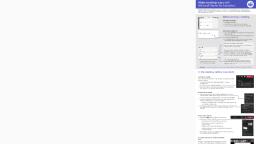
Lab-9: Deployment Of Power Point Presentation, Simple Tips to Design Your PowerPoint Presentation Better, 1., 2., 3., 4., 5., 6., 7., 8., 9., 10., 11., , Keep Your Slides Simple. ..., Limit Words on Your Slides. ..., Use High-Quality Photos and Graphics. ..., Use Accurate and Relevant Charts and Graphs. ..., Use High-Quality, Fresh Templates. ..., Choose Appropriate Fonts. ..., Choose Color Well. ..., Clean + Simple Formatting Makes All the Difference!, Make Sure All Objects Are Aligned, Limit Punctuation, Combine Information With Graphics in PowerPoint, , How to Make a PowerPoint Presentation (Step-by-Step), 1. Start a blank presentation :, Before you open PowerPoint and start creating your presentation, make sure you’ve collected your thoughts. If, you’re going to make your slides compelling, you need to spend some time on brainstorming., , 2. Type text into your title slide., on the Slide Area, there are two rectangles with dotted outlines. These are called Placeholders and they’re set, on the template in the Slide Master View, You can click into each placeholder and start typing text., you can make adjustments to your text by selecting the commands in the Home tab of the Ribbon., The Reset Command: If you make any changes to your title and decide you want to go back to how it was, originally, you can use the Reset button up in the Home tab., 3. Insert more slides., If you click on New Slide , you’ll get a blank slide with the same layout as the last one. If you want to insert a, new slide with a different layout, simply click on the New Slide drop down arrow. This gives you more options, of layouts to choose from., 4. Add content to slides.
Page 4 :
Content Placeholder, which allows you to add any kind of content. That includes:, •, •, •, •, •, •, •, •, •, •, , Text, A table, A chart, A SmartArt graphic, A 3D object, A picture, A picture from the web, A video, An icon, To insert text, simply type it in or hit Ctrl + V to paste in existing text from elsewhere. To insert any of the other objects,, click on the appropriate icon and follow the steps to insert it., , 5. Change the design., In Office 365, and newer version of PowerPoint comes with a new feature called Designer (or Design Ideas)., This is a feature that generates slide layout ideas for you. The coolest thing about this feature is that it uses the, content you already have., To use Designer, simply navigate to the Design tab in your Ribbon, and click on Design Ideas., , 6. Add animations & transitions (optional), 1., 2., 3., 4., , Animations are movements that you can apply to individual objects on your slide., Select the element, Go to the Animations tab in the Ribbon, Click on the drop down arrow to view your options, Select the animation you want, , Adding Transitions, Transitions are movements that you can apply to whole slides, which will show between two slides., 1. Select the slide, 2. Go to the Transitions tab in the Ribbon, 3. In the Transitions to This Slide area, click on the drop down arrow to view your options, 4. Select the transition you want, 5. To adjust the settings of the transition, explore the options in the Timing area of the Transitions tab.
Page 5 :
7. Save your PowerPoint presentation., We can save our presentation in number of different ways., , 1. the standard way to save a presentation, Save as .ppt extension (power point format),It allows to edit the content., , 2. Save your PowerPoint as a PDF, You also save file as PDF but file is not editable after and Multimedia content , animations, transition, disappears., , 8. Print your presentation., After finishing your PowerPoint presentation, if you want to print it out on paper go to the Ribbon and click, on File and then print.
Page 6 :
Lab-10: Deployment of Computer Based Test, , Computer Based Test (CBT) is an effective solution for mass education evaluation. Though, a variety of e-assessment, approaches and systems have been developed in recent times, yet lack of flexible timing functionality to automatically, log-off candidates upon expiration of allotted time, result integrity comprise, stand-alone deployment, lack of flexibility,, robustness and scalability as well as human error are major limitations of the existing platforms. In this paper, a webbased online examination system is developed to address these aforementioned drawbacks. The system is designed to, facilitate the examination processes and manage challenges surrounding the conduct of examination, auto-submission,, auto marking and examination result report generation.
Page 7 :
Online assessment offers several advantages for the institution and the learner These include•, •, •, •, •, •, •, , Time analysis of responses to the question level to, Better discriminate between candidates Including video in questions, particularly for scenarios, In authentic assessment. Adaptive testing, where the next question to be posed, Is determined by prior response(s). Question banks and randomization of questions and, response orders to reduce cheating., Automated analysis of results from entire candidate cohorts., Immediate feedback can be given.