Notes of BSc I Sem(OE), Office Automation BSc Ist OE Ms Word.pdf - Study Material
Page 1 :
Computers and Communication Technologies, , 3.1 WORD PROCESSING, Word processing is the ability to create documents using a word, processor. It can also refer to advanced shorthand techniques,, sometimes used in specialised contexts with a specially modified, typewriter. These were primarily aimed at typists, particularly in offices, where other workers sent handwritten notes to be transcribed into, documents for printing which were returned for reviewing. The word, processing operators achieved considerable time saving largely due to:, • the faster typing speeds achieved as a result of electronic keyboards, • the assistance of the word processing software for functions like, layout and spell check, etc., Today, there are different word processors available; some are, proprietary like Microsoft Word, WordPerfect Office, StarOffice Writer,, etc., while others are open source like Kwrite, Openoffice.org Writer,, etc. Basic functions in all remain more or less similar and do not require, advanced computer or typing skills for use. However, a complete word, processor is that which lets us work with text and other features, for, example, pictures, tables, artistic texts, to create interesting and, meaningful pages. We can make our own posters for bulletin board, type, letters and attach them as documents to an e-mail, etc. Since MS Word,, an integral component of MS-Office, is one of the programs which provides, all these features and many more and is also being mostly used due to, its ease of usage, we have taken it as a sample Word Processing Tool., , 3.2 STARTING THE WORD PROCESSOR, Most of the time, we will be able to start the word processor of our, choice from the Program option under the Windows Start menu. Of, course, we might also create a shortcut on the desktop to access our, word processor., For example, to start Microsoft Word, click on, •, , , then on, , •, , , and lastly on, , •, as shown in figure 3.1., , 3.2.1 ANATOMY, , 72, , OF THE, , APPLICATION WINDOW, , The first and foremost task is to get acquainted with the application, window of the word processing package that we are planning to use., As already mentioned, most of the packages allow the user to perform, identical tasks; their application windows too appear by and large, comparable. The important components of this are:, • Menu Bar : Provides menu options like File, Edit, View, etc.
Page 2 :
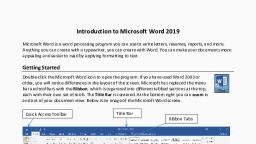
Word Processing Tool, , Figure 3.1 : Selecting Word to start, , • Standard Toolbar : Contains tools for standard tasks, like saving,, printing, cutting, copying, pasting, etc., • Formatting Toolbar : Provides tools for formatting like bold, italic,, underline, etc., • View Buttons : Provides options to switch between Normal, Web, Layout, Print Layout, Outline and Reading views., • Tab stop: A position we set for placing and aligning text on a page., • Drawing ToolBar : Provides tools for drawing basic shapes, inserting, pictures, changing colors, etc., • Status Bar : This provides information about the current document., Title Bar, Standard toolbar, Formatting toolbar, Reviewing toolbar, , New Document, task pane, , Tab stop—A position, you set for placing and, aligning text on a page., , Other Task Panes, menu—Select, other task panes,, including Reveal, Formatting,, Search,, and, more., , View buttons—Click, to switch between, Normal, Web Layout,, Print Layout, Outline, and Reading views., , Drawing toolbar, , Status, , Figure 3.2 : Application Window, , 73
Page 3 :
Computers and Communication Technologies, , Other programs like WordPad, NotePad could also be used to create word documents,, but these programs lack certain important features as compared to MS-Word., Therefore MS-Word is a more complete package for word processing., When we start MS-Word, a blank document opens up. Word names, the document as Document1 (Figure 3.2). We can also start a new, document in any of the following ways:, • Click on New button ( ) on the Standard toolbar, or, • Click on New option in the File menu (Figure 3.3)., After we have started a new document, type in some introductory, text into the document. When we start a new document, the insertion, point (the blinking vertical line, also called cursor), appears in the first column of the first line. We, can just type the text, and it will appear where, the insertion point is. But in a document where, we already have the text, we can place the, insertion point anywhere in the text by clicking, the mouse pointing at the desired location., , 3.3 HOW TO SAVE A DOCUMENT?, Figure 3.3 : To open new document, from file menu, , • Click on Save button ( ) on the formatting, toolbar, or, • Click on the Save option in the File menu, (Figure 3.4)., The Save As dialog box appears (Figure 3.5)., It’s a good idea to give the new document a name, and save it as soon as we create it., The steps we should follow to save our, document are as follows:, , Figure 3.4 : To save a document, from file menu, , The file will be saved in, this folder. You can click, on the arrow to select, another drive or folder, Double click, to open any of, these folders, Filename, , 74, Figure 3.5 : Save As dialog box
Page 4 :
Word Processing Tool, , • Automatically, we will save our file in My Documents folder. If we, need to save in some other location, navigate towards it by clicking, on the arrow on the right, and selecting one of the available options., Select the location. Figure 3.5 shows the drive/folder/sub-folder, where we want to save the document., • Type the filename as Document New and Type of document as Word, document., • Click on the Save button., We can cancel the process at any time by clicking on the Cancel button., , 3.4 HOW TO OPEN AN EXISTING DOCUMENT, • Click on Open under File menu, or click on tool on the Standard, toolbar., • The Open dialog box is seen on the screen. This is similar to the, Save As dialog box., • Navigate to the folder where our file is located, select the filename., • Click on Open., , 3.5 FORMATTING TEXT, Formatting refers to the way our text will look like – the design of, the characters, their size, the space between paragraphs, their, alignment, etc., First, selection of text., • By using the mouse, position the insertion point (by clicking the, mouse) at the beginning or end of the block to be selected and then, click and drag to the end or beginning of the block., • By, n, n, n, , using the shortcuts:, Double-click on a word to select it., Triple-click on a paragraph to select it., Ctrl+click on a sentence to select it., , There are basically two types of formatting:, • Character formatting, and, • Paragraph formatting, , 3.5.1 CHARACTER FORMATTING, Character formatting is the one which we can apply to any individual, character or to a group of characters. It has the following options, (Figure 3.6):, Font : This decides the appearance of our characters., Font Style : We can make characters stand out by making them Bold,, Italic or both., , 75
Page 5 :
Computers and Communication Technologies, , Size : This increases/decreases, the size of the characters – the, size measured in points, (72 points =1 inch), Font Color : We can apply, colours to the characters for, printing the final document., Underline : We can draw, attention to some particular, text by underlining it., Effects : We can also apply, effects to our text. Two most, common ones are Superscript, and Subscript. The 2 in 32 is a, superscript. To make a, character into superscript, we, need to select only that, character, and click the box, against Superscript. Similarly,, 1 in T1 is a subscript., , Figure 3.6 : Character formatting box, , 3.5.2 PARAGRAPH FORMATTING, There are some formatting features that get applied to an entire, paragraph or paragraphs, but not to any given character or a group, thereof. Such formatting, features are described as, Paragraph formatting., It provides the following, options (Figure 3.7):, , Paragraph, Alignment, , Paragraph, Indentation, , Special, Indentation, like first line, or hanging, , Paragraph, Spacing, , 76, , Line spacing, like single,, double, etc., , Figure 3.7 : Paragraph formatting box, , Alignment : The alignment of, a paragraph may be left, center,, right or justify as given in, Table 3.1., Indentation : Indents are the, left and right boundaries of, selected paragraphs within a, document. This may be, necessary when different, paragraphs have different left, and right boundaries. For, e x a m p l e , we c a n s e e t h e, indentation in poems. The, indentation options available, in most word processors are
Page 6 :
Word Processing Tool, , Table 3.1 : Different types of Alignments, Alignment, , Description, , Left Alignment, , All the lines of the paragraph will be aligned on the left., , Right Alignment, , All the lines of the paragraph will be aligned on the right., , Center Alignment, , All the lines of the paragraph will align to the center., , Justify, , The left as well as the right side of the paragraph will be, aligned except for the last line., , Left and Right. Apart from these, we can have special indentation in, the form of First Line and Hanging., Spacing : This option allows us to have some space before and/or, after a paragraph or a group of paragraphs. We can select the, paragraph(s) and select or type in the desired value against the appropriate, option – Before or After. These values are measured in points., There is also a Line spacing option, which decides on the spacing, between the lines of the paragraph. Normally we will type with the, value Single for it. But if we want to have more space between the, lines, we can select 1.5 lines or Double for it., , Activity 3.1, Type “We are changing the font”. Try the activity by using the following options:, • font Arial,, • font style Italic,, • size 10 point,, • font colour blue,, • underline style - a simple line,, • underline colour green, and, • effects Small Cap., • right alignment,, • indentation 1 inch for left as well as right,, • first line indent 0.5 inch,, • spacing as 6 point both before and after the paragraph and, • line spacing 1.5 lines., , 3.5.3 TO ADD BULLETS, , OR, , NUMBERING, , Bullets are small dots, squares, dashes or graphics that are often, seen before the text (word, line, sentence, paragraph or any other, object). To add bullets,, • Select the object, • Click on Bullets and Numbering from Format menu to open the Bullets, and Numbering dialog box (Figure 3.8), , 77
Page 7 :
Computers and Communication Technologies, Click here to, select bullets, , Click here to, select numbers, , Click on the bullet of your choice,, and click OK., Instead of a bullet, a number may, also precede a group of paragaphs. To, do so, proceed as follows:, • Choose the numbered tab from Bullets, and Numbering of Format menu to, view the numbering options., • Select the numbering option of choice,, and click OK., , Figure 3.8 : Bullets and numbering dialog box, , To remove bullet(s) or number(s), applied to paragraph(s), select the, paragraph(s), open the Bullets and, Numbering dialog box, and select, None in Bulleted or Numbered tab., Click on OK., , Many of the formatting options, discussed above can be applied through, the Formatting Toolbar (Appendix 3.1 Tools in Formatting Toolbar)., The tools for Bold ( ), Italic ( ), Underline ( ), Shadow,, Numbering, and Bullets act as toggles – that is, the desired formatting, will be applied if it is not already applied to the selected text, else it, will remove that formatting., , 3.5.4 USING TABS TO ARRANGE DATA, The tab setting allows us to align the text at a particular point, or to, create a tabular layout. Try this out – open a new document and, • type 2 3 4 5 6, pressing the tab key after every digit. Press the, Enter key., • type 22 33 44 55 and 66, again pressing tab key after every number, (type 22, press tab, type 33, press tab, and so on)., , 3.6 A GLANCE INTO VIEWS, Most word processors provide us multiple views: we can select the one that, suits the work at hand. We can display our document in one of the five views:, Normal layout, Web Layout, Print Layout, Reading Layout or Online Layout., • Normal Layout, Normal layout view shows formatting such as line spacing, font,, point size and italics., , 78, , • Web Layout, Web layout view enables us to view our document as it would appear, in a web browser such as the Internet Explorer.
Page 8 :
Word Processing Tool, , • Print Layout, The Print Layout view shows how the document will look when it, is printed., • Reading Layout, Reading Layout view formats our screen to make reading our, document more comfortable., • Outline Layout, Outline view displays the document in outline form., Only headings can be displayed hiding the text, under them. We can just move a heading; the, accompanying text will automatically move with it., We can opt for any one of the available views by, selecting it from the View menu, or clicking on the, appropriate View Buttons –, ., , 3.7 CREATE A TABLE, Tables provide a neat way to present complex, information in vertical columns and horizontal rows, of cells. Each cell can contain text – a single, paragraph or multiple paragraphs – or graphics. To, insert a table:, , Figure 3.9: To insert table in the, document, , • click on Insert in the Table menu and select on, Table from resulting menu. (Figure 3.9), • This opens up the Insert Table dialog box, (Figure 3.10). Type in some value for the number, of columns and rows… let us type in the values, 5 and 4 respectively., • We can now see this table (Figure 3.11) on the, page – with 5 columns and 4 rows, • Time to type in some text! We can move the, insertion point from one cell to another by, clicking the mouse at the desired cell. We can, also press the Tab key to move to the next cell,, or Shift+Tab keys to move to the previous one. !,, !, ! and ! keys can also be used for this., , Figure 3.11 : Blank table created, , Figure 3.10 : Insert Table, dialog box, , 79
Page 9 :
Computers and Communication Technologies, , • When a table is inserted, all columns are of same width and all, rows are of same height. To change their size, move the mouse, pointer to the line separating the rows or columns. If the mouse is, at column separator, it will change to, ; if it is on the line bordering, . Now drag the mouse to change the size, two rows, it changes to, of the column or row. If the cell is selected, then only the size of the, selected cell changes instead of the entire column or row., • Type in the text and adjust the column widths to make a table, as shown in Table 3.2:, Table 3.2: Sections and Houses of Class XI Students, Roll No, , Name, , Class, , Section, , House, , 1, , Vijaya, , XI, , A, , Red, , 2, , Lalruata, , XI, , B, , Blue, , 3, , Kabir, , XI, , A, , Yellow, , There are times when we need to change the number of rows/, columns after we have inserted the table. There are two options each, for rows and columns in the Table menu., • To insert columns, use the options, Columns to the Left or, Columns to the, Right under Insert option of Table menu. Put the insertion point in, any cell at the column adjacent to the location where the new, column is to be inserted, and select the appropriate option., • For rows, the options are, Rows Above and, Rows Below. We can use, these like we did for inserting columns., To delete row(s) or column(s), we can utilise, the Delete option under the Table menu. The, various alternatives under this option are seen in, figure 3.12., Select cell(s) in appropriate row(s) or column(s),, and click on the choice to delete Rows or Columns, as desired. To delete the entire table, put the, insertion point somewhere in the table and click on, Table under Delete option., Two or more cells can be merged into a single, cell. Alternatively, a single cell can be split into, several new cells. These options are also available, under the Table menu as seen in the figure above., To merge cells, select two or more cells and click on, Merge Cells. To, , Figure 3.12 : Table menu for delete, options, , 80, , split cell(s), select the cell(s) and click on, , Split Cells... ., , The Split Cells
Page 10 :
Word Processing Tool, , dialog box appears, soliciting the number of rows and columns into which, we would like to split the cell(s)., The easiest and quickest way to decorate the table:, Click on, Table AutoFormat... under the Table menu. Table Autoformat, dialog box appears., Let us decorate the table we, had created:, • Place the insertion point, anywhere in the table., • Open the table menu, and, click on Table Autoformat., • In the Table AutoFormat, dialog box (Figure 3.13),, select Contemporary. We can, observe the preview portion, of the dialog to see the effect., Click on Apply. Our simple, table now looks very different, (Table 3.3) from what it, originally was., , 3.8 INSERTING, PICTURE IN A, DOCUMENT, Graphics can add interest and, impact to the documents., Suppose we have completed a, letter telling our friends about, the great party we threw for a, birthday. The words capture, Figure 3.13 : Table AutoFormat dialog box, the festive mood of the event,, but that page of text looks, lifeless and dull. We need graphics to enliven our prose., Table 3.3 : AutoFormatted Table 3.2, Roll No, , Name, , Class, , Section, , House, , 1, , Vijaya, , XI, , A, , Red, , 2, , Lalruata, , XI, , B, , Blue, , 3, , Kabir, , XI, , A, , Yellow, , 81
Page 11 :
Computers and Communication Technologies, , We can insert picture from a picture file or we, can use any of the clip arts provided with MS-Word, or any word processor of our choice., , 3.8.1 INSERT, , A, , CLIP ART, , Let us insert a clip art into our Document New file:, , Figure 3.14 : Clip Art task pane, , • Open the Document New file., • On the Insert menu, select Picture, and then, click Clip Art., • The Clip Art task pane opens up. (Figure 3.14), • In the Clip Art task pane, type the search term, (for example, “computer”) in the Search for field,, and click on the Search button. If we are not, looking for anything in particular, don’t type in, any text, just click., • Select the insertion point in the document where, we want to insert clip art (Figure 3.15 (a)), and, then click the clip we want on the task pane, (Figure 3.15 (b))., , Figure 3.15 (a) : Selecting the insertion point , (b) Selecting the clip art, , • The clip art will get placed where the insertion point was, (Figure 3.15 (c))., , 82, , Figure 3.15 (c) : Inserting clip art in the document
Page 12 :
Word Processing Tool, , 3.8.2 TO INSERT, •, •, •, •, , A, , GRAPHIC FROM, , A, , FILE, , On the Insert menu, select Picture, and then click from File., The Insert Picture dialog box opens up. Browse the graphic file., Click the file, and then click Insert., The picture gets inserted where the insertion point was located., , 3.8.3 TO APPLY WRAPPING STYLE, We have inserted a clip art or picture, but we do not want blank space, to the right and left of the picture. No problem, we can further refine, the layout of the graphic and text. Using the five wrapping styles, we, can create documents with just the look we want., To apply wrapping styles to a graphic,, •, •, •, •, , Click on the graphic to select it., On the Format menu, click Picture., In the Format Picture dialog box, click the Layout tab., Click the preferred wrapping style, and then click OK., Different Wrapping styles are given in Appendix 3.3., , 3.9 HOW TO COPY, MOVE AND DELETE TEXT, Any word processor will allow us to copy or move text/graphics from, one part of the document to another or from one document to another., If the same text is appearing in more than one place, the copy option, can save us from quite a lot of trouble. If we want to reorganise the, document by changing the position of certain text, we need not delete, the text from existing location and re-type at the new location – just, move it from its current location to the desired location., To copy or move, proceed as follows:, • Select the item to copy or move. This can be a character, a few, words, some paragraphs or a graphic., • If we want to copy, click on Copy from Edit menu. Alternatively, we, can click on, , tool on the Standard toolbar., , • If we want to move, click on Cut from Edit menu. Alternatively, we, can click on, , tool on the Standard toolbar., , • Place the insertion point at the destination location (this may be, within the same document, or in another document), where we, want the text or graphic to be copied or moved., • Click on Paste from Edit menu. Alternatively, we can click on, tool on the Standard toolbar., To delete some text or graphic, select the same and simply press, the Delete key., , 83
Page 13 :
Computers and Communication Technologies, , 3.10 CHECKING SPELLING AND GRAMMAR, , Figure 3.16 : Tools menu, , Checking spelling and grammar in a document, after we finish typing and editing the text is, very useful. We can check for possible mistakes, and then confirm each correction. In Microsoft, Word, we can start the spell checker by clicking, on Spelling and Grammar option under Tools, menu (Figure 3.16)., , When the spell checker finds a spelling, mistake, a dialog box or task pane, (Figure 3.17) is displayed and the first misspelt word found by the, spelling checker is selected., , Figure 3.17: Task pane for Spelling and Grammar, , We can resolve each error that the program finds in different ways:, , 84, , • We can use one of the words suggested by the word processor and, click Change., • We may want to change the word ourselves. Click the word on the, document (not in the Spelling and Grammar dialog box) and edit it., After fixing the error, click on Resume., • The indicated word may actually be the correct one, but not available, in the Dictionary; for example, the name of the town Shillong. To, include such word into the word processor’s dictionary, click Add, to dictionary. If, we would like to ignore it, click Ignore once. If we, want to ignore all instances of such cases in the document then, click Ignore All.
Page 14 :
Word Processing Tool, , After we resolve each misspelt word, the word processor flags the, next misspelt word so that we can decide what we want to do., After the program finishes flagging the spelling mistakes, it begins, showing us the grammatical mistakes. We can proceed in a similar, fashion to correct those also., Alternatively, we can check spelling automatically while we type., In that case, we can be more confident that we won’t need to correct, a lot of spelling mistakes when we are ready to deliver our, document. Word flags misspelt words by underlining them with a, wavy red line (Figure 3.18) so that we can easily spot them. We, can right-click the misspelt word to see suggested corrections on, the resulting shortcut menu., , Figure 3.18 : Entering text with Spellchecker on, , Similarly, the grammar mistakes are flagged by a wavy green, underline – we can correct these just as we corrected the spellings., However, don’t blindly accept the corrections suggested by the word processor. The, word processor is not always accurate in detecting spelling and grammar errors!, , 3.11 SETTING PAGE LAYOUT, When a document is to be printed, the word processor has to be told as, to how the document should appear on the page, i.e., its paper size,, margins, layout of the paper, etc., To alter the page setup, click on Page Setup under the File menu. In the, resulting Page Setup dialog box (Figure 3.19), set the margins to the required, values. Let us set the margins as Top – 1 inch, Bottom – 1 inch, Left –, 1.25 inch and Right – 1.25 inch., , 85
Page 15 :
Computers and Communication Technologies, , Apart from the four margins, we, may set the following:, • Gutter is the space left on one side, for stitching and binding – give, an appropriate value, if required., • The orientation decides whether, the page will be printed, lengthwise (portrait) or across its, breadth (landscape). In other, words, Portrait is taller than it is, wide; Landscape is wider than it, is tall. The orientation buttons, themselves are quite selfexplanatory., In the Paper tab, select the paper, size on which we are going to print, the document. There are standard, paper sizes like letter, A4, legal etc., Either we can select one from these, or we can enter the width and, height of the paper we are using., Figure 3.19 : Page set up dialog box, , Click OK once we have typed in, the values for margins, chosen the, orientation, and selected the paper size., , 3.12 MAIL TO MANY IN SIMPLE STEPS – THE MAIL, MERGE, We use mail merge when we want to create a set of documents that, are essentially the same except that each contains some unique, elements. For example, in a letter to invite friends to a birthday party,, the date of invitation and the text thereof will be same everywhere, but, the address and greeting line will be different in each letter., Using mail merge, we can create:, • A set of labels for envelopes : The return address is the same on all, the labels or envelopes, but the destination address is unique on, each one., • A set of form letters, e-mail message or faxes : The basic content is, the same in all the letters, messages or faxes, but each contains, information that is specific to the individual recipient, such as, name, address or some other piece of personal data., , 86, , Creating each letter, message, fax, label, envelope, etc. individually, would take hours. That’s where mail merge comes in. Using mail merge,
Page 16 :
Word Processing Tool, , all we have to do is create one document that contains the information, that is the same in each version. Then we just add some placeholders, for the information that is unique to each version. The word processor, will take care of the rest., We can prepare mail-merged documents by using this facility as, described in Appendix 3.2., , Summary, • A word processor is a software for typing, formatting and creating documents., • There are two types of formatting that we can apply – character formatting and paragraph, formatting., • For character formatting, we must first select all the characters where we want to apply, the formatting. For paragraph formatting, it is enough to have any part of the paragraph, selected – for a single paragraph, it is sufficient to place the insertion point somewhere, in that paragraph., • Character formatting includes – font, font style, size, font colour, underline style, underline, colour, and effects – for example subscript, superscript, emboss, etc., • Paragraph formatting comprises of – alignment; indents – left, right, first line and hanging;, space before and after paragraphs; and line spacing., • To highlight the points, we can use bullets or numbering for the paragraphs., • If we plan to put tabular data, we can either use tabs – left, right, center and decimal; or, use table to type in the text within the cells., • To enhance the appeal of the document, we can insert pictures – either from clip art, or, from files. We might have to select appropriate wrapping options to have the text around, the picture., • We can move or duplicate text in a document or across documents using options like, Cut, Copy and Paste., • If we are likely to make mistakes (and all of us are!), we can utilise the word processor, to check the spellings and grammar., • Before we print the document, we must decide on margins, page size, gutter etc. through, Page Setup., • If we need to have many copies of documents which are same except for some parts, like, invitation letters, we can use the mail merge facility to make the task simpler., • We can allow others to review the documents by editing as well as by adding comments., These changes can be tracked. We can later decide as to whether to keep those changes, or to revert back to the original text., , 87



 Learn better on this topic