Notes of BSC GEN 1ST GAYATRI, Computer Fundamental & Computer Application & Computer Hardware & computer maths & TIME:10.30-11.30 AM fundamental withe.pdf - Study Material
Page 2 :
COMPUTER FUNDAMENTAL, , Written by : Amit Kumar Behera, , COMPUTER FUNDAMENTAL, Computer is an electronic device that is designed to work with, Information. The term computer is derived from the Latin term „computare‟, this, means to calculate or programmable machine. Computer can not do anything without, a Program. It represents the decimal numbers through a string of binary digits. The, Word 'Computer' usually refers to the Center Processor Unit plus Internal memory., , Charles Babbage is called the "Father" of the computer. The First, mechanical computer designed by Charles Babbage was called Analytical Engine. It, uses read -only memory in the form of punch cards., , ., Ada Lovelace(The mother of computer). Augusta Ada King-Noel,, Countess of Lovelace (Byron; 10 December 1815 – 27 November 1852) was an English, mathematician and writer, chiefly known for her work on Charles Babbage's proposed, mechanical general-purpose computer, the Analytical Engine., Computer is an advanced electronic device that takes raw data as input, from the user and processes these data under the control of set of instructions (called, program) and gives the result (output) and saves output for the future use. It can, process both numerical and non-numerical (arithmetic and logical) calculations., , 2
Page 3 :
COMPUTER FUNDAMENTAL, , Written by : Amit Kumar Behera, , 3, , Digital Computer Definition, The basic components of a modern digital computer are: Input Device, Output Device,, Central Processor Unit (CPU), mass storage device and memory. A Typical modern, computer uses LSI Chips., , Five Functions about computer are:, accepts data, , Input, , processes data, , Processing, , produces output, , Output, , stores results, , Storage, , Control Work Flow, , Controlling, , Input (Data): Input is the raw information entered into a computer from the, input devices. It is the collection of letters, numbers, images etc., Storage: The storage unit is used for storing data and information before, and after processing., Process: Process is the operation of data as per given instruction. It is totally, internal process of the computer system., Output:, , Output is the processed data given by computer after data, , processing. Output is also called as Result/Information. We can save these, results in the storage devices for the future use., Controlling:, , Control Unit(CU) control all operation like input, storage,, , processing, output., It takes care of step by step processing of all operation inside the, computer.
Page 4 :
COMPUTER FUNDAMENTAL, , Written by : Amit Kumar Behera, , 4, , Computer Classification, By Size and Power, Computers differ based on their data processing abilities. They are classified, according to purpose, data handling and functionality., According to functionality, computers are classified as:, • Analog Computer: A computer that represents numbers by some, continuously, , variable, , physical, , quantity,, , whose, , variations, , mimic, , the, , properties of some system being modeled., , • Personal computer: A personal computer is a computer small and low cost., The term "personal computer" is used to describe desktop computers, (desktops)., • Workstation: A terminal or desktop computer in a network. In this context,, workstation is just a generic term for a user's machine (client machine) in, contrast to a "server" or "mainframe.", , • Minicomputer: A minicomputer isn't very mini. At least, not in the way most, of us think of mini. You know how big your personal computer is and its, related family.
Page 5 :
COMPUTER FUNDAMENTAL, , Written by : Amit Kumar Behera, , 5, , • Mainframe: It refers to the kind of large computer that runs an entire, corporation., , • Supercomputer: It is the biggest, fastest, and most expensive computers on, earth., • Microcomputer: Your personal computer is a microcomputer.
Page 6 :
COMPUTER FUNDAMENTAL, , Written by : Amit Kumar Behera, , 6, , Computer Operations, , CPU, Input Unit: Process of entering data into the computer system by the user for, processing., , , The input devices translate the information into the form understandable by, the computer., , CPU: CPU stands for Central Processing Unit., , , The CPU is considered as the brain of the computer., , , , CPU is responsible for activating and controlling the operation of a computer, system., , , , , CPU is otherwise known as Micro-Processor/ Processor., The CPU operates only on binary data, Each data is composed of 1 and 0., CPU takes data from the storage unit and makes sorts of calculation based on the, , instruction given and the type of data provided. The two basic Component of CPU are, Control Unit(CU) and Arithmetic Logic Unit(ALU)., , Control Unit(CU): Control Unit(CU) control all operation like input, storage, processing,, output. It takes care of step by step processing of all operation inside the computer., , Arithmetic Logic Unit(ALU): All calculation and comparison based on the, instruction provided are carried out within ALU. It perform Arithmetic operation like, addition(+), subtraction(-), multiplication(*),division(/), greater than(>), less than(<), equal to(=)., , and Logical operations like
Page 7 :
COMPUTER FUNDAMENTAL, , Written by : Amit Kumar Behera, , 7, , Output Unit: The output unit is used for storing the result as output produced by, computer after processing., , Storage: The storage unit is used for storing data and information before and after, processing.
Page 8 :
COMPUTER FUNDAMENTAL, , Written by : Amit Kumar Behera, , 8, , Computer Memory, Computer Memory can be classified into Two types, they are as follows :1. Primary Memory / Main Memory (RAM , ROM), 2. Secondary Memory (Permanent Storage), , 1. Primary Memory :, Primary memory Is part of the main computer system. All the, information that CPU use, is stored and accessible from the primary memory. This, implies that all the information stored in a primary memory is easily accessible i.e,, Readable and writable through CPU., Primary memory further classified as :, , , Random Access Memory (RAM), , , , Read Only Memory(ROM), , Random Access Memory (RAM): RAM is a type of memory which is readable and writable., CPU can read and write the information to this primary storage area through RAM. RAM is, further classified as DRAM (Dynamic random access memory), RDRAM (Rambus DRAM),, SDRAM, , (Synchronous, , DRAM),, , DDR, , SDRAM, , (Double, , Data, , Rate, , SDRAM),, , DDR2, , SDRAM(Double Data Rate SDRAM) etc.The ability to read and write makes it more useful, but slightly slower in response., , Read Only Memory (ROM): The other part of primary storage is just readable ( Read Only, Memory ). No changes can be brought in that part of primary memory through CPU. Rom, is faster than RAM. The inability of re-writing the ROM memory makes it faster. Here is, the picture of ROM that is installed on the motherboard.
Page 9 :
COMPUTER FUNDAMENTAL, , Written by : Amit Kumar Behera, , Advantages And Disadvantages Of Computer, 1.Advantages:, A. High Speed, B. Accuracy, C. Storage Capabilities, D. Diligences, E. Versatility, F. Reliability, G. Automation, A. High Speed: Computer is very fast device. It is capable of performing of very, large amount of data., The computer has units of speed on micro-second(ms), nanosecond(ns), pico-second(ps)., B. Accuracy: The calculations are 100% error free., C. Storage Capabilities: Memory is a very important characteristic of computer. It, can store very large amount of data., D. Diligences: A computer is free from monotony, tiredness, and lack of, concentration., It can work continuously without any error and boredom., E. Versatility: A computer is a very versatile machine., A computer is very flexible in performing the job to be done., Computer can be used to solve the problem related to various field., F. Reliability: Computer is a reliable machine., G. Automation: Computer is an automatic machine because it have the ability to, perform the given task automatically., Once a program is given to the computer and instruction can be controle, the program execution without human instruction., , 2. Disadvantages:, Computer is a machine that have no intelligence to perform any, task. Each instruction has to be given to the computer. A computer can not take any, decision on its own. Following are some disadvantages of computer., A. Dependency, , 9
Page 10 :
COMPUTER FUNDAMENTAL, , Written by : Amit Kumar Behera, , B. Impact On Environment, C. Data Securities, D. Computer Crimes, E. Health Risk, F. No feeling, A. Dependency: Computer perform as per the users instructions. So computer is, fully dependent on human being., B. Impact On Environment: The operating environment of computer should be, dust free and suitable. The computer manufacturing processes and computer, waste are polluting the environment. The wasted parts of computer can release, dangerous toxic materials. Green Computer is a method to reduce the, electricity consumed and environmental waste generated when using a, computer. It includes recycling and regulating manufacturing processes. The, used computers must be donated or disposed off properly., C. Data Securities: The data stored on a computer can be accessed by, unauthorized persons through networks. It has created serious problems for, the data security., D. Computer Crimes: People use the computer for negative activities. They hack, the credit card numbers of the people and misuse them or they can steal, important data from big organizations., E. Health Risk: The improper and prolonged use of computer can results in, injuries or disorders of hands, wrists, elbows, eyes, necks and back. The users, can avoid health risks by using the computer in proper position. They must also, take regular breaks while using the computer for longer period of time. It is, recommended to take a couple of minutes break after 30 minutes of computer, usage., F. No Feeling: Computer have no feeling and emotion. It can‟t take judgement, based on feeling, test, experience, and knowledge unlike human being., , 10
Page 11 :
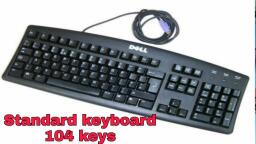
COMPUTER FUNDAMENTAL, , Written by : Amit Kumar Behera, , Input And Output Devices, 1. Input Devices:, Input devices accept data and instructions from the user and, translate them into a form computer can interpret. Following are the examples of, various input devices, which are connected to the computer for this purpose., 1. Keyboard, 2. Mouse, 3. Joystick, 4. Light Pen, 5. Bar Code Reader, 6. Track Ball, 7. Optical Mark Reader (OMR), 8. Optical Character Reader (OCR), 1. Keyboard :, , , A keyboard device with keys that a user press to enter data has character and, commands into a computer., , , , The computer keyboard is very similar to a typewriter keyboard, with the, addition of special keys including Numeric keypad, navigation and editing keys,, Directional keys, Function keys, Escape Key(Esc), Special function modifier keys, specific to windows include the Control key(Ctrl), Alternate Key(Alt), Windows, key(win-key)., , , , The Ctrl, Alt, and Win keys are usually found on each end of the spacebar., , , , Keyboard is two types, Standard Keyboard, Multimedia Keyboard, , 11
Page 12 :
COMPUTER FUNDAMENTAL, , Written by : Amit Kumar Behera, , 2. Mouse :, , , It is the most pointing and draw device., , , , It is a input device based on pointing and dragging technique., , , , A computer mouse is a mouse shaped object, where two or three buttons on, the top and a ruler ball on the bottom., , , , Mouse pointer Moves on the terminal skill in the direction of the mouse, movement., Right button, Scroll wheel, , Left button, , 3. Joystick :, , , Joystick is an input device used to play Video Games., , , , It uses a level to control the position and with which the joystick is moves into, digital signal data send to the computer to control the curser movement., , 4. Light Pen :, , , It is a pointing device in which the user selects items or chooses command, on the screen., , , , Either pressing a click on the side of the light pen or by pressing the light, pen against the surface of the screen., , 5. Bar Code Reader :, , , Bar codes represents alpha-numeric data by a combination of vertical, lines by varying their width and spaces between them., , 12
Page 13 :
COMPUTER FUNDAMENTAL, , Written by : Amit Kumar Behera, , 6. Optical Mark Reader (OMR) :, , , OMR can detect or absence of a mark on paper., , , , OMR spread light on a paper and receive the density of light reflected, from mark and identifies its presents., , 7. Optical Character Reader (OCR) :, , , OCR is a device for reading a document., , , , It can bring alpha numeric character created in particular style or good, quality paper., , 8. Track Ball :, , , A track ball is used a 3D shape to control person movement., , 13
Page 15 :
COMPUTER FUNDAMENTAL, , Written by : Amit Kumar Behera, , 2. Output Devices, An output devices is an electro-mechanical devices that accept data from, computer and translate into a form suitable for use. The output usually produced in one of, the two ways – on the display device(soft copy), or on the paper(hard copy). The output, devices are :1. Monitor, 2. Printer, 3. Speaker, 4. Plotter, 1. Monitor :, , , Monitor is an output device that resembles the television screen., , , , It may use a Cathode Ray Tube(CRT) to display information., , , , The monitor is associated with a keyboard for manual input of characters and, displays the information as it is keyed in., , , , Monitors are available in different sizes., , 2. Printer :, , , Printers are used to produce paper output., , , , Printers are classified into two types :, a. Impact Printer, b. Non- Impact Printer, a. Impact Printer :, Impact printer use the typewriting printing mechanism where, in a hammer strikes the paper through a ribbon is order to, produce output., Dot-Matrix and Character Printers fall under this category., , b. Non-Impact Printer :, Non-impact printers do not touch the paper while printing., They use chemicals, heat or electrical signals to etch the, symbols on paper., Inkjet, DeskJet, Laser, Thermal printers fall under this category, of printers., , 15
Page 16 :
COMPUTER FUNDAMENTAL, , Written by : Amit Kumar Behera, , 3. Plotter :, , , Plotters are used to print graphical output on paper., , , , It interprets computer commands and makes line drawings on paper using, multicolored automated pens., , , , It is capable of producing graphs, drawing, charts, maps etc., , 4. Speakers :, , , An expansion card that enables a computer to manipulate and output sounds., , , , Sound cards are necessary for nearly all CD-ROMs and have become common place on, modern personal computer., , , , Sound card enable the computer to output sounds through speakers connected to the, board, to record sound input from a microphone connected to the computer and, manipulate sound stored on a disk., , Sound Card, , 16
Page 17 :
COMPUTER FUNDAMENTAL, , Written by : Amit Kumar Behera, , Working With Windows Operating System, The Desktop :, , , The desktop is the main screen area that you see after you turn on your, , Computer and log on to windows., , , When you open programs and folders, they appear on the desktop., , , , You can also put program, folder, files on the desktop., , , , You can arrange them as you want., , , , STEPS TO ARREANGE ICONS, , :-, , 1. Right-click on empty area of desktop., 2. Click on “View”., 3. Then select the checkbox “Auto Arrange Icons” to arrange, icons left-side of the desktop., 4. Unselect the checkbox, , “Auto Arrange Icons”, , to arrange, , icons anywhere on the desktop., , Working With Desktop Icons :, Icons are small pictures that represent files, folder, programs., When you first start windows you will see atleast one icon on your, desktop:-The RECYCLE BIN., TO OPEN AN ICON :, Double clicking on that icon., , , Working With Files And Folders :, A file is an item that contains information., On your computer files are represented with icons., This makes it easy to recognize a type of file by looking at its icon., Here are some examples:, , Text File, , , , Create A Notepad File And Image File On Desktop, 1. Go to Start menu, 2. Click “All Programs”, 3. Click “Accessories”, , Picture File, , 17
Page 18 :
COMPUTER FUNDAMENTAL, , Written by : Amit Kumar Behera, , 4. Click on “Notepad” / “Paint”, 5., , Type a text or paragraph, , /, , Draw some shapes(from shapes, , group), 6. Go to “File” menu click “Save As” On “File Name” text area type, , a name., 7. On the “Address Bar” Choose the address “Desktop”, 8. Click “Save” Button., , , , Create A Notepad File And Image File On Personal Folder, 1. Go to Start menu, 2. Click “All Programs”, 3. Click “Accessories”, 4., , Click on “Notepad” / “Paint”, , 5., , Type a text or paragraph / Draw some shapes, , 6. Go to “File” menuThen “Save As”On “File Name” text area type a, , name, 7. On the “Address Bar” Choose your folder on desktop (e.g. desktop-, , --new folder---notepad folder / paint folder), 8. Click “Save” Button., , , , Create A Folder On Desktop, 1. Right-click on empty area of the desktop, 2. Click “New”, 3. Click On “Folder”, 4. Now the folder is create and the name is “New Folder”, 5. Then Rename that folder:, To rename a folder use the following steps, Right-click on folder, Click rename, then type a name as you want, OR, Select the folder that you want to rename, Then press “F2” key from keyboard, then type a name, , , , Create A Folder Under A Folder, 1. Open your personal folder, 2. Right-click on empty area, 3. Click “New”, 4. Click “Folder”, 5. Then Rename that folder, , 18
Page 19 :
COMPUTER FUNDAMENTAL, , , Written by : Amit Kumar Behera, , To Move A File From A Folder To Desktop, 1. Open the folder that contain the file, 2. Drag the file to the desktop, , Adding And Removing Icons From The Desktop :, You can choose which icons appear on the desktop, You can add or, remove an icon at any time., If you want easy access from the desktop to your favorite files or, programs, you can create shortcut to them., A shortcut is an icon that represents a link to an item, rather than the, item itself., If you delete a shortcut, only the shortcut is removed, not the original, item., You can identify shortcuts by arrow on their icon., Steps :1. Create a original file / folder / program, 2. Right click on that file / folder / program, 3. Then click on “Create Shortcut”, 4. Double clicking a shortcut to open that item., , , Common desktop icons include Computer, Recycle Bin, Control Panel,, Network, and Personal Folder., To add all these icons on the desktop follow the steps, 1. Right click an empty area, then click “Personalize”, 2. In the left panel, click “Change Desktop Icon”, 3. Under the “Desktop Icon Setting” dialog boxSelect the, checkbox for each icon that you want to add to the desktop., 4. Unselect the checkbox of icon that you want to remove from the, desktop., 5. Then click “Ok”., , Moving Icons Around :, 1. Windows Automatically Arrange Your Desktop Icons, a. Right click an empty area on the desktop, then click “View”., b. Then select “Auto arrange Icons” checkbox., c. Now Windows automatically arrange icons in the upper-left corner, and lock them in place., 2. Arrange Your Icons As you Want, , 19
Page 20 :
COMPUTER FUNDAMENTAL, , Written by : Amit Kumar Behera, , a. Right click an empty area on the desktop then click “View”., b. Then unselect “Auto arrange Icons” checkbox., c. Now you can move an icon by dragging it to a new place on desktop, , Selecting Multiple Icons :, To move or delete a bunch of icons at once, You must select all of them., 1. Click an empty area above the icon, then Drag the mouse., 2. The icons that you want to select will appear in the RECTANGLE, 3. Then release the mouse button, 4. Now you can drag (move) the icons as a group to new folder or, delete them at once., , Hiding Desktop Icons :, 1. If you want to temporarily hide all of your desktop icons, a. Right click an empty area then click “View”, b. Then unselect the “Show Desktop Icons” checkbox, c. Now no icons are displayed on the desktop, 2. If you want to see the hidden icons again, a. Right click an empty area then click “View”, b. Then select the “Show Desktop Icons” checkbox, c. Now all icons are displayed on the desktop, 3. If you want to hide only one icon, a. Right click on that file / folder then click “Properties”, b. Then select the “Hidden” checkbox, c. Now icon is not displayed on the desktop, d. If you want to show your hidden icon on the desktop then GO to, the “Computer”, i. On the Tool Bar click “Organize”, then select ”folder and, search options”, ii. Under the “Folder option” dialog box, click “View” tab, iii. Under “Hidden files and folders” select the “Don‟t show, hidden files, folder, or drives” Option Button / Radio Button, 4. If you want to see the hidden icons, a. GO to the “Computer”, b. On the Tool-Bar click “Organize” then select ”folder and search, options”, c. Under the “Folder option” dialog box, click “View” tab, , 20
Page 21 :
COMPUTER FUNDAMENTAL, , Written by : Amit Kumar Behera, , 21, , d. Under “Hidden files and folders” select the “Show hidden files,, folder, or drives” Option Button / Radio Button, e. Now your hidden files / folder or drive will be shown, , The Recycle Bin :, When you delete a file or folder, it doesn‟t actually get deleted, it goes to, the RECYCLE BIN., That‟s a good thing , because if you want that deleted file, you can get it, back., 1. Select a file / folder, 2. Right click then “delete”, 3. Or Press “Delete” / “del“ key from the keyboard. (temporally delete), 4. Then select “Yes”, 5. If you want deleted item again then Go to the Recycle Bin search, the file / folder, 6. Right click on that item / double click then “Restore” that item., 7. After restore the item will display their location, If you won‟t need the deleted item again, you can empty the recycle bin., 1. Right click on “Recycle bin”, 2. Then click “Empty recycle bin”, 3. This will permanently delete all the temporarily deleted items, If you want to permanently delete a item, 1. Select an item, 2. Then Press “Shift + delete” key from the keyboard, 3. Then click “Yes” to permanently delete the item, , Temporary, Delete, , Permanent, Delete
Page 22 :
COMPUTER FUNDAMENTAL, , Written by : Amit Kumar Behera, , Using Menus, Buttons, Bars, Boxes :, Menus, bars, buttons, and boxes are example of controls that you operates with your, mouse or keyboard ., These, , commands, , allows you to select commands, change settings, or work with, , windows., , I. Menus :, i., , Most programs contains hundred of commands that you use to work the, program., , ii. Many of these commands are organized under menu., iii. A program menu shows you a list of choices., iv. To choose one of the commands listed in a menu, click it., v. Recognizing menus is not always easy, because not all menu controls look, same or even appear on a menu bar., vi. Sometimes menus shows sub-menus., vii. When you see an arrow next to a word or picture, you are probably looking, at a menu control., a. Sorting your desktop icons :, i. Right-click on empty area of desktop, ii. Click on “Sort By” menu from list, iii. Then choose one option from them, There are 4 different types of sorting :Name (Alphabetical, order(A-Z, , or, , Z-A)),, , Size, , (Ascending, , -, , descending, , or, , descending to ascending), Item Type, Date Modified (form last, day you modified the file or folder or any other programs) ., , 22
Page 23 :
COMPUTER FUNDAMENTAL, , II., , Written by : Amit Kumar Behera, , Bars :, Scroll Bar :, When a picture, webpage, document exceeds its size of the window, scroll bar, appear to allow you to see the information that is currently out of view ., To use the scroll bar:, , a. Click the up or down, right or left scroll arrows to scroll the windows content up or, down, right or left in small steps., Or, Hold down the mouse button to scroll continuously ., b. Click on an empty area of the a scroll bar above, or below or sides the scroll ba to scroll up or, down, right or left one page or the page ., c. Drag, , a, , scroll, , bar, , box, , up,, , down,, , left,, , right, , to, , scroll, , the, , window in that direction ., Slider :, A slider is used for adjust a setting along a range of values, To use a slider :, Drag the slider towards the value that you want., A slider along the bar shows the currently selected values., , III., , Buttons :, a. Command Button :, , A command button perform a command when you click it., You will must see them in a dialog boxes, which are small windows that contain options, for completing a task., To Use The Command Button :, i., , Open ms-paint / notepad, , ii. Draw some pictures / write some text, iii. Now go to “Close” button at the top right Corner of document., iv. Now the dialog box will appear, v. Now choose a command and click on that command button., 1. If you click on “Save” command button, then the “Save As” dialog box will, appear for naming that document or file., 2. If you click on “Don‟t Save” command button, then the current windows will, be close., 3. If you click on “Cancel”, document window., , command button, then it will go back to the, , 23
Page 24 :
COMPUTER FUNDAMENTAL, , Written by : Amit Kumar Behera, , b. Split Button :, If a button changes into two parts is the split button., Clicking the main part of the button perform a command , where as, clicking on the arrow opens a menu with more options ., To use splitting button :, i., , Go to “Start Menu”, , ii. Click on “All Programs”, iii. Click on “Accessories”, iv. Click on “Snipping Tool”, v. Now the “Snipping Tool” window will appear, vi. Click on the main section is “New” to perform a command, vii. And click on the “Down Arrow” to show different options like, “free-form snip”, ”Rectangular Snip”, “Window Snip”, “Full Screen, Snip” ., c. Option Button :, The option button allows you to make one choice among two or more, options., They frequently appear in a dialog boxes., The option button is also know as “Radio Button”, To use the option button :, i., , Go to “Start Menu”, , ii. Click on “All Programs”, iii. Click on “Accessories”, iv. Click on “Paint”, v. Now the “Paint” window will appear, vi. Click on the “File“, vii. Click on “Properties”, viii., , Now the ”Properties” dialog box will appear, , ix. See the colors part ,it will show the two option buttons, x. Now you can select only one of them, xi. When you select a option button a bullet will appear on the centre, of the selected option., , 24
Page 25 :
COMPUTER FUNDAMENTAL, , IV., , Written by : Amit Kumar Behera, , Boxes :, a. Check Boxes :, The check box allows you to select multiple options at the same time ., Click the empty square box (Check Box) to select that option., When you select a check box the tick mark (, , ) will appear ., , To use the check box :, i., , Go to “Start Menu”, , ii. Click on “All Programs”, iii. Click on “Accessories”, iv. Click on “Paint”, v. Now the “Paint” window will appear, vi. Click on the “View“ tab, vii. On “Show Or Hide” group ,some check boxes will shown, viii., , Click an empty check box, , (Square box), , to select that, , option, now a tick mark will appear, that indicates the option is, selected., ix. To turn off an option, Click the selected check box to clear or remove the tick, mark., , Unselected, Check Box, , Selected Check, Box, , b. Text Boxes :, A text box allows you to type information, such as a search term or password., Text box that require you to enter a password will usually hide your pass word as you, type it, in case someone else is looking at your screen., To Use Text Box :, i., , Go to “Start Menu”, , ii. Click on “All Programs”, iii. Click on “Accessories”, iv. Click on “Note Pad”, v. Now the “Note Pad” window will appear, vi. Now type some text (1paragraph), , 25
Page 26 :
COMPUTER FUNDAMENTAL, , Written by : Amit Kumar Behera, , vii. Click “Edit“ Menu, viii., , Now click on “Find” option, , ix. Now the “Find” dialog box will appear, x. Inside the “Find What” text box type a character or word to find, xi. Then click on “Find Next” command button., , c. List Boxes :, A list box displays a list of options that you can choose from., In list box some or all options are visible without open the list, To use a list box :, i., , Go to “Start Menu”, , ii. Click on “All Programs”, iii. Click on “Accessories”, iv. Click on “Note Pad”, v. Now the “Note Pad” window will appear, vi. Now type some text (1paragraph), vii. Click “Format“ Menu, viii., , Now click on “Font” option, , ix. Now the “Font” dialog box will appear and in “Font” dialog box “List boxes” will, shown., x. To choose an option from the list , click it., xi. If you a option but that option isn‟t visible, use the scroll bar to scroll the list up or, down., xii. If the list box has the text box above the list, you can type the name or value of, the option instead., , d. Drop-Down List :, Drop-down list is similar to menus., Instead of clicking a command, through , you choose an option., When you close a drop-down list, it will only show the currently selected, option., The other available options are hidden until you click the control., To use the drop-down list :, To change the mouse pointer :, , 26
Page 27 :
COMPUTER FUNDAMENTAL, i., , Written by : Amit Kumar Behera, , Right-click on empty area of the desktop, , ii. Click on “Personalize”, iii. Now the personalisation window will open, iv. In left panel, click on “Change Mouse Pointer”, v. Now the “Mouse Properties” dialog box will appear, vi. To open the scheme drop-down list, click it., vii. To choose an option from the list, click on the option ., , e. Tabs :, In some dialog boxes, options are divided into two or more tabs., Only one tab or set of options can be viewed at a time., The currently selected tab appears in front of the other tabs., To switch / open a different tab, then click that tab., , Viewing And Arranging Files & Folders :, When you open a folder or library, you can change how the files look in the window, For example, you might prefer larger or smaller icons or a view that lets you see, different kinds of information about each file., To make these kind of changes , use the “View” button (e.g. of split button) in the tool, bar., Each time you click the left side of the views button, it changes the way your files and, folders are displayed by cycling through five different views; large icons, list, details,, tiles, content., To use the “View” button:, i., , Open any folder or library, , ii. In the tool bar, click on “View” button each time to change the view of your files, in five different views., iii. Click on the “Arrow” button to see the different views., , 27
Page 28 :
COMPUTER FUNDAMENTAL, , Written by : Amit Kumar Behera, , KEYBOARD, The computer keyboard is used in consecution with the mouse as the primary, input device., The computer keyboard is very similar to a typewriter keyboard., With the addition of special keys including numeric keypad, navigation and, editing keys, directional and arrow keys, function keys., Special function keys specific to windows include the control key(ctrl), alternate, key(alt), and windows key (win key) ., The ctrl, alt, win keys are usually found on each end of the space bar., Many compact and laptop keyboard do not include numeric key-pad., A typical keyboard will vary from manufacturer to manufacturer but generally, have four areas:, i. Function keys, ii. Typewriter / Alphanumeric keys, iii. Cursor control / Arrow / Directional keys, iv. Numeric key-pad, , It is not absolutely positively necessary to use all ten fingers of your hand on, your keyboard., i., , Left Hand :, i., , A : Little Finger, , ii., , S : Ring Finger, , iii., , D : Middle Finger, , iv., , F : Fore Finger, , 28
Page 29 :
COMPUTER FUNDAMENTAL, , ii., , Written by : Amit Kumar Behera, , 29, , Right Hand :, i., , ; : Little Finger, , ii., , L : Ring Finger, , iii., , K : Middle Finger, , iv., , J : Fore Finger, , Thumb of both hand around the space bar., , Function Keys :, KEYS, , DESCRIPTION, , F!, , Get help or visit Microsoft office online, , F2, , Select any file /folder on desktop--press “F2” key--type any name (Renaming a, folder or file), , F3, , Press “F3” key to search your program , file, folder (Search in computer windows), , F4, , Open “computer” icon--press “F4” key--the “address bar” will shown, Open “Notepad” or any file--press “alt + F4” --the window will be close, , F5, , On the desktop press “F5” key will refresh, Open ms-word type any text--press “F5” key --”Find & Replace” dialog box, will appear, , F6, , Open any two ms-word file--press “ctrl + shift + F6” key--this will open two, ms-word file at a time, , F7, , Open the ms-word--type one wrong word--press “F7” key (spelling checking), , F8, , Usually used with LCD projector, , F9, , Open ms-excel, , F10, , Open word pad--press”F10” key--it will show the keytips., , F11, , Open ms-paint --create any drawing --then press “F11” key-- the drawing, will show in full screen, To exit full screen press “Esc” key, , F12, , Open any ms-office window-- press “F12” key (it is the “save as” command), , Cursor Control Key :, It is also called arrow keys or directional keys., It moves your text cursor in the direction of the arrow., There are 4 arrow keys :, i., , Left arrow key, , ii., , Right arrow key, , iii., , Up arrow key, , iv., , Down arrow key
Page 30 :
COMPUTER FUNDAMENTAL, , I., , Written by : Amit Kumar Behera, , Left arrow key :, , Move the cursor left in most text editing program., If you press only “, , ” key the cursor will move to one character to the left., , If you press “Ctrl +, , ” , the cursor will move to the left of the one word., , II., , Right arrow key :, , Move the cursor right in most text editing program., If you press only “, , ” key the cursor will move to one character to the right., , If you press “Ctrl +, , ”, the cursor will move to the right of the one word., , III., , Up arrow key :, , Move the cursor one line up in most text editing program., If you press only “, , IV., , ” key the cursor will move to one line to the up., , Down arrow key :, Move the cursor one line down in most text editing program., If you press only “, , ” key the cursor will move to one line to the down., , Numeric Key-Pad :, The numeric key-pad allows you to numbers with a key-pad layout like an adding, machine or calculator and doing mathematical operation quickly and easily., When the “Num Lock” key is turn on, the number key-pad is activate., When the “Num Lock” key is turn off, the 2, 4, 6 and 8 key from the number key-pad, work as the cursor control keys., , Navigation Keys :, I., , Page Up Key:, Press the “PgUp” key Move the cursor and visible section of text to the up., Press “Ctrl + PgUp” Move the cursor to the first page of the document., Open notepad and Type some text, Then press “PgUp” key or, , “Ctrl, , + PgUp” to move the cursor to the up of the, , document., , II., , Page Down Key:, Press the “PgDn” key Move the cursor and visible section of text to the down., Press “Ctrl + PgDn” Move the cursor to the last page of the document., Open notepad and Type some text, Then press “PgDn” key or “Ctrl + PgDn” to move the cursor to the down of the, document., , III., , Home Key:, Press the “Home” key Move the cursor to the beginning of a line., , 30
Page 31 :
COMPUTER FUNDAMENTAL, , Written by : Amit Kumar Behera, , Press “Ctrl + Home” Move the cursor to the beginning of the document., Open notepad and Type some text, Then press “Home” key or “Ctrl + Home” to move the cursor to the beginning of a, line or to beginning of the document., , IV., , End Key:, Press the “End” key Move the cursor to the end of a line., , Press “Ctrl + End” Move the cursor to the end of the document., Open notepad and Type some text, Then press “End” key or “Ctrl + End” to move the cursor to the end of a line or to, end the document., , Editing Keys :, I., , Delete key :, Delete a single character or text to the right of the cursor., , II., , Backspace key :, Delete a single character or text to the left of the cursor., Steps to use “Delete” or “Del” key and “Back Space” key:, i. Open any text editor, ii. Type some text, iii. if you were to click and make the cursor at the end of the document, iv. Then press “Delete” key, nothing will happen because there is no text to the right., v. if you press the “Backspace” key the end of the text would start to deleted the text., vi. if you were to click and make the cursor at the beginning or middle of the, document, vii. Then press “Delete” key, it will happen because there is some text to the right., , III., , Insert key :, Insert text or overwrite the text., , 31
Page 32 :
COMPUTER FUNDAMENTAL, , Written by : Amit Kumar Behera, , Modifier / combination key :, I., , Shit key :, The shift key is used to make a single character as capital letter, access or type, the punctuation keyand other keys., , Keys, , Used For, , Ctrl + Shift + Esc, , Open the Task Manager., , Shift + Arrow Key, , Holding down the Shift key while pressing an arrow key will, highlights & select text one character at a time in the, direction of pressing the arrow key., If you also hold down Ctrl + shift + Arrow key, it will highlight, & select one word at a time., , Shift + Delete, , Pressing and holding down the Shift key while pressing the, Delete key or deleting a file will delete the file without sending it, to the Recycling Bin. (this is called permanent delete), , Shift + Tab, , Moves back to the previous object. For example, pressing a, tab while in a browser moves between each of the links on the, web page. Pressing Shift + Tab moves between each of the, links in the opposite direction., it will go back to the previous section of text ., , Press, , Shift, , Five Open Sticky Keys. Once activated you can press both Shift keys, , Times, , at the same time to deactivate Sticky Keys., , Left Alt + Shift + Open Mouse Keys., Num Lock, Left Alt + Shift + Open High Contrast., Print Screen, II., , Alternate key : (Alt), Short for Alternate, Alt is a modifier key located on both sides of the spacebar key, on computer keyboards., , Key, , Used For, , Alt, , Pressing the Alt key alone focuses the computer on the File Menu (if, available)., , Alt + F, , Pressing these two keys opens the File Menu in an open program., , Alt+F4, , These keys close the open program. To close an open window or tab, within a program press Ctrl+F4., , Alt + Spacebar, , Open the Window menu of the program currently open., , Alt + Tab, , These keys switch between open programs left-to-right. Pressing Alt +, Shift + Tab reverses the order of switching programs., , Alt + Ctrl + Delete, , Open task manager., , 32
Page 33 :
COMPUTER FUNDAMENTAL, III., , Written by : Amit Kumar Behera, , Control key : (Ctrl), Short for control, Ctrl is a modifier key found on computer keyboards in the, bottom left and right portion ., , Keys, , Used For, , Ctrl + A, , These two keys will select all text or other objects., , Ctrl + B, , Bold highlighted text., , Ctrl + C, , Copy any selected text or another object. See Control C, definition for further information., , Ctrl + D, , Bookmark an open web page or open font window in Microsoft, Word., , Ctrl + E, , Center text., , Ctrl + F, , Open find window., , Ctrl + G, , Open Find in a browser and word processors., , Ctrl + H, , Open the Find and Replace in Notepad, Microsoft Word, and, WordPad, , Ctrl + I, , Italicize text., , Ctrl + J, , View downloads in browsers and set justify alignment in, Microsoft Word., , Ctrl + K, , Create a hyperlink for the highlighted text in Microsoft Word, and many HTML errors., , Ctrl + L, , Select address bar in a browser or left align text in a word, processor., , Ctrl + M, , Indent selected text in word processors and other programs., , Ctrl + N, , Create a new page or document., , Ctrl + O, , Open a file in most programs., , Ctrl + P, , Open a print window to print the page you're viewing., , Ctrl + R, , Reload page in browser or right align text in a word processor., , Ctrl + S, , Save the document or file., , Ctrl + T, , Create a new tab in an Internet browser or adjust tabs in word, processors., , Ctrl + U, , Underline selected text., , Ctrl + V, , Paste any text or another object that has been copied., , Ctrl + W, , Close open tab in a browser or close a document in Word., , Ctrl + X, , Cut selected text or another object., , Ctrl + Y, , These keys will redo any undo action., , Ctrl + Z, , Pressing these two keys will undo any action., , Ctrl + Esc, , Open the Windows Start Menu., , Ctrl + Tab, , Switch between open tabs in browsers or other tabbed, programs., , 33
Page 34 :
COMPUTER FUNDAMENTAL, , Written by : Amit Kumar Behera, , Ctrl + Shift + Tab, , It will go backwards (right to left)., , Ctrl +F10, , maximize and restore the window, , Locking Keys:, These keys change how certain part of the keyboard responds and can make your, task easier for each key you click., When these keys are turn on, A small light will appear usually on the top right, corner of the keyboard., To turn off the keys, just click it., , I., , Caps Lock Key :, Caps Lock is a button on a computer keyboard that, when pressed, causes all, letters to be generated in capitals until deactivated., It is located in the position of a similar Shift lock key (and sometimes a Ctrl key), found in some other keyboard layouts., The LED is present at the top right corner of the keyboard., If the LED is on. indicates that Caps Lock enabled., If the LED is off, indicates that Caps Lock disabled., , II., , Num Lock Key :, Short for numeric lock or number lock, the Num Lock or Num Lock key is, located on the top left corner of the numeric keypad of the keyboard and, enables and disables the numeric pad., To turn on the Num Lock press the Num Lock button and make sure the, Num Lock LED light is on. Once the Num Lock key has been pressed, it, will stay on until it is pressed again. To turn off the Num Lock press the, Num Lock button and make sure the Num Lock LED light is off., When the num lock is on it will activate the numeric key pad., But when the num lock is turn off that means the numeric key such as 2,, 4, 6, 8 work as the arrow keys and 1, 7, 9, 3 work as End, Home, Page, Up, Page Down ., , III., , Scroll Lock Key :, Sometimes abbreviated as ScLk, ScrLk, or Slk, the Scroll Lock key is, found on a computer keyboard., the scroll lock key was originally intended to be used in conjunction with, the arrow keys to scroll through the contents of a text box., It has also been used to stop the scrolling of text or halt the operation of, a program., , 34
Page 35 :
COMPUTER FUNDAMENTAL, , Written by : Amit Kumar Behera, , Windows key :, This key is shortcut for start men, which is the same as clicking the stat button on, the task bar., The “Ctrl + Esc ” perform the same operation., Alternatively referred to as the “Winkey” or” WK”, the Windows key is a key found on, IBM compatible keyboards used with the Microsoft Windows operating system., The Windows key has the Microsoft logo on it and is found between the left Ctrl, and Alt keys on the keyboard., KEYS, , USED FOR, , WK, , Open or close the Start menu., , WK + Pause, , Display the System Properties dialog box., , WK + D, , Display the desktop., , a WK + M, , Minimize all windows., , WK + Shift + M, , Restore minimized windows to the desktop., , WK + E, , Open Computer., , WK + F, , Search for a file or folder., , Ctrl + WK + F, , Search for computers (if you're on a network)., , WK + L, , Lock your computer or switch users., , WK + R, , Open the Run dialog box., , WK+ T, , Cycle through programs on the taskbar., , WK + number, , Start the program pinned to the taskbar in the position indicated by, the number. If the program is already running, switch to that program., , WK+ Tab, , Cycle through programs on the taskbar by using Aero Flip 3-D., , Ctrl + WK + B, , Switch to the program that displayed a message in the notification, area., , WK+ Spacebar, , Preview the desktop., , WK + Up Arrow, , Maximize the window., , WK + Left Arrow, , Maximize the window to the left side of the screen., , WK + Right Arrow, , Maximize the window to the right side of the screen., , WK+ Down Arrow, , Minimize the window., , WK + Home, , Minimize all but the active window., , WK + Shit + Up Stretch the window to the top and bottom of the screen., Arrow, WK + Shift + Left Move a window from one monitor to another., Arrow, , or, , Right, , Arrow, WK + P, , Choose a presentation display mode., , WK + G, , Cycle through gadgets, , WK + U, , Open Ease of Access Center., , WK + X, , Open Windows Mobility Center., , 35
Page 36 :
COMPUTER FUNDAMENTAL, , Written by : Amit Kumar Behera, , Print Screen :, The "Print Screen" key typically has "Sys Req" written below it., The "Print Screen" key may also say "prt scr", "prnt scrn", or "prt sc"., Pressing the “Print Screen” will capture the entire screen., While pressing the, , “Alt + Print Screen” will capture the currently selected /, , activated window., , Escape Key :, The escape key is terminates the current activated process ., It will also close the certain window., Escape key is shortcut in dialog boxes for no, quit, exit, cancel etc., Also shortcut key for the stop button in many web browsers., , Menu key :, The key symbol is a small icon depiciating a cursor hover being above a menu ., The key primarily function is to lunch a context menu with the keyboard rather, than with the right mouse button., , Enter key :, Alternatively referred to as a Return key, when referring to a keyboard, the Enter key is, used to send the cursor to the next line or execute a command or operation., Most full PC keyboards have Two Enter keys; one above the right Shift key and another, on the bottom right of the numeric keypad., Works Of Enter Key :, i. Return to the next line or starts a new paragraph in a word processor., ii. Submit a form. For example, on all search engines when you enter what you want to, search for you can press enter without having to move the mouse to the search, button., iii. Activate a button or other object. For example, when navigating with a keyboard, you, can press tab until a button is highlighted and once highlighted press the Enter key, to press the button., iv. Open a web page after a URL has been entered into a browser. For example, you can, type computerhope.com in the address bar and then press Enter to open the, Computer Hope home page., , 36
Page 37 :
COMPUTER FUNDAMENTAL, , Written by : Amit Kumar Behera, , Tab key :, In an Internet browser, a tab refers to a marker used to select additional web page(s) that, have been opened within the browser window., Browsers that support tabbed browsing such as Chrome, Firefox, Opera, and Internet, Explorer allow users to open a link in a new tab by clicking it with your middle-button, (mouse wheel)., Use the keyboard shortcut key “ Ctrl + T “ to open a new tab., , To close a single tab at a time in most Internet browsers, press “ Ctrl + W” on your, keyboard or click the X on the right-hand side of the tab., , Spacebar key :, Alternatively referred to as space and the space key, the spacebar or space bar is a long, horizontal key on the lower edge of a keyboard that is always the largest and longest key, on the keyboard., When the spacebar key is pressed it creates an empty space, also known as a space, character or whitespace that helps separate words and other characters in a sentences., A tab typically has five spaces., , 37
Page 38 :
COMPUTER FUNDAMENTAL, , Written by : Amit Kumar Behera, , MOUSE, A computer mouse is a handheld hardware input device that controls a cursor in a, GUI and can move and select text, icons, files, and folders. For desktop, computers, the mouse is placed on a flat surface such as a mouse pad or a desk, and is placed in front of your computer. The picture to the right is an example of, a desktop computer mouse with two buttons and a wheel., The mouse was originally known as the X-Y Position Indicator for a Display, System and was invented by Douglas Engelbart in 1963., , What Are The Uses Of A Mouse?, 1. Move The Mouse Cursor - The primary function is to move the mouse pointer, on the screen., 2. Open Or Execute A Program - Once you've moved the pointer to an icon, folder,, or other object clicking or double clicking that object opens the document or, executes the program., 3. Select - A mouse also allows you to select text or a file or highlight and select, multiple files at once., 4. Drag-And-Drop - Once something is selected it can also be moved using the, drag-and-drop method., 5. Hover - Moving the mouse cursor over objects with additional hover, information can help discover the function of each object on the screen. For, example, hover the mouse over the hover link to see an example., 6. Scroll - When working with a long document or viewing a long web page you, may need to scroll up or down which can be done using the mouse wheel or, clicking and dragging the scroll bar., 7. Perform Other Functions - Many desktop mice also have additional buttons that, can be programmed to perform any function. For example, many mice have two, side buttons on the thumb portion of the mouse the button closest to the palm, can be programmed to go back on web pages., , How Has The Mouse Increased Computer Usability?, By using a computer mouse, the user doesn't have to memorize commands, such, as those utilized in a text-based command line environment like MS-DOS. For, example, in MS-DOS a user would have to know the cd command and dir, command and type the commands on the keyboard to navigate to a directory, (folder) and view the files inside. Whereas a Windows user only has to doubleclick to open a folder and see its contents., , 38
Page 39 :
COMPUTER FUNDAMENTAL, , Written by : Amit Kumar Behera, , Types Of Computer Mice, i. Cordless (Wireless), ii. Footmouse, iii. IntelliMouse (Wheel mouse), iv. J-Mouse, v. Joystick, vi. Mechanical, vii. Optical, viii. Touchpad (Glidepoint), ix. Trackball, x. TrackPoint, , Computer Mouse Ports, Today, most computer mice connect to a computer using a USB port. Below is a, listing of all of the type of ports and wireless connections that a mouse is capable, of using or has used in the past., 1. Bluetooth, 2. Infrared, 3. PS/2 Port, 4. Serial Port, 5. USB, , What Are The Parts Of A Computer Mouse?, 1. Buttons, 2. Ball, Laser, or LED, 3. Mouse wheel, 4. Circuit board, 5. Cable or wireless receiver, 6. Other parts, , 39



 Learn better on this topic