Page 1 :
Introduction to the, Hyper Text markup, language (HTML), SE 101, Spiros Mancoridis
Page 2 :
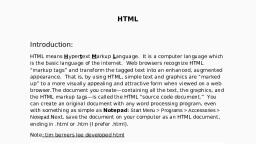
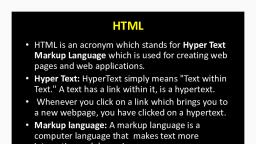
What is HTML?, HTML (Hyper Text Markup Language) is a language, for specifying how text and graphics appear on a, web page, When you visit a web site (e.g., www.google.com), your web browser retrieves the HTML web page and, renders it, The HTML page is actually stored on the computer, that is hosting the web site and the page is sent to, your browser, To see what HTML looks like go to your web browser, View menu and select View Source
Page 3 :
HTML, HTML is a textual language that includes, special markup tags such as:, <title> Bob’s Diner </title>, The <title> ... </title> tag specifies a title for, the web page, HTML code is stored in a simple text file that, has either a .htm or a .html filename extension, (e.g., restaurant.html)
Page 4 :
How to author html, Use a simple text editor such as vi to create, simple web documents, Use a web editor tool such as Amaya to create, more professional looking web documents, http://www.w3.org/Amaya/, , Amaya is simple to use. Use the editor tools to, author a document as you would using a text, editor such as Microsoft Word, When you save the document it creates an .html, file
Page 5 :
HTML title, A title is usually displayed on the top bar of a, web browser’s window when you visit a web, site, The title will now be displayed in the main, web browser window, just on the top bar, <title> Your title text goes here </title>, <title> is the start tag and </title> is the end, tag
Page 6 :
HTML Headings, HTML allows you to create sections in a document using, headings, there are six levels of headings, the first level creates the most significant heading, e.g.,, <H1> This is a major section </H1>, ..., and the sixth level creates the least significant heading, e.g.,, <H6> This is a minor section </H6>, After each heading you insert the text and images that, pertain to that section, like you would do in MS Word
Page 7 :
HTML Paragraphs, The <p> tag is used to start a paragraph, The </p> tag is used to end a paragraph, <p> The text in between the two tags is your, paragraph ... </p>, The </p> tag is optional, HTML assumes that, you are in the same paragraph until it, encounters the next <p> tag, You can force a line break using the <br> tag
Page 8 :
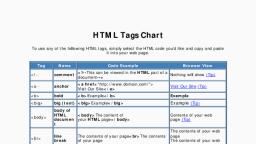
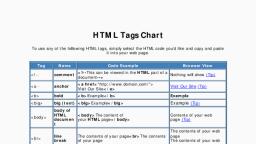
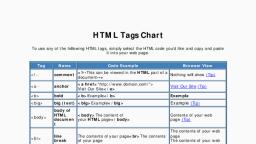
Formatting text, <i> italics </i>, <em> also italics </em>, <b> bold </b>, <i><b> italics and bold </b></i>, 2 <sup> 4 </sup> = 16, H <sub> 2 </sub> O, This text is <del> scratched </del> out, <code> use this tag for computer code </code>
Page 9 :
Pre formatting text, Text will always be formatted automatically unless, you use the pre format <pre> ... </pre> tags to force a, different format, Very useful when you want to display examples of, code (I suggest using <pre><code> ... </code></pre>, for that purpose), , <pre> This text will appear, on the website, exactly how, I pre formatted it, </pre>
Page 10 :
Inserting images, <img src=”dog.jpg” width=”120” height=”100”, align=”left”>, The image source is in file dog.jpg and the width, and height attributes specify the dimensions of the, image on the web page in pixels, You can also add a brief description of the image in, case the user cannot see the image e.g.,, <img src=”dog.jpg” width=”120” height=”100”, alt=”My pet dog”>
Page 15 :
Linking to Another, part of the same page, First define a link target header (anchor):, <h2><a name=”soccer-scores”> Soccer Scores </a></h2>, , Or you can avoid the use of <a>, <h2><id=”soccer-scores”> Soccer Scores </h2>, , Then reference the link target:, <a href=”#soccer-scores”> Go to Soccer Scores </a>, Or you can reference the link target from a remote web site:, <a href=”http://www.soccer.com/#soccer-scores”> Go to, Soccer Scores </a>
Page 16 : Linking to an, email address, <a href=”
[email protected]”> Send Spiros a message </a>, , Caution: Web crawlers will find this e-mail, address and I might start to get more spam, messages!, Better idea to use an image with the email, address
Page 19 :
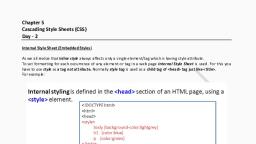
Cascading style Sheets, You can use cascading style sheets (CSS) to, customize your html file, e.g., specify colors, fonts, bold, italics for the, entire document, Style rules are defined using the tags, <style> ... </style>
Page 20 :
Example CSS, <style>, body, {, background-image:url('imagesTurtles-Background.jpeg');, background-position : 50% 50% ;, background-size : 100% ;, background-origin : content ;, background-repeat: no-repeat ;, font-family: “Times New Roman”, color: blue, }, </style>
Page 21 :
Putting it all together, <!-- This is an optional comment -->, <html>, <head>, <title> Your title goes here </title>, <style> Your style sheet goes here </style>, </head>, <body>, Your content goes here ... Paragraphs, images,, lists, links, texts, headings, etc., </body>, </html>