Page 1 :
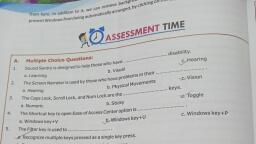
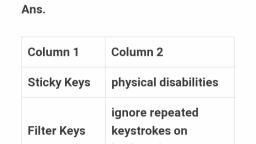
CHAPTER 15: Working with Accessibility Options, A. Select the correct option., 1. Sound Sentry is designed to help those who have ………………………………… disability. Hearing, 2. The Screen Narrator is used by those who have problems in their ……………… Vision, 3. Caps Lock, Scroll Lock, and Num Lock are ………………………………… keys. Toggle, 4. The ………………………………… key is used to recognise multiple keys pressed as a single key press. Filter, 5. High contrast is used to reduce ………………………………… . Eye strain, B. Fill in the blanks., 1. ………………………………… will make the computer recognise multiple key presses as a single key press.(Turning on Filter Keys), 2. ………………………………… impairment is the inability to hear beeps or other warning sounds or even the audio portion of the video.(Hearing), 3. The ………………………………… tool is helpful for the people with impaired vision.(Magnifier), 4. ………………………………… will allow the user to press one key at a time instead of pressing all the keys together.(Turning on Sticky Keys), 5. ………………………………… impairment prevents the user from proper handling of the mouse or keyboard.(Dexterity), C. Write T for True and F for False., 1. The Screen Magnifier is not helpful for the people who are suffering from vision problem.(False), 2. The Docked view is used to set the mouse pointer, the keyboard strokes, and the insertion point.(False), 3. Text tuning is used to place the text on the screen that is easier to read for a long time.(False), 4. The Set volume list box is used to make the voice louder.(False), 5. The On-Screen Keyboard disables the physical keyboard.(False), 6. There are total five Toggle Keys.(False), 7. The Ease of Access Center allows all the settings to be customised.(True), D. Answer the following questions., 1. What are the most common disabilities for which Windows provides solutions?, Ans: The most common disabilities for which Windows provides solutions are:, VISUAL IMPAIRMENT: This includes the inability to see and read due to blindness, colour blindness, impaired eyesight, glaucoma, cataract, or other age-related diseases of the eye., HEARING IMPAIRMENT: This refers to the inability to hear beeps or other warning sounds or even the audio portion of the video on the computer., PHYSICAL/MOTOR IMPAIRMENT: This impairment refers to the inability to control the mouse or keyboard due to injuries or loss of hands or fingers, stiffness in the finger joints, or tremors in hands due to some diseases., LEARNING DISABILITIES, The inability to read and comprehend or difficulty in learning and understanding, the written test is referred to as learning disability., 2. Write a short note on Magnifier., Ans: A Magnifier tool is helpful for the people with impaired vision as it enlarges the different parts of the screen in such a way, that people with visual impairment can easily see the objects on the screen. To turn on the Magnifier, simply click on the Start Magnifier option., 3. Differentiate between the Toggle key and Sticky key., 4. What is the use of Narrator option?, Ans: Screen Narrator tool helps in reading the text on the screen aloud. It also describes some system events, such as error messages, notifications etc., while using the computer. You can activate the narrator by clicking on the Start Narrator option from the Ease of Access Center window., 5. Write a short note on:, Ans:, a. Filter keys: Turning on Filter Keys will make the computer recognise multiple key presses as a single key press. Due to trembling of the hands or stiffness of the finger joints, some people face difficulty in pressing a key on the keyboard. Instead of a single press of the key, they may press it more than once. For those people, Filter keys may be used., b. Setting up high contrast: High contrast amplifies the colour contrast of some text and images on the computer screen to reduce eye strain and makes the items more distinct and easier to identify. People with poor vision can see in a much better way if the display is set to high contrast.