Page 1 :
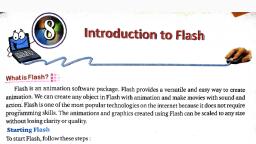
1, SUBJECT- COMPUTER, , CLASS-VIII, LESSON-07, MORE WITH ADOBE FLASH CS6, , ADOBE FALSH CS6, Adobe Flash CS6 is an authoring tool that we can use to create presentation, applications and, another content that responds to user interaction., , EXERCISES, A], , B], , C], , Tick [ √ ] the correct option :, 1], They help to modify various graphics :, a], Timeline, [ ], b], Modifiers, [√], c], Work Area [ ], 2], It switches the line color to the fill color and vice-versa :, a], Line color, [ ], b], Toggle color [ √ ], c], Fill color, [ ], 3], This layer is used to display graphics, sound and movie clips :, a], Guide Layer [ ], b], Mask Layer [ ], c], Plain Layer [ √ ], 4], This tool draws circular and oval shapes :, a], Oval, [ √], b], Pen, [ ], c], Line, [ ], 5], We select a width for the box in :, a], Label Text, [ ], b], Black Text, [√], c], Layers, [ ], Write True or False :, 1], Adobe Flash is a multimedia software which is designed to create animation., [ True ], 2], Timeline contains pictures made in Adobe Flash CS6., [ False ], 3], The Drawing toolbar is packed with tools that we can use to create and work with graphic, objects., [ True ], 4], Zoom magnifies our view or zooms out for a better look at the stage., [ True ], 5], Flash animations can be used for a lively message or entertainment., [ True ], Answer the following questions :, 1], What is Adobe Flash ?, Ans. Adobe Flash CS6 is an authoring tool that we can use to create presentation, applications and, another content that responds to user interaction., 2], Write the steps to start Adobe Flash CS6., Ans. There are following steps to start Adobe Flash CS6 :, a], Click on Start button. Adobe-Adobe Dreamweaver., b], Click on Start-Adobe Dreamweaver CS6 install into our system., c], As we soon as we click on Adobe Dreamweaver CS6 from the start menu., We will see the splash screen for some time and then comes its own application., 3], Write the steps to create a new file., Ans. There are following steps to create a new file:, a], First of all open Flash and click on File menu., b], Click on New. The new document dialog box will appear., c], Click on Flash Document., d], Click on OK., A blank document will be opened.
Page 2 :
2, 4], Ans., , 5], Ans., , 6], Ans., , 7], Ans., , Explain the Timeline of Adobe Flash CS6., The Timeline of Flash CS6 represents a simple mode of visualization. It contains the frames, layers, and scenes that make up a document. Layers appear on the contained in each layer appear as, multiple cells in a row to the right of the layer. The Timeline header above the frames displays the, frame numbers. We can show and hide the timeline by selecting window Timeline., Explain the Drawing toolbar of Adobe Flash CS6., The Drawing toolbar is packed with tools that we can use to create and work with graphic objects., a], Selection Tool : Used to select and move items on the stage., b], Sub-selection Tool : Displays edit points we can adjust to change a line., c], Gradient Transform Tool, : Used to change gradient shape., d], Lasso Tool, : Used to select irregularly shaped objects on the stage., e], Free Transform Tool : Used to transform graphic objects., f], Text Tool, : Draws text boxes., g], Line Tool, : Draws straight lines., h], Rectangle Tool: Draws square and rectangular shapes., i], Pen Tool, : Used to draw precise curves., j], Brush Tool, : Draws with a fill color, like paintbrush., k], Oval Tool, : Draws circular and oval shapes., l], Pencil Tool : Used to draw freeform lines., m], Ink Bottle Tool: Used to change the style, thickness, and colour of lines., n], Dropper Tool : Used to copy the attributes of one object to another., o], Eraser Tool : Erases parts of the graphic objects., p], Paint Bucket Tool, : Fills shapes or lines with colour., Explain layers and write the steps to add layers., Layers are a great way to stay organized. We can put buttons and navigation on one layer., Background art on another an d use individual layers for animation and dynamic content., There are several types of layers in Adobe Flash:, a], Plain Layers : Used to display graphics, sound and movie clips., b], Guide Layers : In this, those objects are placed which are used on other layers., c], Mask Layers : In this, we can hide elements in other layers from visibility., d], Adobe Delete Layers : When we create a new movie or a scene, Adobe Flash starts with a, single Layer and a Timeline., There are following steps to add layers :, a], Click on the layer which will appear below the new layer., b], Click on Insert Layer icon. A new layer will be appeared immediately., Now, we can make any object or shape in this layer., Write the steps to set the layer properties., There are following steps to set the layer properties :, a], Click on the layer for which we want to set properties., b], Click on Modify menu. The Modify menu will be appeared., c], Click on Timeline., d], Click on Layer Properties., e], Type a name for the layer in the Name Text box.
Page 3 :
3, f], , Change the desired layer property :, , -, , 8], Ans., , To make the layer visible, click on show checkbox., , To lock the layer to prevent accidental changes, we can click on the Lock checkbox., g], We can select a layer type., h], Click on OK., Write the steps to set movie dimensions and speed for animation., There are following steps to set movie dimensions and speed for animation :, a], Draw the scenery., b], Right-click the frame till where we want the animation to continue, for example, 30 and click, on the Insert Keyframe option., c], Click the New Layer from the timeline panel to insert a new layer. The layer 2 gets inserted in, the timeline panel., d], Now, draw the sun., e], Right-click the frame till where we want the animation to continue, for example, 30 and click, on the Insert keyframe option., f], Right-click the first frame and select Create Classic Tween. An arrow appears between both, the frames., g], Now, select the inserted key frame at frame 30., h], , Click Selection Tool on the tools panel and select the object (Sun)., , i], , When the shape of the mouse pointer changes into a double-headed arrow drag the object, (Sun) to the desired position., Now, To test our movie, press Ctrl+Enter key or click Control menu – Test move – in Flash, professional option. We see the movement of Sun.