Notes of Nios, English & Data Entry 336_Data_Entry_Operations_Lesson9.pdf - Study Material
Page 1 :
206 :: Data Entry Operations, , 9, Creating Presentation, , 9.1 INTRODUCTION, Whenever you appear in front of one or more people to present, your ideas, deliver speech, give classroom lecture, organize, computer conference, etc., you have a presentation. The basic, purpose of any presentation is communication. To communicate, effectively, you must state your facts in a simple, concise and, interesting manner. Any presentation consists of four basic, elements: you, your audience, your message and your tools., In this lesson you will learn to create a presentation using, Microsoft PowerPoint 2007 which is a complete presentation, software. Even if you are not a multimedia expert, PowerPoint, helps you create slides and present exciting slide shows., PowerPoint provides you helpful suggestions on the layout,, design, and formats of your slides., , 9.2 OBJECTIVES, After going through this lesson you would be able to:, l, , define the basic features of PowerPoint
Page 2 :
Creating Presentation :: 207, l, , create presentations, , l, , generate slides and add text to slides, , l, , insert charts and graphics, , l, , add sound and animation effects, , l, , save and print presentations, , l, , run a slide show, , 9.3 STARTING A POWERPOINT PROGRAM, It enhances your presentations with pictures, sound effects,, tables and charts. The main features of PowerPoint are:, –, , PowerPoint gives you several ways to create a presentation., , –, , Creating slides is the root of all your work with PowerPoint., You can get your ideas across with a series of slides., , –, , Adding text will help you put your ideas into words., , –, , The multimedia features makes your slides sparkle. You, can add clip art, sound effects, music, video clips etc., , –, , Preparing a presentation is easy in PowerPoint. Once if you, have created slides, you can put them in order, time your, slide show, and present them to your audience., , You can start your PowerPoint program in different ways. One, way is using Start button:, 1., , Click on the Start button., , 2., , →Microsoft, In the menu that appears select All Programs→, →Microsoft Office PowerPoint 2007 (Fig. 9.1). In, Office→, few seconds you will see PowerPoint screen on the monitor, (Fig. 9.2).
Page 3 :
208 :: Data Entry Operations, , Fig. 9.1, , 9.4 CREATING PRESENTATIONS, When you start your PowerPoint Program, you see a Blank, presentation., Office Btton, , Fig. 9.2
Page 4 :
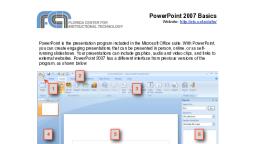
Creating Presentation :: 209, , Note: In PowrePoint 2007 Office button replaces the File menu, of other programs and the bar below the title bar is known as the, Ribbon ( Menu and Tool bars of some other programs)., Ribbon consist of a number of Tabs (Home, Insert, ….) . Tabs, are designed to be task oriented, Groups within each Tab break a task into subtasks, Command button in each group carry out a command or display, a menu of commands., You can also go to Office button on the top left corner of the page, and click on New. You can choose a blank presentation from the, page displayed., , Fig. 9.3, , 9.4.1 Installed templates, Select the Installed templates tab and then select the desired, template. The Installed template provides templates and ideas
Page 5 :
210 :: Data Entry Operations, , for a variety of presentation types. Select the template you want, and move through the wizard by clicking ↓ button or the scrollbar after making necessary choices. Choose the type of, presentation you would like and click on Create when finished., Your presentation is ready for show., , Fig. 9.4, , 9.4.2 Design Template, Click on the Installed Themes box to select the Design Template, you want to use. A number of template names will appear in the, white box. These Installed Themes give you different, backgrounds and text formatting to begin your presentation., Preview each design by highlighting the template name on the list., Press Create after you have chosen the design.
Page 6 :
Creating Presentation :: 211, , Fig. 9.5, , 9.4.3 Blank Presentations, Select the Blank Presentation to open a Blank Presentation. You, can choose this option to start a new presentation from scratch, if you have a new approach or if none of the templates suit your, needs.
Page 7 :
212 :: Data Entry Operations, , Fig. 9.6, , Slide Layouts, Once you have chosen a blank form for your new presentation,, the first slide of your presentation appears. You can right click, on the site to choose the layout you want. There are nine different, slide layouts from which to choose. You simply make your, selection and click on it. Each choice described below, dictates, how your completed slides will appear., 1., , Title Slide: This option is useful for beginning a, presentation; use this slide if you want to include subtitles, or smaller text underneath a title.
Page 8 :
Creating Presentation :: 213, , Fig. 9.7, , 2., , Title and Content: Anytime you need to make to list of, things that fall underneath a general subject, choose this, layout., , 3., , Section Header: This option is useful for making a major, section within the presentation, , 4., , Two Content: This is a useful option for putting different, elements or text boxes., , 5., , Comparison: This is a useful option for doing pro/con lists., , 6., , Title Only: This option is great for the beginning of a, presentation. No subtitles are included in this layout, , 7., , Blank: Use this layout if you want a blank slide formatted, according to the master Slide.
Page 9 :
214 :: Data Entry Operations, , 8., , Content with caption:, , 9., , Picture with caption: Use this option to place title over, one linked object., , 9.4.4 Selecting the content, There are six types of elements shown inside the text box you, can select from the contents within the slide, 1., , Insert table, , 2., , Insert chart, , 3., , Insert SmartArt Graphic, , 4., , Insert picture from file, , 5., , Insert Clip Art, , 6., , Insert Media Clip, , Fig. 9.8
Page 10 :
Creating Presentation :: 215, , 9.4.5 Open an Existing Presentation, Select the Open tab from the Office button to open an existing, presentation. Select the folder the file is located in from the Look, in: drop-down menu and highlight the file on the list. Click Open, to open the presentation., , Fig. 9.9, , 9.5 VIEWING SLIDES, PowerPoint consists of multiple views to help you in the creation, and presentation of your slides. These views are Normal, Slide, Sorter, and Slide Show. The first two views are for creating your, presentation and the last one is for presentation of slide show., You can access these views by clicking the respective view, buttons at the bottom right of the PowerPoint window. Or select, the View and then the respective command on the menu bar. For, →, example, if you want to choose Normal view, select View→, Normal command on the menu bar.
Page 11 :
216 :: Data Entry Operations, , 9.5.1 Normal View, The Normal View divides the screen into three sections: the main, window, where the current slide is displayed; the outline pane, on the left; and the notes pane at the bottom. This is where you, will do most of your work. You can resize each pane by clicking, its border and dragging it to the size that you want it to be. To, access Normal view, click on Normal view button at the bottom, → Normal command on the, left of the window or select View→, menu bar., , Previous slide, Next slide, , Normal Slide sorter Slide show, , Fig. 9.10, , 9.5.2 Slide Sorter View, A small image of each slide is displayed on Slide Sorter View., Slides can easily be ordered and sorted using this view. You can, also use this view to add special effect, such as the transactions, that occur when each new slide appears. To access Slide Sorter, view, click on Slide Sorter view button at the bottom left of the, → Slide Sorter command on the menu bar., window or select View→
Page 12 :
Creating Presentation :: 217, , Fig. 9.11, , 9.5.3 Slide Show View, The Slide Show View is the view to use when you preview your, presentation to make sure every thing is in place, or when you, deliver a presentation to an audience. Because all sounds,, animations, hyperlinks, and action settings of your presentation, will be working, you can see exactly how your show will turn out., To access Slide Show view, click on Slide Show button at the, →Slide Show command, bottom left of the window or select View→, on the menu bar., , 9.6 DESIGN TIPS, Although, PowerPoint provides you with some very powerful tools, to give excellent presentations, making the wrong design choices
Page 13 :
218 :: Data Entry Operations, , can defeat all your efforts. Making the right decisions is not, difficult. By following the guidelines below, you can prepare best, slides., 1., Use contrasting colors for the text and the background so, the text will be easy to read., 2., Use font size large enough to be seen from the back of the, room where the presentation will be held. A font size of 24point or larger is recommended., 3., Use short phrases and sentences to convey your message., 4., Use simple slide transitions. Too many different transitions, will distract your audience from the subject of the, presentation., 5., Avoid cluttering the slides with too much text or graphics., Your audience should hear what you have to say and not, be distracted by a busy screen., 6., Keep text simple and easy to read by not using many, different text effects such as bold, italics, underlining, larger, font size for emphasis within a sentence, or a different font, all on the same slide., , 9.7 WORKING WITH SLIDES, Slides are the building blocks of your presentation. You can also, create or use layouts and designs, add notes and create, handouts, and customize the look of your slides. You can create, new slides by inserting them into your show. When you create a, new slide, you can use any of the nine layouts available (Section, 9.3.3) in the New Slide dialog box or choose a blank slide. Once, you have created a new slide, you can insert various elements, such as text, pictures, graphs, tables etc., , 9.7.1 Applying a Design Template, To add a design template or change the existing one, select Design, tag on the Ribbon. Select the template by clicking on it., , 9.7.2 Changing Slide Layouts, To change the layout template of the slide select Home→, → Layout, command on the menu bar. The Slide Layout dialog box appears, with nine layouts. Click on one of the layout thumbnail images, to apply.
Page 14 :
Creating Presentation :: 219, , Fig. 9.12, , Fig. 9.13
Page 15 :
220 :: Data Entry Operations, , 9.7.3 Inserting and Editing the Existing Slides as Your, New Slides, You can insert slides and then edit them from other files; Cut,, Copy and Paste slides; and duplicate slides., Click on Home → New Slide and select on Duplicate Selected, Slides, Slides From Outline… or Reuse Slides…, , Fig. 9.14, , Slides from Outline… provides a way to create slides from text, file outlines. You can use this feature to create a group of slides, that contain a lot of text. You can also create new slides by typing, text in the outline pane. To access the Insert Outline dialog box,, select Home → New Slide → Slides from Outline command on, the menu bar.
Page 16 :
Creating Presentation :: 221, , Duplicate Selected Slides gives you a duplicate of a slide when, you need to create similar slides. To insert a copy of the current, slide after the current slide, choose the slide you want to, duplicate, and then Right click for the Duplicate Slide command, on the menu bar or press CTRL+SHIFT+D keys., , Fig. 9.15, , You can also cut/copy and paste slides by selecting the whole, slide., , 9.7.4 Reordering Slides, To reorder a slide in Slide Sorter View, simply click on the slide, you wish to move and drag it to the new location. In Normal or, Outline View, click on the slide in the slide pane and move and, drag the slide to a new location.
Page 17 :
222 :: Data Entry Operations, , 9.7.5 Hide Slides, If you do not want a slide to appear during the slide show, but, do not want to delete the slide as it may be used later, the slide, can be hidden by right clicking on the slide in the slide pane and, selecting Hide. You can unhide a hidden slide in a similar, manner., , Fig. 9.16, , 9.7.6 Moving Between Slides, You can move from one slide to another slide by using the, following tools:, Scroll Bars: Use the Scroll Bars to move from one slide to another, slide or through the text that is displayed in the notes pane and, the outline pane.
Page 18 :
Creating Presentation :: 223, , Next Slide and Previous Slide Buttons: The Next Slide and, Previous Slide buttons move you to the next slide or previous, slide in a slide show. These buttons, indicated by a double-arrow,, are located at the bottom of the vertical scroll bar., , Previous slide, Next slide, , Fig. 9.17, , Using Outline Pane: Change to Outline view and then click on, the slide that you want to view. You can move around in the, outline pane by using your mouse, or by using up and down, arrow keys., , INTEXT QUESTIONS, 1., , State True or False., (a), , In both Normal view and Outline view you can see:, current slide, slide outline, and notes.
Page 19 :
224 :: Data Entry Operations, , 2., , (b), , Using the contrasting colors for the text and, background to slides is not a good practice., , (c), , While preparing slides use long phrases sentences, to convey your message., , How many slide layouts are available in New Slide dialog, box?, (a) 7 (b) 9, , 3., , 4., , (c) 14, (d) 17, , The PowerPoint dialog box is useful to create a new, presentation using:, (a), , Installed templates, , (b), , Open, , (c), , Installed Themes and Blank Presentation, , (d), , both (a) and (c) above, , Which of the following views is shown in the presentation, of slides in a conference?, (a), , Slide view, , (b), , Slide Sorter view, , (c), , Outline view, , (d), , Slide Show view, , 9.8 WORKING WITH TEXT, You can work with text to communicate your ideas to your, audience. PowerPoint gives you several ways to insert, edit, and, format text for your presentations., , 9.8.1 Inserting Text, You can insert text by using the outlining or inserting text boxes., Outline Text: The outline text can be used to create slides of a, similar nature. By using the Outlining toolbar, you can create, heads, lists, and paragraphs. PowerPoint uses the format of your, outline to correctly insert text in a slide. Heading 1 becomes the, title of a slide, heading 2 becomes the first line of the text box,
Page 20 :
Creating Presentation :: 225, , and so on. When you select a predefined layout and switch over, to Outline view as explained earlier, you can see the Outline text, options on the left side window. To choose Outlining toolbar,, select the Outline pane next to the slide pane on left side below, the menu bar., Text Boxes: The text boxes are the way that PowerPoint puts, text on a slide. When you create a slide, and use a specific slide, layout, the slide will have one or more text boxes in it. Simply, click on the existing text to add new text., →Text, If you want to add a new text box to the slide, select Insert→, Box command on the menu bar and then draw the text box with, the mouse at a place where you want to insert the text box., If you want to resize a text box, follow the steps given below:, 1., , Select the text box you wish to resize by clicking on it with, the mouse. A border with eight handles will appear around, the text box. The four handles on the corners will resize, the length and width of the box at once while the handles, on the sides will resize only in one direction., , 2., , Click one of the handles as per your requirement and drag, it with the mouse. Release the mouse button when it is the, size you want to be. Move the text box by clicking and, dragging the thick dotted border with the mouse., , If you want to delete a text box from a template, simply click the, border of the text box, and then press the DELETE key on the, keyboard., , 9.8.2 Formatting Text, Format Fonts: Select the text that will be formatted by, highlighting the text either on the outline or on the slide. You can, → Font menu bar or right click on the, select from Home→, highlighted selection and select the Font menu from the popup, shortcut menu. Select a font face, size, style, effect, and color from, the Font dialog box.
Page 21 :
226 :: Data Entry Operations, , Fig. 9.18, , Replace Fonts: Design templates have a preset font that you may, want to change or you may want to change the font used on for, the entire presentation for a number of reasons. This can be, accomplished quickly using the Replace Fonts feature. Select, →Replace→, →Replace Fonts from the menu bar. Choose the, Home→, font you want to Replace from the first drop-down menu and the, font it should be replaced With from the second menu, and click, the Replace button.
Page 22 :
Creating Presentation :: 227, , Fig. 9.19, , Line Spacing: Change the amount of space between lines in a, →Line Spacing from the Paragraph, text box by selecting Home→, menu bar., l, , Line spacing - Select the amount of vertical space between, lines. A value of "1" is equal to single spacing and "2" is, double spacing. Values between and above these numbers, are valid as well.
Page 23 :
228 :: Data Entry Operations, , Change Case: Change the case of the characters in a paragraph, → Change Case from the Font menu bar, by selecting Home→, without having to retype the text., , Fig. 9.20, l, , Sentence case - Capitalizes the first letter of the first word, in each sentence., , l, , Lowercase and Uppercase - Changes the case of all the, letters., , l, , Title case - Capitalizes the first letter of every word and, reduces the rest to lowercase.
Page 24 :
Creating Presentation :: 229, l, , Toggle case - The opposite of Title case, it makes the first, letter of every word lowercase and capitalizes the remaining, letters., , Bulleted Lists on Design Templates: Bulleted lists allow you to, clearly display the main points of your presentation on slides. The, text boxes on design templates already include bulleted lists., Click the placeholder on the slide to begin adding text and press, the ENTER key to return to the next line and add a new bulleted, item. To go to the next line without adding another bullet, hold, down the SHIFT key while pressing ENTER., Bulleted List from a Text Box: If you are not creating a bulleted, list from an existing placeholder on a design template, or if you, would like to add an additional bulleted list, follow these steps, to create a new list:, 1., , In slide view, create a text box by selecting Insert→, →Text, Box from the menu bar., , 2., , "Draw" the text box on the slide by holding down the left, mouse button while you move the mouse until the box is, the size you want it., , 3., , Choose the Bullets or Numbering from the Home →, Paragraph menu bar., , 4., , Change the Size of the bullet by changing the percentage, in relation to the text., , 5., , Choose a color for the bullet from the Color menu. Click, More Colors for a larger selection., , 6., , Select one of the bullet types shown and click OK. Or click, the Picture button to view the Picture Bullet window., Select one of the bullets and click OK. Or click the, Character button to select any character from the fonts on, the computer. Select a symbol font such as Wingdings or, Webdings from the Bullets from drop-down menu for the, best selection of icons. Click on the characters in the grid, to see them larger. Click OK when you have chosen the, bullet you want to use.
Page 25 :
230 :: Data Entry Operations, , Fig. 9.21, , Fig. 9.22
Page 26 :
Creating Presentation :: 231, , Bulleted Lists and New Slides from an Outline: In Normal or, Outline view, text can easily be entered in the outline window, and new slides are automatically added. Follow the steps below, to become familiar with adding slide content in Outline view:, 1., Next to the Slide 1 icon, type the title of the slide. The text, you type beside the slide icons will be the large-type titles, on each slide., 2., Press ENTER key to type the next line. This will, automatically create a new slide. To create a bulleted list, for the first slide, press the TAB key or ALT+SHIFT+Right, Arrow keys to demote the selection to a bulleted list item., 3., Continue entering text for the bulleted list, pressing ENTER, key at the end of each line to create a new bullet., 4., Create a multilevel list by executing the above action again, to create a bulleted sublist. Press ALT+SHIFT+Left Arrow, keys to return to the original list., 5., Continue creating new slides and bulleted lists by using the, above actions until the presentation is completed. Use the, formatting instructions below to format the lists., If there is more than one bulleted list on the slide, the lists will, be designated by numbers enclosed in black boxes. The example, below shows the slide created from the outline on the left. The, bulleted list on the left side of the slide is labeled list "1" on the, outline and the list on the right is labeled list "2". When typing, the outline, begin typing in the new list by pressing CTRL+ENTER, keys., Numbered List: Follow these steps to create a numbered list:, 1., Create a text box., 2., With the text box selected, choose Home Paragraph →, Numbering from the menu bar., 3., Click the Numbered tab at the top of the Bullets and, Numbering window., 4., Change the size of the numbers by changing the percentage, in relation to the text., 5., Choose a color for the numbers from the Color menu. Click, More Colors for a larger selection., 6., Change the Start at value if the numbers should not begin, with 1., 7., , Select one of the seven list types shown and click OK.
Page 27 :
232 :: Data Entry Operations, , Fig. 9.23, , Fig. 9.24
Page 28 :
Creating Presentation :: 233, , 9.8.3 Text Box Properties, You can change the colors, borders, and backgrounds of a text, box with help of the Format AutoShape dialog box., 1., , Activate the textbox by clicking on it, and then select, Format Shape command on the menu bar. The Format, Shape dialog box appears., , 2., , Under the Fill menu, you can choose the color that will fill, the background of the text box. Check the, Semitransparent box if you want the slide background to, show through the color., , 3., , Select Line color that will surround the box with Solid or, Gradient for the color of the line., , 4., , Select Line Style for the Style or Weight for the thickness, of the line and a Dashed property if the line should not be, solid., , 5., , Select Shadow for pre-set shadow styles for your text box, , 6., , Select 3D Format and 3D Rotation for 3D effect for your, text box, , 7., , Change the text layout from Text Box tab to reposition the, text within the text box., , 8., , Click Close to add the changes to the text box., , 9.8.4 Adding Notes, From Normal View, notes can be added to the slide. These notes, will not be seen on your presentation, but they can be printed, out on paper along with the slide the notes refer to by selecting, Print What: Notes Pages on the Print menu., , Fig. 9.25
Page 29 :
234 :: Data Entry Operations, , 9.8.5 Spell Check, PowerPoint provides many ways to make sure that the text in your, presentations is correct. You can check spelling, catch style, errors, and use custom dictionaries., Correct the spelling in the presentation by selecting, →Spelling command on the menu bar or by pressing the, Review→, F7 key on the keyboard., 1., , The spell checker will prompt you to make corrections of, the first word that is spelled wrong., , 2., , If the word is spelled correctly, click Ignore or Ignore All if, the same word appears several times during the, presentation. If this word will appear in many presentations, (such as your name), click Add to add the word to the, dictionary and you won't be prompted by a misspelling, again., , 3., , If the word is spelled wrong, highlight one of the Suggestions, or type your own revision in the Change to box. Click, Change to correct this occurrence of the word or Change, All to correct all occurrences of the word in the presentation., , 4., , Click Close to abort the spelling check early., , 5., , When the spell checker has read through the entire, presentation, you will be prompted by a window telling you, that the spelling check is complete. Click OK., , 9.9 SAVING AND PRINTING, You can save your presentation slides as a file in a folder. You, can also save the slides as Web page so that you can post them, on Internet. Printing is similar to what you have done in Word, and Excel. Remember to set up your page before saving or, printing your presentation slides., , 9.9.1 Page Setup, →Print Preview from the menu bar to access, Select Office button→, options for printing the presentation slides. Select the format the, printed slides will be used for from the
Page 30 :
Creating Presentation :: 235, , Slides drop-down menu., , Fig. 9.26, , 9.9.2 Save as File, To save your presentation slides as a file, select Office, →Save As command on the menu bar or simply click on, button→, the Save button on the toolbar on top. The Save As dialog box, appears. Choose the folder and drive that your file will be located,, type the name of the file, and then click Save in the Save As dialog, box.
Page 31 :
236 :: Data Entry Operations, , Fig. 9.27, , 9.9.3 Save as Web Page, Presentations can be saved by selecting Office button→, →Save As, command on the menu bar as explained earlier. However, if you, want to post PowerPoint presentations on the Internet, you may, want to save them as Web pages so that the visitors to your web, site can view the presentation even if they do not have PowerPoint, →Save As and select, installed on their computers. Select Office→, Web Page command from the drop down. Choose your web page, directory on the network from the Look in: drop-down menu and, name the file in the File name: box. Click Save to save the, presentation in web format.
Page 32 :
Creating Presentation :: 237, , Fig. 9.28, , 9.9.4 Print, →Print command on the menu bar to print, Select Office button→, the presentation. The Print dialog box appears. Choose the, following options in the Print box., Print range - Select All to print all the slides in the presentation,, Current slide to print only the current slide, or enter slide, numbers in the Slides field to print only certain slides., Copies - Enter the number of copies of each slide specified in, Print range and check the Collate box if necessary.
Page 33 :
238 :: Data Entry Operations, , Print What l, , Slides - prints a full-page slide on each page., , l, , Handouts - prints as many slides as you designate on each, page., , l, , Notes Page - prints one slide with that slide's notes on each, page, , l, , Outline view - prints the outline of the presentation, , Click OK to print., , Fig. 9.29, , 9.10 CLOSE A DOCUMENT, To close the current presentation slides file, select Office, →Close command on the menu bar. If the file contains, button→
Page 34 :
Creating Presentation :: 239, , any unsaved changes, you will be prompted to save the file before, closing., , 9.11 EXIT POWERPOINT PROGRAM, When finished your work in PowerPoint and closed all the files,, you can quite the PowerPoint program by selecting Office, →Exit PowerPoint command on the menu bar., button→, , 9.12 KEYBOARD SHORTCUTS, Keyboard shortcuts can save time and the effort of switching from, the keyboard to the mouse to execute simple commands. Print, this list of Power Point keyboard shortcuts and keep it by your, computer for a quick reference., , Note: A plus sign indicates that the keys need to be pressed at the same time.
Page 35 :
240 :: Data Entry Operations, , INTEXT QUESTIONS, 5. (i), , How do you move from one slide to another slide?, (a) Using Scroll bars, (b) Using Next Slide and Previous slide buttons, (c) Using outline pane, (d) All of the above, , (ii) How do you insert text in a slide?, (a) Using outline text, (b) Inserting text boxes, (c) Right clicking, (d) (a) and (b) above, (iii) You can add notes to your slides from:, (a) Slide Sorter view, (b) Normal view, (c) Slide Show view, (d) (a) and (b), (iv) Text can be easily inserted into the slides using:, (a) Normal view, (b) Outline view, (c) Slide Sorter view, (d) (a) and (b) above, , 9.13 WHAT YOU HAVE LEARNT, In this lesson you learnt about the creation of a PowerPoint, presention. You can create a presentation through Autocontent, Wizard or Design Template or blank presentation. The first two, types allow you to present text in a standard format. On the other, hand, Blank Presentation is more flexible and you can make your, own design. After creation of the presentation slides, you can go, for a slide show and also take a print out.
Page 36 :
Creating Presentation :: 241, , 9.14 TERMINAL QUESTIONS, 1., , Explain any three features of PowerPoint., , 2., , Explain any one method of creating a presentation., , 3., , Write two ways of changing the view to slide show view., , 4., , Explain steps in inserting a text box in a slide., , 5., , How do you change the amount of space between lines in, a text box?, , 6., , How do you insert picture bullets in slides?, , 7., , How do you add notes to your slides?, , 9.15 FEEDBACK TO INTEXT QUESTIONS, 1., , (a), , True, (b) False, (c) False, , 2., , (c), , 9, , 3., , (d), , Installed Themes, Installed Templates and Blank, Presentation, , 4., , (d), , Slide Show View, , 5. (i), (ii), , (d) Using Scroll bars, using Next Slide and Previous Slide, buttons, and using Outline pane., (d) Using Outline text and inserting text boxes., , (iii) (b) Normal View., (iv) (d) Normal view and Outline view.



 Learn better on this topic