Notes of 9B, Information Technology Digital presentation.pdf - Study Material
Page 1 :
supporting paper documents of the presentation which is being given to the viewers. They, Handouts: Handouts are the hard copy of pages or slides of a presentation. They act as the, graphs, objects, pictures, drawn art, animated effects, etc. and is supported by:, A presentation package helps to create and display an eye catching and a systematic visual, A slide is an individual electronic "page' of a presentation. A slide can have titles, texts., Presentation packages can be divided into different categories depending upon the areas of, usage. Some examples of Presentation packages are, The software that is used to organize and display information through text, pictures., figures, etc. is known as Graphical Presentation Package, 14, DIGITAL, PRESENTATION, Way of expression is a crucial aspect for passing information or ideas to an individual or toa, group of people. Deliverance of ideas involve communication or expression through, nirtures, drama, demonstrations, lectures, talks, chalk é board, public speaking, overhead, projectors, physical models, etc., Visual images make a better impact on human mind than any other media. The retention and, comprehension of any information that is depicted through images is more effective The, visual aids like overhead projectors, physical models, etc. havec been more effective than the, written textor a verbal conversation., FoPnt, show with the helpofslides, ars compressed and printed version of slides, Speaker's Notes: During the presentation, aset of notes is required as a reference to help the, demonstrator. Such notes are known as Spenker's Note. It is a small hint about the, information in slides, Qutlines: Outline is a miniature or summarized view of the slides in a presentation. In, ourline only the title, sub-titles and the main text of all the slides, excluding pictures, tables, or charts are displayed, Outlines can be used to organize the sequence of flow of information of slides in a, presentation., Masters: Masters are the features that are common in multiple slides of a presentation, such, as title, font size & colour, background colour, ete., Slide Show: It is the clectronic presentation of slides arranged in a set of sequence and, displayed througha projector. The slides get displayed one after another on the full screen., It is not always possible to draw or show impressive graphs, accurate diagrams and, aesthetically appealing pictures when done manually., In computers, the visual information or images can be shown with the combination of text,, pictures, charts, figures, diagrams, etc. more easily and it is more effective when such information, are communicated through slides of presentation., Presentation is a way of systematic display of information. It includes pictures, texts,, graphics, audio, videos and animated objects which are organized and presented, electronically ina proper sequence on screen., USES OF PRESENTATION PACKAGE, Presentation package can be used for different purposes like:, On-Screen Presentation, Presentation packages can be used to create exciting and effective on-screen presentations, that can be displayed through LCD projectors or LED TVs. They include movies, sounds,, animations, etc., 246, 247, Scanned with CamScanner
Page 2 :
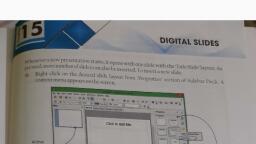
Scanned with CamScanner, IWeb Presentation, Presentation package can be used for displaying presentation on web. Thus, presentation, can be made accessible to people staying in remote places of the world., 35 mm Slides, The electronic slides or pages can be used to make 35mm slides for different purposes., Overhead Transparencies, The slides made in a graphical presentation package can be printed on transparent sheets, facilitating overhead presentations., Handouts and References, The outline of slides can be printed on a paper which can be used for reference purpose and, the matter ofthe slides can also be used as notes., Type, Emty ton, Obremtemglats, OOgen eidting prenton, (1), Setect 'Empty, presentation'., (2), Click on 'Create', button., Pre, OD ot uhow this w ed sgm, Caral, In this chapter, we will discuss about the presentation package in reference to 'Impress'., Impress is used to make effective presentation with the help of movies, sounds, graphs, etc, It is a part of OpenOffice Suite and can be downloaded from the website, www.openoffice.org'., Impress opens as:, Control Box, Menu Bar, Standard, Tool Bar, 5116WE AE, Close, Maximize, Minimize, FEATURES OFIMPRESS, Formatting, Tool Bar, Title Bar, Click to add title, In Impress, online screen presentations, web presentations, overhead transparencies,, 35 mm slides, printouts, notes, handouts and outlines can be easily made., Slide Pane, In Impress, there are added facilities like design templates, pictures, etc., that help the, user to create the slides easily and effectively along with predefined ideas., Vertical, Scroll Bar, Workspace, Click to add text, The slides in Impress can contain audio, video, graphs, tables, graphics, photographs,, etc. in addition to text., Horizontal, Scroll Bar, Sidebar, Deck, Once a presentation has been made, it is very easy to change the order of slides. One can, also add or delete slides in between the slides of a presentation., Drawing, Tool Bar, Status Bar, Zoom, BEGINNING WITH 'IMPRESS' IN COMPUTER, The opening screen of 'Impress' has different parts including the Slide pane, the Workspace,, the Task pane and several toolbars that can be displayed or hidden during the making of a, Tobegin 'Impress'on the computer:, presentation., Slide Pane: The slide pane contains thumbnails of the slides of a presentation in sequence, Double click on the icon of 'Impress', Opresent on the desktop., 'Presentation wizard' appears on the screen providing three options viz.,, of display. If any one of the slides in this pane is clicked, that particular slide, opens in the workspace., A Empty Presentation, A From Template, Click on Create' button to open the main window screen of 'Impress'., O Open Existing Presentation, Workspace: It is the basic layout or working area where the contents are entered. It has, five tabs: Normal, Outline, Notes, Handout and Slide Sorter., (Tocreatepresentationusing the above mentioned options are later discussed in this chapter)., Task Pane: It provides different options of slide layout and other significant features to, create a presentation., 248, 249
Page 3 :
menu contains options to, Slide Show Menu: This, Jike viewing of slides in ae c, helps to switch over all currently open, contents of the active window. It also, Standard Toolbar: It contains shortcut buttons of frequently used tasks, which help in, open a new window with some, Title Bar:, Title Bar is the horizontal bar which lies at the top of the Impress window, displays the name of the opened application/file atthe left corner., At the right corner of Title bar, there are buttons to Minimis, Restore/Maximize and Close the presentation., Menu bar lies below the Title bar. It contains various menus thar k, different optionsthat are visible by clicking on the menu name,, *To activate Windows, menu, click on Window, menu or PressAlt W keys, istomize Chc presentation, Menu Bar:, particular sequence, adding, transition, animation.etc, To activate, click on Slide, chow' menu or press Alt-S keys, Help Menu: This menu, helps the user by providing, reference or details on, various topics of operations, To activate it, click on, "Help' menu or Press Alt-H keys, Eile Edit View Insert Format Iools Slide Show Window Help, AVindow Menu: This menu helps to, File Menu: It has various, options which perform basic, operations related to a file. It, contains options which help--, to Create, Open, Save a file or i, to Exit from the application., Insert Menu: It has options, which help to insert new, slides and different types of, contents (table, picture,, object, chart, animation,, page number, date and time., etc.), files., Ge To activate it, click on, File' menu or Press, Alt-F keys., Scuting many actionstor making apresentation, 6 To activate it, click on, "Insert' menu or Press, Alt I'keys, Spetting, Edit File, Dhart, H, Hew, 29. 6, Expein, Directly PO, Edit Menu: It has options to, edit or modify thecontents of, a presentation., Format Menu: It has, options to modify the, layout of a slide., Potenh, Tae, Buttons Command Name, Purpose of the Button, New, Tocreateanew presentation, E To activate it, click on, "Edit menu or Press, Alt-Ekeys., e To activate it, click on, "Format' menu or Press, "Alt O'keys., Open, Toopen an existing presentation, Tosavethe activepresentation, Save, Document as E-Mail, Tosend the active presentation as ane-mail attachment, Export directly as PDF, Tosave the current file in Portable Document Fomat (PDF), Tools Menu: This menu, Print, Toprint a copy of the presentation, View Menu: It helps to view, the contents or the slides in, different forms., contains different tools, which perform additional, functions related to the, presentation like spelling, correction, macros, etc., Tocheck the spelling of the text contained in the slides, Tomove the selected contents in the slide to the clipboard, Spelling & Grammar, Ca t, Cut, a To activate it, click on, View menu or Press, Alt+V keys., Tocopy the selected contents to the clipboard, Topaste the contents of the clipboard in the active slide, To copy the steps of formatting done to the selected text in, order to apply the same type of formatting at other place, Сopy, AAOPedio, & To activate it click on, "Tools' menu or Press, Alt-T keys., Paste, Format Paintbrush, 250, 251, Scanned with CamScanner, 回回回困国国回国圈回回
Page 4 :
口 国回 回国国回回 画回, 回回国回回 ロロロロ, Scanned with CamScanner, Undo, Tocancel the action of the last execution, Align left, Toalign the seleeted text towards left, Redo, Centered, It is the opposite of the Undo. It is used to restore the, action of the last undo command, Align right, Нyperlink, Toalignthe selectedtext towards right, Tocreate and edit hyperlinks, Justified, to the left and, To align the selected text systematically, right page margins, Table, Toinsert new table into the current slide, Chart, Bullets On/Off, Toinsert a spreadsheet chart in the Slide, Toassign marks or remove them, Zoom, Toview the slides in magnified form, Bullets & Numbering, To add/edit format of bullets, Impress Help, Increase font size, To display (or hide) the office assistance pane to get, guidance or help for using Impress, Toincreasethe font size of the selected text, Todecrease the font size of the selected text, Decrease font size, Edit File, To edit a read only document or a database table, Promote/Demote, Auto Spellcheck, bullet hierarchy, To automatically check the spellings and grammatical, mistakes in the textofapresentation, Font Color, Tochange the font colour of the selected text, Display Grid, Specifies the setting for the configuration grid on a, document and helps to determine the exact position of, objects, Navigator, Symbel, Shapes, Tomove to other slides or move between open files, Text Formatting Toolbar: The formatting tool bar generally lies either below or towards, the right side of the Standard Tool bar. It contains shortcut buttons like Font, Name & Size,, Line ends, with Arrow, Text, Connector, Interaction, Flow, Charts, Rotate, Select, Stan, Glue Points, Arrange, Eltipse, From File, Line, Bold, Italic, Underline, etc. for common formatting tasks., Extrusion, On/Off, Gallery, Basic, Block, Arrown, Font Name, Aligment, Fontwork, Gallery, Align Right, Rectangle, Curve, Callouts, Promote, Bullets Demote, on/off, Shadow, Move Down, Character, Shapes, Pointa, Status Bar: 1 he status bar lies at the bottom of the 'Impress window screen. It shows the, status of an active presentation like page number, cursor position, slide no. etc., Font Size, Italic, Align Left, Bulets &, Numbering, Arial, V 28, BIUA, TeaEdit Pangraph 2 Row 2 Column, Presentation Toolbar: It generally lies beside the standard tool bar to the right side of the, screen. The buttons found on this bar are, Side 1/2 De, Move up, Bold, Underline, Justified, Paragraph, Increase, Font, Centered, Font Color, Buttons Command Name, Purpose of the Button, Slide, It enables to adda newslide in the presentation, Font, Toselect the type of Font, It enables to reset the slide with a new slide layout, Slide Layout, Font size, Toincrease/decrease the size of the selected text, O Slide Design, It enables to apply background design to a slide, B, Bold, Toconvert the selected text in Bold face, It enables to show the presentation in a full screen, O Slide Show, Italic, Toconvert the selected text in Italic, Underline, SLIDE LAYOUTS, Tounderline the selected text, Shadow, Slide layout refers to the basic look or the frame of type of slide in which contents can be, Todisplay a shadow on the selected text, 253, 252
Page 5 :
Scanned with CamScanner, added. In Impress, there are various types of predefined layouts for, creating slides which can be used for creating a new presentation., Some frequently used layouts are Title Slide, Content, Title-Only,, Blank Slide, etc. In the task pane area there are different layouts., Click on any Slide layout to select the required design from, Sidebar Deck., (1), Select a slide, design., (3), Click on, *Preview', Select a slide design, checkbox to, see the, Prestton Backgrounds, [Or] Click on Slide Layout drop-down button from the, *Presentation'toolbar., Clue and Red Grnden, Blue with Bottom Title, Brown, Chaacters with Glow, preview., (2), Select the desired layout., The layout of the slide appear on the workspace as a frame for slide., Set the, output, medium., (4), Select ap eatput medium, Onginal, Click on, O Scjeen, "Create', button., O Oyerhead sheet, OSige, Paper, Prene, To enable Sidebar Deck, click on 'View' menu and then click on 'Sidebar'., Help, Cancel, «Back, Create, MAKING PRESENTATION, To create a new presentation, click on the 'New' button of the Standard Toolbar. A, Presentation Wizard' dialog box appears with the following three options, each of which, can be selected to make a new presentation:, Entering Text in a Slide, Empty presentation, From template, Click in the text boxes to start typing, If the rext takes more than one line, Impress, automatically wraps the text to the next line., A Toend typing.click outside the text box., Ifit is required to display the text in more than one text box then a new text box has to be added., Open existing presentation, Presentation Wizard, Туре, O Empty presentation, Toadd a new text box in the slide:, Select the Text tool button from 'Drawing toolbar. The mouse pointer changes to (-) sign., Place the cursor to the position on the slide where the new Text Box' is to be added., Drag the pointer to create the text box., O Erom template, O Ogen existing presentation, Inserting object from Other Applications, In 'Impress', it is possible to insert text/pictures/charts/tables from other applications such, as Writer, Calc, etc., Previeg, ODo not show this wizard again, Help, Cancel, Next >, Create, Making presentation with an Empty presentation, Copy the object to be inserted, then place the cursor where it has to be pasted., Click on Paste'button from standard toolbar or press Ctrl V from the keyboard., This option helps to make a new presentation. This option guides the user step-by-step, with the help of pre-defined slide designs, output medium, transition effects, presentation, type, etc. Tocreate a new presentation with an empty presentation:, SAVING THE PRESENTATION, To save the created presentation:, Select 'Empty presentation' from Presentation Wizard and click on the 'Next' button., Click on 'Save'or 'Save As'option from the 'File' menu., 254, 255



 Learn better on this topic