Notes of Class 6th, Computer Science 6th Standard.pdf - Study Material
Page 3 :
GOVERNMENT OF KARNATAKA, , INFORMATION AND, COMMUNICATION TECHNOLOGY, (ICT), Support Material, , 6, SIXTH STANDARD, , LEVEL I, , Karnataka Residential Educational Institutions Society, No-8, M.S.B -1, 6th and 7th Floor, Cunningham Road,, Bengaluru – 560 052, .
Page 4 :
PREFACE, M.R. Hiremath K.A.S, Executive Director, KREIS, Bengaluru-20, Computers have become a way of life in the present day world. Everyone need to be, educated about the implications of this technology. Now the Karnataka Residential, Educational Institutions Society (KREIS) has proposed a course/textbook in this regards. The, course outlined for this textbook is an attempt to design a generally friendly course that, would not only be contemporary but also leaves sufficient scope for expansion into unknown, realms of computer activity that may emerge in future., The National Curriculum Framework 2005 recommends that theoretical component of, Higher Secondary stage should emphasise on problem-solving methods and that the, awareness of the historical development of key concepts be judiciously integrated into the, content of a subject. It also recommends that given the pervasive impact of information and, communication technology (ICT), a course related to this, should address this infrastructure, challenge seriously and explore viable and innovative alternatives with regard to hardware,, software and connectivity technologies appropriate for rural schools., NCF 2005 speaks about the tremendous effectiveness of the information and, communication technology in shaping modern society which has created the need for an, educated public that can utilise such technology most effectively for the betterment of society, and humankind. This book is aligned with these broad guidelines of NCF., The book has been conscientiously designed and is the result of the renewed efforts of, the textbook team comprising of computer teachers and subject experts. Some of the, members worked at the advisory level while others worked towards the actual developmental, activity. It is hoped that the students will appreciate the beauty and logic of information and, communication technology. It has truly been a team work., A conceptual coherence is derived with the pedagogy, the use of easily, understandable language, simple mathematical formulations in a logical fashion. This book, has some features which, we earnestly hope will enhance its usefulness to the students. Each, chapter is provided with learning outcomes in the beginning and the worksheets at the end of, each chapter.
Page 5 :
I thank Dr. Shalini Rajanish,, , I.A.S,, , Principal Secretary, Former Department of, , Backward Classes and the then Vice Chairman, KREIS, Bengaluru, a National awardee on, Sakala and Panchayat Raj whose spontaneous and continuous support for initiating this work, with distinct guidelines and made it happen. We express our gratitude to Sri E.Venkataiah Retd, I.A.S,, , Former Principal Secretary, Department of Social Welfare and the east while Vice, , Chairman of KREIS, Bengaluru who was the path maker for KREIS. Sri Gangaram Baderiya, I.A.S,, , Principal Secretary, Department of Social Welfare and Vice Chairman, KREIS,, , Bengaluru. Sri Naveen Raj Singh, I.A.S, Principal Secretary, Department of Backward Classes, and Dr. S.C Sharma, Former Vice Chancellor, Tumkur University, Karnataka, Prof. Rajaram, Sharma, Joint Director, CIET, NCERT, New Delhi, Prof. A.N Ramachandra, Former Joint, Commissioner, Navodaya Vidyalaya Samiti, New Delhi and also to the Director, DSERT, for, supporting us with the task of preparing these textbooks. I thank our core team of computer, teachers who worked restlessly for formulation of these text books in the leadership of Sri., A.T Chamaraja, Retd. Joint Director, Department of Public Education, Mr. Santosh Elemmi,, Mr. Sunil C.S and Mr. Keerthi Kumar H.M., We welcome suggestions and comments from our valued users, especially students, and teachers. We wish our young readers a happy journey to the exciting realm of ICTSupport Material., (M.R. Hiremath K.A.S)
Page 6 :
FOREWORD, A N Ramachandra, Formerly- Joint Commissioner Acad, Navodaya Vidyalaya Samiti,, Min of HRD, Govt of India,
[email protected], It is well said by Sir Winston Churchill that “Men occasionally stumble over truth,, but most of them pick themselves up and hurry off as if nothing ever happened”. Computers, have entered into classrooms so naturally than expected. While a decade ago teaching the, school children about the use of computers was a challenge. Now children in even remote, areas also know that a lot of fun can be understood by the touch of mobile screen. The 21 st, century digital children are at par with the pace of the Technology and its multiple, dimensions affecting all spheres of their life., What is planned to teach the children through this support material is to engross the, children towards understanding the computer and its functional competency. This effort, surely enhances the learning pattern and desired outcomes. Parting computer in the school, curriculum brings paradigm shift from teaching to learning and also:, a., b., c., d., , Use of computer by teacher increases their efficiency and quality of teaching., Integration of ICT in curricular activities makes children learning a joyful event, Inter-disciplinary approach in learning brings higher order concepts, Computer aided learning gives impetus to Multiple Intelligence such as; Creative, thinking and problem solving skills., , Let me also caution that this support material does not contain material to learn, specific software. Further, learning computers is not designed as a substitute for learning core, subjects. However, by association with the computer and with the help of this set of support, material students will be able to explore the possibilities of using computer as a tool in, enhancing knowledge, understanding of subjects and skills and concepts dealt in core, subjects. I am happy to be associated with the team in developing this material to assist the, teachers and children in Karnataka Residential Educational Institutions Society (KREIS)., The team involved in this work has also taken into account the constraint like availability of, time of the children in the Residential school pattern. Hence, lot of activities could be, planned to be conducted after the class hours through a formal interaction with the computer, teacher and the subject teachers, using the techniques explained in this support material. With, this material it is expected to enhance collaborative activities and interdisciplinary, approaches. The support material in this series has links from level to level. Over a period of, 5 years students are expected to integrate ICT tools in their core subjects at ease. Although, teachers can use their own methods to evaluate themselves the efficacy of use of this material, from time to time , learning concepts explained in this set of support material is not expected, to be evaluated through a formal set of examinations. The fun of learning the skills is, incorporated in various exercises and activities recommended.
Page 7 :
Special features maintained in series of support material are:, , , , , , , , Minimum skills required at the age group for operation have been attempted to be, incorporated, Time share of 100-120 periods (80 hrs per year) is planned, Exercises and materials are designed in such a way that children Learn through, independent operation and collaborative work, Play-way/Conversation /interactive approaches are adopted, Brand neutrality is maintained to avoid specific alignment to any particular brand, Kannada compliant inputs are exhaustively attempted, , I wish that teachers will make use of this material more informally to have full, participation of the students in productive manner. I thank the Karnataka Residential, Educational Institutions Society (KREIS) for reposing confidence in our entire team in, developing the material. Thanks are also due to the team members who have invested, valuable time and expertise., , (A N Ramachandra)
Page 9 :
Karnataka Residential Educational Institutions Society, , 6th Standard, , HOW TO USE THIS BOOK, This book is prepared for teaching about the computer to children. The teachers’ role is, primary that of a facilitator encouraging active learning. Specific guidelines can be found in the, Teachers’ Corner at the end of the book. The teachers’ should read all the books in a series before, starting any class and understand the flow of content to ensure that the contents are comfortably, communicated inside the classroom. Ensure that the conceptual understanding is mastered before, proceeding to the skills. Use the group activities and projects to stimulate creativity and knowledge, sharing. This book can easily be covered in one year, with four classes (40 minutes) per week. See the, table below for an overview of the concepts, objectives covered in each lesson along with periods., Sl No, , Topic Name, , Concepts, , 01, , Introduction to, computer, , 1., 2., 3., 4., , Introduction, Parts of computer, Characteristics of computer, Applications of computer, , 02, , Components of, computer, , 1., 2., 3., , Input Device, Output Device, Types of computer, , 03, , Do’s and Don’ts, with computer, , 1., 2., 3., , Correct way to use a computer., Computer Startup, Shut down computer, , 04, , Using Mouse, and Keyboard, , 1., 2., , Mouse, Keyboard, , 1., 2., 3., 4., 5., 6., 1., 2., 3., 4., 1., 2., 3., 4., 1., 2., 3., 4., 5., 6., , About Paint, How to start Paint, Structure of Paint window, Tool Box, Drawing Shapes, Steps to Save and Exit, How to open Tux Paint, Tux Paint Interface, Use of Tools, Drawing Diagrams, Introduction, Fish Cascade, Comet zap, Lessons, Introduction to Number System, Decimal Numbers, Binary Numbers, Octal Numbers, Hexadecimal Numbers, Conversions, , 05, , Paint using a, Computer, , 06, , Fun With Paint, , 07, , Fun with Tux, Typing, , 08, , Number System, , , , , , , , , , Objectives, Define computer., Identify the main parts of computer., Explain the characteristics of computer., List the various uses of computer., Identify places where computers can be used., Define input, output and processing., Identify some input and output devices of a, computer., Recognize the types of computer., Follow guidelines for maintenance of the, computer., Follow safety rules while using computers., Be sensitive to the needs of other users., Start the computer and shut down the computer., Identify the parts of a mouse and their functions., Use the mouse buttons for activities., Use a keyboard for entering words and numbers., Use special keys to enter text., , , , , , , To open a paint application., Draw different shapes., Use different colors., Save and Exit., , 24, (2+22), , , , , , Draw and color painting in Tux Paint., Use different options in Tool Box., Identify icons associated with Tux paint., , 24, (2+22), , , , , , Open & work with Tux Typing., Practice typing skills with games., Type letters & words with speed and accuracy., , 20, (2+18), , , , Convert number from one number system to, another., Identify different coding systems., , 21, (18+3), , , , , , , , , , , , , , Periods, 15, (13+2), , 12, (9+3), , 12, (8+4), , 12, (6+6), , II
Page 10 :
Karnataka Residential Educational Institutions Society, , 6th Standard, , CONTENTS, SL.NO, , NAME OF THE LESSON, , PAGE NO, , 01, , Introduction to computer, , 01, , 02, , Components of computer, , 10, , 03, , Do’s and Don’ts with computer, , 18, , 04, , Using mouse and keyboard, , 25, , 05, , Paint using a computer, , 30, , 06, , Fun with Paint, , 43, , 07, , Fun with tux typing, , 48, , 08, , Number System, , 52, , III
Page 11 :
6th Standard, , Karnataka Residential Educational Institutions Society, CPU, Keyboard, Mouse, Scanner, Monitor, Printer, Speaker, Speed, Storage, Accuracy, Diligence, Versatility, Flexibility, Reliability, , Input Device, , Paint – Drawing Shapes & Coloring, , Tux Type – Typing Letters & Words, Output Device, , Safety and Security, , Characteristics, , Familiarity with Computer, , 6th Standard, Level I, , Purpose, Enhanced Learning, Writing Letters, Playing Games, Utilities, Schools, Offices, Hospital, Railway, Banks, Binary, Decimal, Octal, Hexadecimal, , Tux Paint – Painting Pictures, , Software, , Hardware, , Usage Skills, , Uses, , Places, , Number System, , Mouse:, Left Click, Right Click, Double Click, Keyboard:, Using Alphabets Keys, Using Special keys, Start Up:, Switch On Power Button of CPU, Shut Down:, Shut down the system, Switch Off Monitor, , Keep Clean:, Keep Computer area Clean, Do not eat and drink near computers, Cover when not in use, Be Safe:, Do not pull wires connected., Do not put your fingers, Do not touch part with wet hands, Keep a Correct Posture:, Keep chair at proper height, Keep proper distance from monitor, Be Gentle:, Do not hit hard on the keyboard, Do not remove any cable, Do not take any item away, Share Equally:, Give Space to others while using., Take turns while using mouse and keyboard, , Helpline, IV, , Getting Help
Page 12 :
Chapter 1: Introduction to Computer, , Inside, Introduction, Parts of computer, Characteristics of Computer, Applications of Computer, , Learning Outcomes:, After you have studied this lesson you will be able to:, , , Define computer., , , , Identify the main parts of the computer., , , , List the characteristics of the computer., , , , List the various uses of the computer., , , , Identify places where computers can be used.
Page 13 :
Chapter 1: Introduction to Computer, , 6th Standard, , (One Day…………..Gunda and Reeta talking casually at home), Gunda: Hi, what are you doing?, Reeta: I am watching T.V., Gunda: What is T.V?, , Reeta: It means television. It is an electronic machine., Gunda: Do you know what an electronic machine is?, Reeta: Electronic machines are those machines, which perform a task or a job., Gunda: Can you tell me some more electronic devices other than T.V?, Reeta: Washing machine, Mixer, Refrigerator, DVD player, Computer etc., , Gunda: Ok….. I know all these machines except Computer. Tell me what is a, Computer?, Reeta: A Computer is a general purpose device that can be used to carry out a, set of operations automatically., Gunda: Ok, What are the benefits of Computer?, Reeta: It makes our work easy and save our time and energy as well., Gunda: Come, Reeta Let us ask our teacher to tell more about Computer., , Karnataka Residential Educational Institutions Society, , 2|Page
Page 14 :
Chapter 1: Introduction to Computer, , 6th Standard, , (Reeta and Gunda go to School), Gunda and Reeta: Good morning Teacher., Teacher: Very good morning., Gunda: Teacher, please explain us about the, computer., Teacher: Well students, come with me., Students: Ok Teacher., (Teacher and Students go to computer laboratory), Students were in the computer room, looking at one of the computer. They were, trying to see how the wires were connected together., Teacher: So, have you already noticed that a computer has many parts?, Gunda: Yes, just like we have hands, legs, eyes, and ears! What are the names, of the parts of a computer?, Teacher: The names of the four most important parts are - CPU, Monitor,, Keyboard, and Mouse., Reeta: Why does a computer need so many parts? What do they do? How are, they connected?, , Karnataka Residential Educational Institutions Society, , 3|Page
Page 15 :
Chapter 1: Introduction to Computer, , 6th Standard, , Charles Babbage (1791-1871) designed an automatic calculating, machine which led to the evolution of computers. He designed two, machines namely difference engine and analytical engine. Because of, his great contribution to the evolution of Computer, he is known as, “Father of Computer”., , Teacher: Good question Students! Let us learn about each of these parts., CENTRAL PROCESSING UNIT (CPU), CPU (Central Processing Unit) is the most, important part of a Computer. It is like the brain of a, computer. It does all Arithmetic and logical operations. It, also controls all other parts - Monitor, Keyboard, and, Mouse. These parts have to be connected to the CPU to, work., MONITOR, A monitor looks like a TV screen. The CPU, uses the monitor to show us a text, photos, movies,, and games. The front portion of the monitor is called, the screen or display. The monitor is a standard, output device. The monitor shows whatever we type, or draw., KEYBOARD, The Keyboard is made of several small buttons called keys. Each key has, a number, letter or word written on it. Just as you use a pencil to write on a, paper, you can use a keyboard to type. The keyboard is a standard input device., , Karnataka Residential Educational Institutions Society, , 4|Page
Page 16 :
Chapter 1: Introduction to Computer, , 6th Standard, , QWERTY Version keyboard was invented by “August Dvork”., Normal keyboard consists 104 – 108 keys, , MOUSE, A mouse is used to point at the items shown, on the monitor. The mouse usually has two or three, buttons and a small wheel between the buttons., Mouse consists of two buttons- left button and right, button and a scroll wheel., , MOUSE – “Manually Operated User Sensible Equipment”, MOUSE was invented by “Douglas Englbart”., , Gunda picks up the computer mouse and starts playing with it., Teacher: Be careful! We must take proper care of the different computer parts., , Definition, , “Computer is an electronic device that accepts stores, and processes the data to generate meaningful results or, output”., , Karnataka Residential Educational Institutions Society, , 5|Page
Page 17 :
Chapter 1: Introduction to Computer, , 6th Standard, , Teacher: Reeta, Do you know the characteristics of the computer?, Reeta: Yes, I know Teacher. The computer works very fast., Teacher: Very Good. There are some more characteristics as below., Speed, Storage, Accuracy, Diligence, Versatility, Flexibility, Reliability, Speed:, The computer works very fast. The speed of, Computer is measured in terms of MIPS (Million, Instructions Per Second)., For Example A money counting machine counts, money faster than man., Storage:, The computer can store a large volume of data and information. The storage, capacity of the computer is measured in terms of Bytes. A group of 8 Bits is, called a Byte., , Karnataka Residential Educational Institutions Society, , 6|Page
Page 18 :
6th Standard, , Chapter 1: Introduction to Computer, , Accuracy, The computer always gives correct, result unless the user gives the wrong inputs., This property of Computer is called Accuracy., Diligence, Unlike human beings, a computer does not, suffer from limitations like tiredness and lack of, concentration. It can work for hours without, making any errors., Versatility, Computers are capable of performing any task., Multi-processing features of computer make it quite, versatile in nature. The computer can be adapted to any, field easily. It is used for scientific calculations,, business processing, for playing games, teaching,, training etc., Flexibility, Flexibility would involve the number of things, you can do with a computer. While some are best used, for simple business tasks, and filing of tasks, others are, good for multimedia, gaming, and so on., Reliability, The term reliability refers to the ability of a, computer-related hardware or software component to, consistently perform according to its specifications., , Karnataka Residential Educational Institutions Society, , 7|Page
Page 19 :
Chapter 1: Introduction to Computer, , 6th Standard, , Reeta: OK Teacher, please tells us some uses of the computer., Teacher: Good question, OK students listen here., Applications of computer – Some Examples, In Schools, Used in schools for learning different, subjects., Used for enhanced learning program like, EDUSAT., For recording student details., In Offices, Computers are used for writing letters and preparing reports., Used for office letter correspondence, through email., Attendance records of the employee and, their personal details like employee id,, name, address and mobile number., Used for the preparation of balance, sheets., In Bank, For maintaining customers bank accounts., For online banking services., For counting Notes., The computers also help in managing, ATM., , Karnataka Residential Educational Institutions Society, , 8|Page
Page 20 :
Chapter 1: Introduction to Computer, , 6th Standard, , Utilities, Online booking of Railway, Bus, Air, tickets., To recharge your mobile currency., Online payment like electricity, water, bills etc., In Hospital, Used to maintain records of patients., Used in CT scanning, Used in X-Ray and ECG Machines., In Scientific field., Used to launch, control and communicate, with the satellites., Used in weather forecasting., Used in research fields., Reeta: OK Teacher, but how can children use a computer?, Teacher: Some simple works that you can do using a computer., You can write letter to your family, You can watch movies and listen to music., You can draw pictures and cartoons., You can create a greeting card for your, friend., Reeta: Thank you, Teacher. Today we have learned a lot., Teacher: Students, tomorrow we will learn more about the computer., , Karnataka Residential Educational Institutions Society, , 9|Page
Page 21 :
Chapter 2: Components of Computer, , Inside, Input Device, Output Device, Types of Computer, , Learning Outcomes:, After you have studied this lesson you will be able to:, , , Define input, output and processing., , , , Identify some input and output devices of a computer., , , , Recognize the types of computer.
Page 22 :
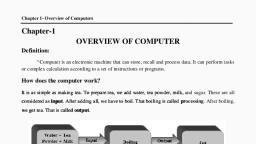
Chapter 2: Components of Computer, , 6th Standard, , Reeta: Teacher, yesterday we learnt about parts of the computer, but how does a, computer work?, Teacher: OK, I will give a good example to explain how a computer works. It, is as simple as making tea., , To prepare tea, we add water, tea powder, milk, and sugar. These are all, considered as input. After adding all, we have to boil. That boiling is called, processing. After boiling, we get tea. That is called output., Similarly, the computer works based on the input, processing and output., , Input-Process-Output cycle (IPO Cycle), , Gunda: Teacher, what are input devices?, Teacher: Input devices allow us to send information to the computer. The input, to the computer is usually given by clicking the mouse or typing on, the keyboard. Example: keyboard, mouse etc., Reeta: Teacher, tell me some other input devices other than keyboard and, mouse., Teacher: Ok Students look here…, , Karnataka Residential Educational Institutions Society, , 11 | P a g e
Page 23 :
Chapter 2: Components of Computer, , 6th Standard, , Input device: The device used to accept the data and instructions from, the user is called input device., Definition, , , , TRACKBALL, A trackball is an input device used to enter, , motion data into computers or other electronic devices., It serves the same purpose as a mouse but is designed, with a moveable ball on the top, which can be rolled in, any direction., , , JOYSTICK, The joystick is also a pointing device which is used, to move cursor position on a monitor screen. The joystick, can be moved in all four directions. The function of the, joystick is similar to that of a mouse. It is mainly used in, playing computer games., , , , SCANNER, The scanner is an input device which works, , more like a photocopy machine. It is used when, some information is available on a paper and it is, to be transferred to the computer for further, manipulation. The scanner captures images from, the source which are then converted into the digital, form., , Karnataka Residential Educational Institutions Society, , 12 | P a g e
Page 24 :
6th Standard, , Chapter 2: Components of Computer, , , , LIGHT PEN, A light pen is a pointing device which is similar to a, , pen. It is used to select a displayed menu item or draw, pictures on the monitor screen., , , WEB CAMERA, A web, , camera, , is, , an, , input, , device, , that, , can, , record videos and take pictures. It can also transmit video over, the Internet in real-time, allowing you to do video chat or video, conferencing with someone in a different part of the world., , , TOUCH SCREEN, It allows the user to operate/make selections by simply, touching the display screen. A display screen that is sensitive, to the touch of a finger and widely used in ATM machines, car, navigation systems, and medical monitors., , , , BAR CODE READER, Bar-code readers are photoelectric scanners that, , read the bar codes or vertical zebra stripes marks,, printed on product containers. These devices are, generally used in supermarkets, bookshops etc., , , Optical Mark Recognition (OMR), Optical mark recognition, also called mark sense, reader is a technology where an OMR device senses the, presence or absence of a mark, such as pencil mark., OMR is widely used in tests such as aptitude test., , Karnataka Residential Educational Institutions Society, , 13 | P a g e
Page 25 :
6th Standard, , Chapter 2: Components of Computer, , Gunda: Teacher, what are output devices?, Teacher: Output devices allow us to receive information from the computer., The output from the computer may be printouts from the printer,, sounds on the speaker, or images on the monitor., Output device: The device that displays output to the user is called, output device., Definition, , , , PRINTER, A Printer is an output device that helps you to print information on paper., , We can print letters, pictures on paper using a printer. The printer comes in, various models and types. They can be classified as impact or non-impact, printers., Impact printers use the typewriting printing, mechanism wherein a hammer strikes the paper, through a ribbon in order to produce output. A dotmatrix and character printer comes under this category., Non-impact printers do not touch the paper while, printing. They use chemical, heat or electrical signals, to etch the symbols on paper. Inkjet, DeskJet, laser, printers comes under this category of printers., PLOTTER, A plotter is an output device much like a, printer that is used for printing. Instead of toner,, plotters use a pen, pencil, marker, or another, writing tool. Plotters can work on very large sheets, of paper and flat materials including plywood,, Karnataka Residential Educational Institutions Society, , 14 | P a g e
Page 26 :
Chapter 2: Components of Computer, , 6th Standard, , aluminum sheet and flex banners., , , SPEAKERS, Speakers are another type of output, , device, which allows you listen to sounds like, music and conversation with people., , , , PROJECTOR, Projectors are used in situations when, , a very large viewing area is required, for example, during presentations, for advertising, or in the, home for watching movies., Teacher: Good. So now you know that:, Keyboard and mouse are input devices., Monitor and printer are output devices., Any device has to be connected to the CPU in order to receive or send, information. CPU controls all the connected input and output devices., The CPU is neither an input nor an output device. It takes the, information given by the input devices, does the work and, sends the result to the output devices. This is called, Hint, , Processing., , Reeta: Teacher, are these computers classified as different types?, Teacher: Yes, Computers range in size and capability., , Karnataka Residential Educational Institutions Society, , 15 | P a g e
Page 27 :
6th Standard, , Chapter 2: Components of Computer, , Types of computers, Desktop computers, Desktop computers are designed for use, at a desk or table. They are larger and more, powerful, , than, , other, , types, , of, , personal, , computers. Desktop computers are made up of, separate components. The main component, called the system unit is a rectangular case that, sits, , on, , or, , underneath, , a, , desk., , Other, , components, such as the monitor, mouse, and keyboard, connect to the system, unit., Laptops and Netbooks, Laptops are lightweight mobile PCs, with a thin screen. Laptops can operate on, batteries, so you can take them anywhere., Unlike desktops, laptops combine the CPU,, screen, and keyboard in a single case., Netbooks (also called mini notebooks) are small laptops that are less, powerful than laptops, they're used mainly to browse the web and check email., Smartphones, Smartphones are mobile phones that have some of the, same capabilities as a computer. You can use a Smartphone to, make telephone calls, access the Internet, organize contact, information, send an email and text messages, play games,, and take pictures., , Karnataka Residential Educational Institutions Society, , 16 | P a g e
Page 28 :
6th Standard, , Chapter 2: Components of Computer, , Handheld computers, Handheld, , computers,, , also, , called personal, , digital, , assistants (PDAs), are small enough to carry almost anywhere., Handheld computers are useful for scheduling appointments,, storing addresses and phone numbers, and playing games., That has more advanced capabilities, such as making, telephone calls or accessing the Internet. Instead of keyboards,, handheld computers have touch screens that you use with finger or a stylus (a, pen-shaped pointing tool)., Tablet PCs, Tablet PCs combine features of laptops, and handheld computers. Like laptops, they're, powerful and have a built-in screen. Like, handheld computers, they allow you to write, notes or draw pictures on the screen, usually, with a tablet pen instead of a stylus. They can also convert handwritten text into, typed text., , Karnataka Residential Educational Institutions Society, , 17 | P a g e
Page 29 :
Chapter 3: Do’s and Don’ts with Computer, , Inside, Correct Way to Use computer, Keep it Clean, Be Safe, Keep a correct posture, Be Gentle, Share equally, Computer Start Up, Shutdown Computer, , Learning Outcomes:, After you have studied this lesson you will be able to:, , , Follow guidelines for maintenance of the computer., , , , Follow safety rules while using computers., , , , Be sensitive to the needs of other users., , , , Start the computer and shut down the computer.
Page 30 :
6th Standard, , Chapter 3: Do’s & Don’ts with Computer, , We must always take care of computers. While using computers, we, should follow the following instructions., 1. Keep it clean: It is sensitive to dust., 2. Be safe: Handle it safely as it works on electricity., 3. Keep a correct posture: To avoid injury., 4. Be gentle: It is delicate., 5. Share equally: It is for everyone., Keep it Clean, Gunda: I am very hungry. Can we eat now?, Teacher: What if some food falls on the computer?, Reeta: It will stop working!!, Teacher: It’s correct Reeta., A. We, , should, , always, , keep, , the, , computer and its nearby area clean., B. After the use of computer cover it, safely., C. Do not take food or drinks into the, computer lab., Be Safe, Gunda: CPU is connected by so many wires., Reeta: We should be careful as one wire is connected to the electrical socket., Teacher: Very good. A computer works on electricity just like your Television,, Washing machine. So, it is important to be careful., A. You should always ask your teacher every time when you want to turn the, computer on or off. If a wire has come out, ask your Teacher to put it, back., B. Avoid pulling any wires connected to the CPU., Karnataka Residential Educational Institutions Society, , 19 | P a g e
Page 31 :
Chapter 3: Do’s & Don’ts with Computer, , 6th Standard, , C. Do not put your fingers or any object into the computer., D. Do not touch any part of the computer with wet hands., , Keep a Correct Posture, Teacher: What will happen if you sit very close to the monitor?, Gunda: We are unable to see the screen clearly. Our eyes will start hurting., Teacher: It is important to sit properly while using the computer., A. Adjust your chair to the proper height., B. Keep a proper distance from the monitor., C. Avoid keeping your hand on the mouse continuously., , Karnataka Residential Educational Institutions Society, , 20 | P a g e
Page 32 :
6th Standard, , Chapter 3: Do’s & Don’ts with Computer, , Be Gentle, Gunda: Pressing some keys on the keyboard. These keys are so easy to press., Teacher: Yes, gentle pressing of each key is enough. A computer is a delicate, machine., A. Do not hit the keys on the, keyboard too hard., , B. Do not remove or disconnect any, cable., , C. Do not remove or take any, item away from the computer., , Share Equally, Reeta: Gunda, I have finished playing, this game. It is your turn now., Teacher: It is good that you are taking, turns in using the computer. In, Computer laboratory, you have to share computers with your friends., Everybody should get an equal chance to learn and play., A. Do not fight for your turn on the computer., , Karnataka Residential Educational Institutions Society, , 21 | P a g e
Page 33 :
Chapter 3: Do’s & Don’ts with Computer, , 6th Standard, , B. Give space to your classmates while they are using computers., C. Take turns for using the keyboard and the mouse., D. Do not disturb others by making noise., , Computer Start Up:, Reeta: Teacher, the computers are switched off. Can you please start the, computer for us?, Teacher: Ok. First, let us check if the power supply switch is on. Locate the, power button on the CPU and press it lightly., , Teacher: The light indicates that the computer is switched on., Switching on a computer: Computer is a machine that works on, electricity. Parts of the computer like the CPU, monitor, mouse and, keyboard require electricity. The 'Power' button on the CPU is used to, Know This! switch on the computer., , Reeta: There is nothing on the screen as the monitor is off., , Karnataka Residential Educational Institutions Society, , 22 | P a g e
Page 34 :
Chapter 3: Do’s & Don’ts with Computer, , 6th Standard, , Teacher: Yes. Press the button on the monitor to switch it on. This button is, called a toggle switch. To switch off the monitor, you press it again., , Reeta: The monitor also has a small light indicating that it is on., Teacher: Correct. Most of the monitors have an on/off indicator light., Gunda: Why is it taking so long to show?, Teacher: It is getting everything ready for your use. This is called Start Up or, Booting., , Gunda: What do I do when I finish using the computer?, Teacher: You have to Shut Down the computer using the shutdown option to, turn off the computer. Please note that it takes some time to shut down., This is because the computer is closing the activities that it started at, the time of booting. We should not switch off the power till this is, complete., , Karnataka Residential Educational Institutions Society, , 23 | P a g e
Page 35 :
Chapter 3: Do’s & Don’ts with Computer, , 6th Standard, , Shut down a computer: To shut down a computer, Click the, Start Button, , , select the Shut Down option. The electric, , supply to the computer should be switched off only after the, Know This! lights on the computer go off., , Reeta: The light on the CPU is off now. Let us switch off the monitor too., Teacher switches off the power supply after the shutdown procedure is, completed., , Shut Down: Shut down is the action of closing all the, Note, , activities and turning the computer off., , Karnataka Residential Educational Institutions Society, , 24 | P a g e
Page 36 :
Chapter 4: Using Mouse and Keyboard, , Inside, , , , , Mouse, , , Left Click, , , , Right Click, , , , Double Click, , Keyboard, , , Alphabet Keys, , , , Number Keys, , , , Special keys, , Learning Outcomes:, After you have studied this lesson you will be able to:, , , List the parts of a mouse and their functions., , , , Use the mouse buttons for activities., , , , Use a keyboard for entering words and numbers., , , , List special keys to enter text.
Page 37 :
Chapter 4: Using Mouse and Keyboard, , 6th Standard, , Reeta: Teacher, you said that we could play games using the computer. Can we, do that today?, Teacher: Sure, Can you tell me how to select the game?, Reeta: To point items on the monitor we use a mouse. When we move, the mouse around, the arrow on the screen also moves around., Teacher: Good. The arrow is called the mouse, pointer. The mouse is usually kept on, a flat surface called the mouse pad., Now, how do you play the game?, Gunda: I think we should press the buttons on, the mouse, but which one?, Teacher: Pressing the button is called a click. There mouse consisting of two, buttons. The button on the left-hand side is called the left button. The, button on the right-hand side is called the right button. Clicking, these buttons tells the computer what to do., There are three types of mouse clicks:, Left click: Click the left button once. This is used to, select an activity after you point to it., Right click: Click the right button once. This is used, to control the activity after you have started it., Double click: Click the left button twice, quickly., This is used to start the, activity after you have, pointed at it., , Gunda: To start a game, I have to first point to the game and select it by left, click. Then I have to double click for it to play. Am I correct?, Karnataka Residential Educational Institutions Society, , 26 | P a g e
Page 38 :
Chapter 4: Using Mouse and Keyboard, , 6th Standard, , Teacher: Very good. You are correct., Gunda: Now move the mouse to select the game. While moving, the mouse, reaches the end of the mouse pad., Gunda: The mouse pointer is gone. Where is the arrow?, Teacher: When you reach the end of the pad, lift the mouse and place it back in, the center., Gunda: Yes. The pointer is back on the screen. Wow! This is fun.What is this, wheel like button on the mouse?, Teacher: The wheel between the left and right, mouse button is called the scroll button., You can move up and down a page using, the scroll button., Teacher: Now, we will play some games. First, tell me what do you use to write, in your book?, Reeta: We use a pencil or a pen., Gunda: I have seen my brother use a keyboard to write on the computer., Teacher: One of the important parts of the computer is Keyboard. What do you, see on it?, Gunda: There are many small buttons. Some of them have alphabets and, numbers written on them., Reeta: The keyboard is connected by a wire to the CPU of the computer., Teacher: Right. We can use a keyboard to give instructions to the computer., The buttons on the keyboard are called keys., , , Alphabet Keys, The keys on which you see alphabets: A – Z are called alphabet keys., , These are used to write words., , Karnataka Residential Educational Institutions Society, , 27 | P a g e
Page 39 :
Chapter 4: Using Mouse and Keyboard, , , , 6th Standard, , Number Keys, The keys on which you see numbers: 0 - 9 are called number keys. These, , are used to write numbers., , , , Special Keys, The keys on which you see words are called special keys. These are used, , for specific tasks such as moving to the next line on a page., , Teacher: Try to type your name using the keyboard. Can you find the alphabets, in your name on the keyboard?, Gunda: Yes. My name now appears on the monitor! Whatever I typed on the, keyboard is now shown on the monitor., Teacher: Remember, your posture while using a keyboard is important. Sit, straight while typing. Press softly on the keys., Karnataka Residential Educational Institutions Society, , 28 | P a g e
Page 40 :
Chapter 4: Using Mouse and Keyboard, , 6th Standard, , Gunda: How do I leave a space between the names?, Teacher: Use the Spacebar., , , , Spacebar, While you are typing, you can press the Spacebar to create spaces. This is, , usually the longest key on the last row of the keyboard. It may not have anything, written on it., Gunda: I made a mistake while typing. How do I erase it?, Teacher: Use the Backspace key., , , Backspace, While you are typing, you can press the Backspace key to erase letters. It is, , usually the last key in the row of numbers. This may look different on different, keyboards., Gunda: How do I go to the next line?, Teacher: Use the Enter key., , , Enter Key, While you are typing, the Enter key is used to move to the next line. It is, , usually found at the end of the middle row of alphabets., Teacher: Now you can play the ‘Tux Type‛ game., The children play the game for some time and soon it was time for them to go, home., Gunda: This was fun. Tomorrow, can you show us how to paint using a, computer?, Teacher: Yes. Tomorrow we can explore how to draw paint and shapes., , Karnataka Residential Educational Institutions Society, , 29 | P a g e
Page 41 :
Explore!, BIOMETRICS, Biometrics is the identification of a person by the measurement of their biological, features. For example, a user identifying themselves to a computer or building by their, fingerprint or voice is considered a biometrics identification. When compared to a password,, this type of system is much more difficult to fake since it is unique to the person. Other, common methods of a biometrics scan are a person's face, hand, iris, and retina., India’s National ID program called Aadhaar is the largest biometric database in the, world. It is a biometrics-based digital identity assigned for a person’s lifetime, verifiable, online at anytime, anywhere., , , , Types of biometric devices, , , Face scanner - Biometric face scanners identify a person by, taking measurements of a person's face. For example, the, distance between the person's chins, eyes, nose, and mouth., These types of scanners can be very secure assuming they are, smart enough to distinguish between a picture of a person and a real person., , , Hand scanner - Like your fingerprint, the palm of your hand is, , also unique to you. A biometric hand scanner will identify, the person by the palm of their hand., , , Finger scanner – It identifies the person by their, , fingerprint. These can be a secure method of identifying a person,, however, cheap and less expensive., , , Retina or iris scanner - A biometric retina or iris scanner, identifies a person by scanning the iris or retina of their eyes., These scanners are more secure biometric authentication schemes, when compared to the other devices because there is no known, way to duplicate the retina or iris., , Karnataka Residential Educational Institutions Society, , 30 | P a g e
Page 42 :
Chapter 5: Paint Using a Computer, , Inside, , , About Paint, , , , How to start Paint, , , , Structure of Paint window, , , , Tool Box, , , , Drawing Shapes, , , , Steps to Save and Exit, , Learning Outcomes:, After you have studied this lesson you will be able to:, , , Open a paint application., , , , Draw different shapes., , , , Use different colors., , , , Save and Exit.
Page 43 :
Chapter 5: Paint using a Computer, , , , 6th Standard, , About Paint, Paint is a simple graphics tool that is included in all versions of windows. Using Paint,, , you can draw and color pictures. It has a pencil, eraser, and colors to draw different shapes, and pictures. You can do a lot with this paint – draw a line, draw varieties of shapes and fill, colors to them. You can insert an image, edit and print them., , , , How to start Paint?, Steps to open Paint, Click start button, Click all programs, Select accessories, Click on paint, , Karnataka Residential Educational Institutions Society, , 32 | P a g e
Page 44 :
Chapter 5: Paint using a Computer, , , Structure of paint window, , , , Parts of a paint window, , 6th Standard, , 1. Paint button., 2. Title bar, 3. Quick access toolbar., 4. Ribbon, 5. Drawing area., Paint button:, Clicking this button gives you a drop down menu containing options such as New,, Open, Save, Print and many more. These are useful for creating, opening, saving, printing and, sending an image., Title bar:, Title bar shows Name of the paint window. At the right-hand end of the Title Bar are, the three usual window buttons-Minimize, Restore/Maximize, Close., , Karnataka Residential Educational Institutions Society, , 33 | P a g e
Page 45 :
Chapter 5: Paint using a Computer, , 6th Standard, , Quick access toolbar:, It is located at the top left of the paint window. It has some common options such as, save, undo, redo etc. You can add options to the quick access toolbar by just clicking the, arrow placed at the right of the toolbar. A drop down menu appears, the buttons that already, appear on the toolbar appear as checked. You can add rest of the buttons to quick access, toolbar., , Ribbon :, It is a strip of buttons and icons located above the drawing area. It contains two tabs, Home tab and View tab as shown in the figure below. Each tab consists of several groups of, tools. You can use these tools just by clicking on the icons., Drawing Area:, The drawing area is the white area in the paint window. This is the place where we can, draw and color pictures, , , , Toolbox, The toolbox contains two tabs. They are, 1. Home Tab, 2. View Tab, , Karnataka Residential Educational Institutions Society, , 34 | P a g e
Page 46 :
6th Standard, , Chapter 5: Paint using a Computer, , Home tab, Home tab contains the groups of tools for writing and editing the text. It also contains, tools such as brushes, shapes, colors to create images and color them., , , , Text tools, Text tools are used for writing and editing the text. These tools are listed below, Name of the, Tool, Pencil, , Icon, , Purpose of using this, tool, Used to draw freehand, , Example, , drawing of required, thickness, Used to erase your, , Eraser, , drawing by using erase, tool, , Text, , Used to insert text into, the picture, Used to fill color to the, , Fill with color, , entire picture or an, enclosed shape you, want., , , , The Magnifier, The Magnifier Tool can be clicked over an area of which you want a closer view., , Left clicks give a closer view. Right clicks zoom out. So much less clunky than in previous, versions of Paint!, , , , Drawing Shapes, You can use Paint to draw different types of shapes. Various tools to draw different, , shapes are listed below:, , Karnataka Residential Educational Institutions Society, , 35 | P a g e
Page 47 :
6th Standard, , Chapter 5: Paint using a Computer, , Name of the Tool, , Icon, , Purpose of using this tool, , Line, , Used to draw Lines, , Curve, , Used to draw Curved shapes, , Oval, , Used to draw Circles and Ovals, , Rectangle and, Rounded, rectangle, Triangle and, Right triangle, , Used to draw Squares and, Rectangles, , Used to draw Triangles, , Pentagon, , Use to draw Pentagon, , Hexagon, , Use to draw Hexagon, , Heart shape, , Used to draw Heart shape, drawings, , Procedures to select a Tool., 1. On the Home tab, in the Shapes group, click on a shape., 2. To draw the shape, drag the mouse pointer overdrawing area. Drag the mouse to draw, the shape you have selected., , , , Colors, The Color section of the ribbon has three parts: Color 1, Color 2, and Color Palette., , , Color 1, Color 1 is the Foreground Color and is always black when you open Paint or open, different Paint page., , Karnataka Residential Educational Institutions Society, , 36 | P a g e
Page 48 :
Chapter 5: Paint using a Computer, , , 6th Standard, , Color 2, Color 2 is the Background Color and is always white when you open Paint or open a, different Paint page., , You can change foreground and background color by selecting colors from Color Palette., , , Color Palette, The two top lines of the Color Palette, , show all the colors available whenever you are, making a picture. The line of blank squares at the bottom will show any colors you have, edited during this session. Once Paint is closed, those colors will vanish away., , , , Edit Colors, Click any color on an extended palette and, , click the Add to Custom Colors button. As shown in, Figure., , , , Brushes, Brushes tool is used to draw lines that have a different appearance, and texture—it's like using different artistic brushes. By using different size, brushes, you can draw free-form and curving lines of different size that have, different effects., 1. On the Home tab, click the down arrow under Brushes., 2. Click the artistic brush that you want to use., 3. Click Size, and then click a line size, which determines the thickness of the brush, stroke., , In the Colors group, click Color 1, click, a color, and then drag the pointer to, paint., , Karnataka Residential Educational Institutions Society, , 37 | P a g e
Page 49 :
6th Standard, , Chapter 5: Paint using a Computer, , , , Line Thickness, the Size Tool, This tool becomes active only after you have chosen either a, Brush or a Shape, so choose Brush or Shape and click the down arrow, under Size and choose a line thickness. The line thicknesses offered vary, according to the brush chosen., , , , Text tool, Use the Text tool to enter text in the picture., 1. On the Home tab, in the Tools group, click the Text tool, , ., , 2. Drag the pointer on the drawing area where you want to add text., 3. Under Text Tools, on the Text tab, in the Font group, click and choose the font face,, size, and style., 4. In the Colors group, click Color 1, and then click a color for the text., 5. Type the text that you want to, add., 6. (Optional) The backgrounds, of the text area to be filled, in, the Background group, click, Opaque. In the Colors group, click Color 2, and then click a background color for the, text area., 7. (Optional) Change the appearance of some of the text in the text box, select the text, you want to change, and then choose a new font face, size, style or color for the, selected text., , Karnataka Residential Educational Institutions Society, , 38 | P a g e
Page 50 :
Chapter 5: Paint using a Computer, , , , 6th Standard, , Resizing an image:, Pictures are resized in Paint using Resize tool present in the Image group of home tab., Steps to resizing an image are given below, 1. Select the image drawn on the drawing area using select, , tool., , 2. Click resize button, 3. ‘Resize and Skew’ dialogue box opens, enter the horizontal and vertical size of the, picture to be resized, 4. Click ok. The picture of the drawing area gets resized., , View tab, The View tab is placed next to the Home tab. Zoom In/Out or sees an image in FullScreen mode. Select to show Rulers and Gridlines on an image which can help you align, elements in an image., , Karnataka Residential Educational Institutions Society, , 39 | P a g e
Page 51 :
Chapter 5: Paint using a Computer, , , , 6th Standard, , Do and Enjoy, Now let us draw in paint. Follow the steps given below to draw a house in paint, 1. Open paint., 2. Select the Line tool, , by clicking on it. Increase the, , thickness of rectangular sides. Click size; select the, thickness of the line from the drop down menu., 3. Click and drag the mouse to draw a line in the Drawing Area as shown below. (Note:, You can use the Eraser tool to erase a mistake.), 4. Click and drag the mouse to draw a line in the Drawing Area as shown below., , 5. Select Rectangle, , from shapes. Set thickness of rectangular sides. Click and drag, , the mouse to draw a line in the Drawing Area as shown below., , Karnataka Residential Educational Institutions Society, , 40 | P a g e
Page 52 :
6th Standard, , Chapter 5: Paint using a Computer, , 6. Select the pencil., , Click and drag the mouse to the drawing area as shown below, , to draw Trees., , 7. Click on Fill with color tool, , Select any color from the colors palette and click on, , the part of the drawing. Select other colors to make a colorful drawing., , 8. Color trees using different artistic Brushes. Choose brushes of, various widths. Choose the color from the color palette., 9. Draw different shapes that you like on the drawing area., 10. Use the Text tool, , to enter text in the picture, , Karnataka Residential Educational Institutions Society, , 41 | P a g e
Page 53 :
Chapter 5: Paint using a Computer, , , , 6th Standard, , Save and Exit, How to save a picture in Paint?, To save your picture in paint, follow the steps given, below, 1. Click on the Paint button., 2. Click on Save option., 3. The Save As dialog box appears., 4. Type the file name in the File name: box, 5. Click the save button., , Karnataka Residential Educational Institutions Society, , 42 | P a g e
Page 54 :
Chapter 5: Paint using a Computer, , 6th Standard, , How to open a saved picture in the paint?, 1. Click on the Paint button., 2. Click on open option., 3. An open dialog box appears. Select the file, click, the open button., How to exit from paint?, 1. Click on the Paint button., 2. Click on Exit option., , You can copy or cut an image, drawn on the drawing area and can be, placed in another place. You can also copy or cut an image drawn on the, Drawing area into another file., Paint provides tools to do these activities in the Clipboard group of, Home tab., Know This! Paint files can be saved with different File Formats: PNG (default),, BMP, JPEG etc., , Karnataka Residential Educational Institutions Society, , 43 | P a g e
Page 55 :
Chapter 6: Playing With Paint, , Inside, , , How to open Tux Paint?, , , , Tux paint Interface, , , , Use of Tools, , , , Drawing Diagrams, , Learning Outcomes:, After you have studied this lesson you will be able to:, , , Draw and color painting in Tux Paint., , , , Use different options in Tool Box., , , , Identify icons associated with Tux paint.
Page 56 :
Chapter 6: Playing with Paint, , 6th Standard, , (This lesson helps to know how to draw painting through computer.), Gunda: Teacher today we want to draw paint. Whether to double click one of, these small pictures on the screen., Teacher: Icons are the small pictures which appear on the screen. Do, a double click on Paint Icon., Reeta double clicks on the Paint Icon and points to space open up on the, Monitor and ask., Reeta: Is this space where we draw and paint?, , Teacher: Yes. The blank space on the monitor appears is like a, page in your Drawing Book, where we can draw and, paint. This is called Canvass Area. There are some, ready pictures which you can color them., Gunda: I see Tools written on the screen. What do they stand, for?, , Karnataka Residential Educational Institutions Society, , 45 | P a g e
Page 57 :
Chapter 6: Playing with Paint, , 6th Standard, , Teacher: If you draw a Picture on a drawing sheet you use drawing materials., So to draw a picture on the computer we use some tools they are called, Tool Bar Options., To open a picture click Open under Tools. Then color it by choosing Tool Bar., Reeta: I want to draw my own picture and then color it. How should I do this?, Teacher: It’s very easy you can do this by selecting New option under Tools, and use Paint options start drawing yourself., Reeta: I want to draw bright ‘Sun’. Can I use Colors Toolbars?, , Teacher: Correct. The Color Tool Bar is called Color Palette. Select Red color, and the brush to draw Apple. In the same way, you can use different, colors for drawing different pictures., Gunda: When I click shapes tool. I see another toolbar with many shapes. Why, is it so?, Teacher: All the shape items such as square and circle are grouped together in, the Shapes toolbar., Gunda: Oh, this is just like drawing materials we use in drawing- Pencil, eraser,, brush, scale sharpener etc., Reeta: Oh! All the food items like idli, sambar, and sweets put together by my, mom in my lunch box., Teacher: Fine look at the different shapes in the toolbar., Reeta: (Pointing to Pentagon) A Pentagon has five sides. It is known to me., Karnataka Residential Educational Institutions Society, , 46 | P a g e
Page 58 :
Chapter 6: Playing with Paint, , 6th Standard, , Teacher: Every picture we see is having its own shape. Can you draw and paint, some objects using tools?, Reeta and Gunda use drawing and painting tools to draw the following, picture., , Reeta: I would like draw and paint another picture. I don’t like to erase this, picture., Teacher: Ok use the save option to save the picture which you drawn so far., (The computer saves the picture in a file.), Reeta: I would like to draw a new picture today. May I click the New option to, get a blank canvas (Drawing Area)., Teacher: You may use New option to get a blank canvas. You can draw a new, picture and paint here., Reeta: (After drawing the picture) you said that we should click the save option, to save the picture in a file. What is a file?, Teacher: A file is just like a page in your notebook. Every time you use a new, canvas, the picture will be saved as a new file., , Karnataka Residential Educational Institutions Society, , 47 | P a g e
Page 59 :
Chapter 6: Playing with Paint, , 6th Standard, , Gunda: I clicked Open option. It, shows many saved, pictures. There is also a, picture driven by me last, day., Teacher: The open option gives a, list of all the saved files., You can continue to, draw and change any pictures you like., Gunda: If I try to save this changed picture, will I lose the earlier picture?, Teachers: Click on save and see what happens., Gunda: Clicks on Save and sees this screen., Teacher: This is a dialog box. See here; it asks how, you want to save the picture. You can, choose “Yes” or “No”., Teacher: You must remember to close the activities once you finish your work, on a computer., Reeta: I clicked on Quit to close the activity., What is this new dialog box?, Teacher: You have not saved your picture before, you clicked the Quit button. That’s why, computer gives you a chance to save the picture again. If you don’t, want to save the picture you can choose no and quit without saving the, picture., , Karnataka Residential Educational Institutions Society, , 48 | P a g e
Page 60 :
Chapter 7: Fun with Tux Typing, , Inside, , , Introduction to Tux Typing, , , , Fish Cascade, , , , Comet Zap, , , , Lessons, , Learning Outcomes:, After you have studied this lesson you will be able to:, , , Open & work with Tux Typing., , , , Practicing typing skills with games., , , , Type letters & words with speed and accuracy.
Page 61 :
Chapter 7: Fun with Tux Typing, , , , 6th Standard, , Introduction to Tux Typing, Tux Typing is a delightful typing game that helps to, , improve typing skills while having fun. Tux Typing features a, penguin called Tux, the mascot of Linux Operating System., , To start Tux Typing double click the Tux Typing icon on the, desktop., Another way is to click Start button, select All Programs and click Tux, Typing., The interface of Tux Typing looks like this:, , Tux Typing has two fun games: Fish Cascade & Comet Zap and also, various typing Lessons. Each game has different difficulty levels and option to, choose letters/words from alphabet, animals, astronomy, colors, finger exercises, and fruits etc., , Karnataka Residential Educational Institutions Society, , 50 | P a g e
Page 62 :
Chapter 7: Fun with Tux Typing, , , , 6th Standard, , Fish Cascade, In this game, the Tux is very hungry and looking for some fish to eat., , Fortunately, fishes are falling from the sky but each fish has a letter in it. Just, eating fish with a letter gives tummy ache! Just press the letter on the keyboard, and they disappear from the fishes. Help Tux to eat all the fish by pressing, letters., , , , Comet Zap, The mission of Tux is to save the cities from the comets falling from space., , Tux can destroy the comets by using a laser zap but he can’t aim. Fortunately,, each comet has a letter on it. Press the letter displayed on the comet and help, Tux to aim and destroy the comets to save our world., , Karnataka Residential Educational Institutions Society, , 51 | P a g e
Page 63 :
Chapter 7: Fun with Tux Typing, , , , 6th Standard, , Lessons, Typing lesson helps to practice the typing skills such as speed and, , accuracy. Just select any lesson and Tux will guide you with the proper finger, placement and also show your errors and accuracy., , Karnataka Residential Educational Institutions Society, , 52 | P a g e
Page 64 :
Chapter 8: Number System, , Inside, , , Introduction to Number System, , , , Decimal Numbers, , , , Binary Numbers, , , , Octal Numbers, , , , Hexadecimal Numbers, , , , Conversions, , , , Other Computer Coding Systems, , Learning Objectives:, After you have studied this lesson you will be able to:, , , Convert number from one number system to another., , , , Identify different coding systems.
Page 65 :
Chapter 8: Number System, , , , 6th Standard, , Introduction, The number system that we use in day-to-day life is decimal number system. For, , example, a number system can be used to represent the number of students in a class or, number of people watching a certain TV program etc., , "A set of values used to represent different quantities is, Definition, , known as Number System"., , The Digital Computer represents all kinds of data and information in binary numbers., It includes audio, graphics, video, text, and numbers., , , The total number of digits used in a number system is called its Base, or Radix., , , Know This!, , , , The base is written after the number as subscript such as 512 (10).It is, a Decimal number as its base is 10., , Classification of Number System, Decimal number system, Binary number system, Octal number system, Hexadecimal number system, The decimal number system is used in general. However, the computers use the binary, , number system. The octal and hexadecimal number systems are also used in the computer., , , , Decimal Number System, The decimal number system consists of ten digits from 0 to 9. It has 10 digits and, , hence base of this system is 10.These digits can be used to represent any numeric value. It is, the most widely used number system., Ex: 123(10), 456(10), 7890(10)., , Karnataka Residential Educational Institutions Society, , 54 | P a g e
Page 66 :
6th Standard, , Chapter 8: Number System, , , , Binary Number System, Digital computer represents all kinds of data and information in the binary system., , Binary number system consists of two digits 0 and 1. Its base is 2. Each digit or bit in binary, number system can be 0 or 1., A combination of binary numbers may be used to represent different quantities like, 1001. The weight of each position is a power of 2., Ex: 1011(2), 111(2), 100001(2), , , , Octal Number System, The octal number system has digits starting from 0 to 7. The base of this system is 8., , Each digit position in this system represents a power of 8. Any digit in this system is always, less than 8., Ex: 123(8), 236(8), 564(8), , The number 6418 is not a valid octal number because 8 is not a, valid digit., Note, , , , Hexadecimal Number System, The hexadecimal number system consists of 16 digits from 0 to 9 and A to F. The, , letters A to F represent decimal numbers from 10 to 15. That is, ‘A’ represents 10, ‘B’, represents 11, ‘C’ represents 12, ‘D’ represents 13, ‘E’ represents 14 and ‘F’ represents, 15.The base of this number system is 16., Ex: A4 (16), 1AB (16), 934(16), C (16), Number System, , Base, , Symbol used, , Binary, , 2, , 0, 1, , Octal, , 8, , 0,1,2,3,4,5,6,7, , Decimal, , 10, , 0,1,2,3,4,5,6,7,8,9, , Hexadecimal, , 16, , 0,1,2,3,4,5,6,7,8,9, A,B,C,D,E,F, where A=10; B=11; C=12; D=13; E=14; F=15, , Karnataka Residential Educational Institutions Society, , 55 | P a g e
Page 67 :
Chapter 8: Number System, , , , 6th Standard, , Conversions, Conversion from Decimal to Binary, Steps to convert decimal number to binary number:, , , Step 1: Divide the decimal number by 2., , , , Step 2: Take the remainder and record it on the right side., , , , Step 3: Divide the quotient by 2., , , , Step 4: REPEAT UNTIL the decimal number cannot be divided further, , , , Step 5: Write the remainder in reverse order and we get the resultant binary number., , Example: To convert the decimal number 87 to binary,, follow these steps…, So 87 decimal is written as 1010111 in binary., It can be written as 87(10)= 1010111(2), , Karnataka Residential Educational Institutions Society, , 56 | P a g e
Page 68 :
Chapter 8: Number System, , 6th Standard, , Steps to convert binary number to decimal number, , , Step 1: Start at the rightmost bit., , , , Step 2: Take that bit and multiply by 2n, when n is the current position beginning at 0, and increasing by 1 each time. This represents a power of two., , , , Step 3: Then, add each number., , , , Step 4: After addition, the resultant is equal to the decimal value of the binary number., , Example: To convert the binary number 1010111 to decimal, follow these steps…, , The binary number 1010111 is written as 87 in the decimal system., It can be written as 1010111(2) = 87(10), , Conversion from Decimal to Octal, Steps to convert decimal number to octal number, , , Step 1: Take the given decimal number., , , , Step 2: If the number is less than 8 the octal number is the same., , , , Step 3: If the number is greater than 7 then divide the decimal number by 8., , , , Step 4: Take the remainder and record it on the side., , , , Step 5: Divide the quotient by 8., , , , Step 5: REPEAT UNTIL the decimal number cannot be divided further, , , , Step 6: Write the remainders in reverse order and we get the resultant octal number., , Example: To convert the decimal number 3034 to, octal, follow these steps…, So 3034 decimal is written as 5732 in octal., It can be written as 3034(10) = 5732(8), , Karnataka Residential Educational Institutions Society, , 57 | P a g e
Page 69 :
6th Standard, , Chapter 8: Number System, Steps to convert octal number to decimal number, , , Step 1: Start at the rightmost bit., , , , Step 2: Take that bit and multiply by 8n, when n is the current position beginning at 0, and increasing by 1 each time. This represents the power of 8., , , , Step 3: Then, add each number., , , , Step 4: After addition, the resultant is equal to the decimal value of the octal number., , Example: To convert the octal or base-8 number 5732 to decimal, follow these steps…, , The octal number 5732 is written as 3034 in the decimal system., It can be written as 5732(8) = 3034(10), , Conversion from Decimal to Hexadecimal, Steps to convert decimal number to hexadecimal number, , , Step 1: Take the given decimal number., , , , Step 2: If the number is less than 16 the hexadecimal number is the same., , , , Step 3: If the number is greater than 15 then divide the decimal number by 16., , , , Step 4: Take the remainder and record it on the side., , , , Step 5: REPEAT UNTIL the decimal number cannot be divided further., , , , Step 6: Write the remainders in reverse order and we get the equivalent hexadecimal, number., , Example To convert the decimal number 3034 to, hexadecimal, follow these steps…, So, , 16242, , decimal, , is, , written, , as, , 3F72, , in, , hexadecimal., It can be written as 16242(10) = 3F72 (16), , Karnataka Residential Educational Institutions Society, , 58 | P a g e
Page 70 :
Chapter 8: Number System, , 6th Standard, , Steps to convert hexadecimal number to decimal number, , , Step 1: Start at the rightmost bit., , , , Step 2: Take that bit and multiply by 16n, where n is the current position beginning at, 0 and increasing by 1 each time. This represents a power of 16., , , , Step 3: Then, add each number., , , , Step 4: After addition, the resultant is equal to the decimal value of the hexadecimal, number., , Example: To convert the Hexadecimal or base-16 number 3F72 to a decimal number,, follow these steps…, , The Hexadecimal number 3F72 is written as 16242 in the decimal system., It can be written as (3F72)16= (16242)10, Shortcut method to convert hexadecimal to decimal number, , Note, , Conversion from Octal to Binary, Steps to convert octal to binary, , , Step 1: Take the each digit from octal number, , , , Step 2: Convert each digit to 3-bit binary number. (Each octal digit is represented by a, three-bit binary number as shown in Numbering System Table), , Example: Consider the octal number 456(8), Therefore, 456(8) = 100101110 (2), , Karnataka Residential Educational Institutions Society, , 59 | P a g e
Page 71 :
Chapter 8: Number System, , 6th Standard, , Conversion from Hexadecimal to Binary, Steps to convert hexadecimal to binary, , , Step 1: Take the each digit from hexadecimal number, , , , Step 2: Convert each digit to 4-bit binary number. (Each hexadecimal digit is, represented by a four-bit binary number as shown in Numbering System Table), , Example: Consider the octal number CEBA (16), Therefore, CEBA (16) = 1100 1110 1011 1010 (2), , , , Other Computer Coding Systems, , ASCII, Acronym for the American Standard Code for Information Interchange., Pronounced ask-ee, ASCII is a code for representing English characters as numbers, with each, letter assigned a number from 0 to 127., Example: The ASCII code for uppercase M is 77., , EBCDIC, Acronym for Extended Binary Coded Decimal Interchange Code. It uses an 8-bit code, and hence possible to represent 256 different characters or bit combinations. EBCDIC is, similar to ASCII commonly used on most computers and computer equipment today., It was first developed by IBM and is a coding method generally used by larger, computers to present letters, numbers or other symbols in a binary language the computer can, understand., , BCD, BCD stands for Binary Coded Decimal. It is one of the early, computer codes. In this coding systems the bit are given from left to, right, the weights 8,4,2,1 respectively., Example: The decimal number 537 is represented in 4-bit 8421., BCD code as, , Karnataka Residential Educational Institutions Society, , 60 | P a g e
Page 72 :
Teachers’, Corner, , , Discuss the concept of machines with students. Introduce the computer as a versatile, machine that can be used for many things. Involve the children in a discussion about the, places where they have seen a computer and how it can help people perform various tasks, in those places., , , , Mention other interesting uses that children can identify with – for example, computers, are used in the making of cartoon films, designing toys, books, buildings, etc., , , , Keep some audio/ video clips like rhymes, cartoons on the computer. Play these and let, the students watch., , , , Give examples to clarify the concepts of input and output. For example, to make, sugarcane juice you need sugarcane as input and the juice is the output. Write different, examples on the blackboard and ask them to identify what are the inputs and outputs, devices., , , , Demonstrate the proper posture of using a computer., , , , Demonstrate how to turn on the computer and shut it down., , , , Allow the students to practice drawing in the Paint program., , , , Demonstrate how to work with Tux Paint and Tux Typing. Make your students more, curious by introducing these programs as games. Both of these programs can be freely, downloaded from http://www.tux4kids.alioth.debian.org/, , , , Explain the concept of the binary number system. Give an example of how a particular, word is saved by the computer in the binary number system form. Explain the concept of, bit and byte., , Karnataka Residential Educational Institutions Society, , 61 | P a g e
Page 73 :
Common Guidelines, , , PREPARATION, , , , Laboratory Setup:, Computer laboratory should have a safe and comfortable learning environment that, , encourages the creativity of the students. Computers and seating arrangement should be well, organized so that students can easily access the computers and work comfortably. It also, helps the teacher to keep an eye on all the computer screens and move quickly to any, computer., , , Computers are delicate devices that require a stable source of power. Avoid, connecting the computers directly to the main supply. Connect the computers to, UPS or at least, a surge protector., , , , Proper earthing must be done to prevent shock hazards., , , , Computer laboratory should be free from dust. Fitting curtains to windows reduces, the entry of dust particles. Do not allow any food particle or water inside the, laboratory., , , , Instruct the students to leave their footwear outside the laboratory. Use room, freshener to avoid odor in the laboratory., , , , Computer laboratory must have good circulation of air to avoid overheating and, suffocation. Proper ventilation enables the computers to cool and avoids damaging, the electrical parts. Switch on the cooling fans and keep the windows open during a, laboratory session. Avoid overcrowding in the room., , , , Computer laboratory should have proper lighting. Using computers in dark strains, the eyes and causes a headache and fatigue., , , , Seating should help students to maintain the proper posture and sit at a comfortable, level with the monitor. Keyboard and mouse should be properly placed on the table., , , , Has an alternate activity planned in case something goes wrong with the laboratory, session? If there is a power outage or technical problem with the computers, involve, students in that activity instead of having them to sit passively while you, troubleshoot the problem., , Karnataka Residential Educational Institutions Society, , 62 | P a g e
Page 74 :
, , Do not throw away any old computer hardware as trash. Disassemble it, fix it on a, cardboard, label its parts and make it an item of the exhibition. Use it as a tool while, teaching., , , , Software:, Install all necessary software well before starting the laboratory session., , , , Stationary:, Keep the stationary like paper, pencils, tags, etc., ready for starting an activity or, , giving a written test in the classroom., , , Evaluation:, Use the activities given in the book to perform Formative Assessment tests. However,, , the activities need not be limited to those that are prescribed in the book. Teachers can, include new activities.The activities may be evaluated on the basis of excellent, best, good,, moderate and to be improved as shown in the table. Use different rubrics to evaluate the, performance of the child using the following parameters., Sl, No, , Rubrics, , Excellent, , , , DEMONSTRATION, , , , Whole-Class Presentations:, , Best, , Good, , Moderate, , To be, Improved, , Availability of a limited number of computers restricts a number of time students are, able to individually spend with the computer. An effective solution to this problem is to lead, whole-class presentations, where an entire class can learn together., Use a large display, such as a television monitor, LCD panel, or video projection, system. It is very important for each student to have a clear view of the demonstration screen., If a large viewing screen is not available, have your students rotate through the demonstration, while others are working on independent group activities., Since students are not using the computers during the presentation, there is the danger, that they will lose interest. Using multimedia is a great way to keep your students engaged., Multimedia can range from Presentations with animated text and graphics to video streams, on the Internet., , Karnataka Residential Educational Institutions Society, , 63 | P a g e
Page 75 :
, , Collaboration & Grouping:, Whole-class presentations do not give the students hands-on computer experience., , Collaborative learning, in which students work in teams to explore a topic or create a project,, helps maximize classroom computer use. Students gathered around one computer work, together, asking each other questions, sharing ideas, and leading each other through the, assignment. When students are working in the computer laboratory, take advantage of, collaborative learning if there are not enough computers for each student - create teams of, two students for each computer., , , Students work in teams of two since the limited space around the computer usually, impacts comfortable monitor viewing by all team members., , , , Teams consist of students of mixed ability levels. If one student has difficulty, other, more knowledgeable team member can help out., , , , Each team member is responsible for a specific part of an assignment, and students, should rotate their roles regularly., , , , Members of a team are of the same gender and comfortably collaborate while, learning., , , , SYSTEM HANDLING, Computer laboratory consists of valuable equipment, it is important that they are not, , abused. Proper system handling habits should be cultivated among the students., , , Demonstrate the proper procedure for starting and shutting down the computer to, avoid loss of data and damage to computer programs., , , , Encourage the gentle use of mouse and keyboard., , , , Avoid students from moving the computer parts unnecessarily especially when they, are powered on., , , , Heavy objects should not be placed on any computer components., , , , Energy saving habits like shutting down the computers when not used, switching off, the lights and fans while closing the laboratory etc., should be encouraged, , , , SAFETY MEASURES, , , Make sure that the laboratory is safe to use before taking students inside. There, should be no exposed electrical wires or open electricity outlets reachable to, students., , , , The laboratory furniture must be well arranged to prevent accidents., , Karnataka Residential Educational Institutions Society, , 64 | P a g e
Page 76 :
, , Comfortable seating arrangement and proper monitor level should be maintained., , , , Ensure that the temperature in the laboratory stays cool, since there are a lot of, machines working in the laboratory as these can overheat easily. Maintain proper, ventilation by keeping the windows open and using fans., , , , Monitor the students while they are in the laboratory. Students should not attempt to, open, tamper or interfere with any of the computer, printing or cabling equipment in, the laboratory., , , , Gaseous fire extinguishers should be kept in the computer laboratory. Water or, powder-based fire extinguishers should not be used as they can damage the, computer components., , , , COMPUTER CLUB, Establish a computer club in school and students have signed up to join the club. The, , goal of computer club is to attract more students towards learning computer, increase the, awareness about technology and to give an exposure to the knowledge that is beyond the, regular curriculum. Organize a club meeting once every fortnight and plan the activities., Some of the computer club activities are:, , , Inviting resource persons like lecturers from the nearest Engineering College and, organize seminars on topics related to computers and technology., , , , Conducting a computer exhibition by collaborating with nearby schools., , , , Organizing school/inter-school level competitions such as computer/technology, quiz, poster making, computer games, debate etc. and rewarding the winners, suitably so that the same will motivate others., , , , Celebrating World Computer Literacy Day on 2nd December by conducting, meaningful programs., , Karnataka Residential Educational Institutions Society, , 65 | P a g e



 Learn better on this topic