Notes of CCC Exam, Computer Making Small Presentation - Study Material
Page 1 :
CHAPTER 8, , Making Small Presentations, , 8.0 INTRODUCTION, , PowerPoint 2010 is a presentation program developed for the, Windows and Mac OS computer operating systems. Being, widely used by businesspeople, educators, and trainers, it is, among the most prevalent forms of persuasion technology., According to its vendor, Microsoft Corporation, some 30 million presentations are made with PowerPoint every day., , In Microsoft PowerPoint, as in most other presentation software, text, graphics, movies, and other objects are positioned, on individual pages or "slides". The "slide" is a reference to the, slide projector, a device which has become somewhat obsolete, due to the use of PowerPoint and other presentation software., Slides can be printed, or displayed on-screen and navigated, through at the command of the presenter. Transitions between, slides can be animated in a Variety of ways, as can the emergence of elements on a slide itself. The overall design of a, presentation can be controlled with a master slide. The overall, structure, extending to the text on each slide, can be edited, using an outliner. Presentations can be saved and run in many, types of file formats., , 8.1 OBJECTIVES, , The reader will be able to understand the following:, , « Opening and saving presentation., , Creating a presentation using template., , * Preparation of Slides such as inserting tables in MS-Excel, , worksheet, adding clip arts etc., , Providing Aesthetics., , « Presentation of Slides., , « Running a Slide Show., , 8.2 BASICS OF POWERPOINT, , PowerPoint is the largest selling presentation graphics soft, ware package by Microsoft Corporation of USA and since its, , introduction in 1987, PowerPoint has set new standards for, , the working of presentation graphics. ;, PowerPoint 2010 helps you bringing ideas and information, , that you want to convey to your audience with no difficulty., , With PowerPoint 2010 you can: i, , © Quickly create paper for overhead projector (OHP), 35mm, slide, or on-screen presentations., , Supplement your presentations with speaker’ a:, , ¢ Use material you have created in other application packages such as Word 2010 and Excel 2010., , 's notes., , 8.2.1 Using PowerPoint, Presentations, , You can make presentation in the form of slides, handouts or, , speaker's notes., , Slides, , Slides are individual "pages" of a presentation. It may contain, , text, graphs, clipart, etc. You can even print slides for overhead, , projector transparencies., , Handouts, , Handouts consist of printed versions of your slides - either, , two, three, or six slides per page., , 8.2.2 Opening PowerPoint 2010 for, Presentation, , = To start PowerPoint 2010, do this:, , 1. Click the Start button on the Taskbar., , 2. Highlight All Programs menu item and click MS Office, and choose MS Office PowerPoint 2010. (Figure 8.1)., , , , Figure 8.1 Starting Powerpoint with the Start Button, , When you first start PowerPoint 2010, it displays a blank, presentation with a single slide showing, The layout is simple,, with a title at the top and a subtitle below. (Figure 8.2)
Page 2 :
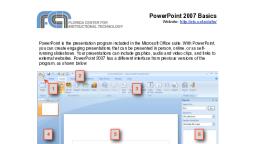
ST Ta aoe ee ea, , Making | Small Presentations, , Slides Preview fois ., , Title bar, , File tab, , Quick access Tabs, , , , 181, , Maximize/Restore, , button, Minimize button, Close, button, , Ribbon, , — Minimize, Ribbon, , Work Area, , Click to add title, , Click to add subtitle, , , , Presentation Notes, , \, Status bar, , Zoom In or Out Slider _, , , , Figure 8.2 A blank Presentation displayed by PowerPoint, , Understanding the Screen Elements, , You will notice a close resemblance of the PowerPoint 2010, Opening screen with the opening screens of Word 2007 and, Excel 2007. The main elements of the PowerPoint window are, as seen in Figure 8,2., Title bar: The Title bar is at the top of the screen (Figure 8.2). It, shows the title PowerPoint and the name of presentation. If, you have not yet saved any presentation then it displays the, default name for the presentation which is Presentation,, Ribbon: Ribbon is displayed just below the title bar. In Ribbon, Commands are organized in logical groups, which are, collected together under tabs (Figure 8.2),, Quick Access Toolbar: This toolbar is located by default at the, top of PowerPoint 2010 window. By default, this toolbar displays the Save, Undo and Repeat buttons., Minimize button: Shrinks the application window to a bar on, the taskbar, you can click its button on the taskbar to reopen it., Restore button: A double box at the right of a title bar that, restores an application or document into a sizable window,, Close button: A box at the right of a title bar (X) that closes the, window or dialog box, , , , , , Work area: Where active PowerPoint slide(s) appear. Figure, 8.2 shows it in Normal view, but other views are available that, make the work area appear differently., , Status bar: It gives the information about the presentation and, provides shortcuts for changing the view and the zoom., , Exploring PowerPoint 2010 Interface, , There is a new look for PowerPoint 2010 There is also a new, user interface that replaces menus, toolbars, and most of the, task panes from Previous versions of PowerPoint. The new, user interface ig designed to help you to be more productive in, PowerPoint; more easily find the right features for various, tasks and also be more efficient, , The PowerPoint 2010 interface consists of various compo:, nents, which are ag follows, , Minimize/Maximize/Restore and Close buttons, , The Minimize, Maximize and Close buttons are located on the, top right corner of the MS PowerPoint window. The Minimize, button is used to minimize the MS PowerPoint window over, the Task bar whereas the Maximize button is helps to restore, Or maximize the MS PowerPoint window. The Close button is, used to close the document. (See Figure 8.2)
Page 3 :
File 2D, , File tab is the colored tab ©, comer of Micrusoét Office NO}, Access Toolbar. When you click the File tab, you can see the, Backstage Vew Tad replaces the office button in Power, ef, , , , , dh is cated in the upper, , , , , , , , , , , , nds th, , wrentiy displayed. You can add, commands t the Quick Access Toolbar. Yo, Quack Access Toolbar fram one af the two possible locations., tools located by default at the top of PowerP, Wi window. It provides tools, , , , , , , , , , , , , , , , , , , , , , , , tomize the Quick Aco, , , , = Todd command fo Quick Access Toolbar, do this:, 1. Right click the appron: COMM., , , , Add to Quick 4, enu as shown in Figure 8.3., , , , 1. Select an object in your presentatic, 2. The name of the applicable, "contextual tabs ap, 3. The contextual tabs, , , , ar next to, , , , ide co, , , , contextu, , the, , , , Course on Computer Concepts, , Dialog box Launchers, The dialog box launchers are smail icons that appear It ceil, : bbon. Clicking a Dialog Box Launcher opens, , groups on the " pens, a re pane, providing more options, , a related dialog box or task, related to that group., , , , , , ary replacement for menus and toolbars in Powerhe Ribbon. Designed for easy browsing, the, ts of tabs that are organized around specific, The controls on each tab are further orgaoups. The Ribbon can host richer content, bars can, including buttons, galleries, and, (See Figure 8.4), , Commands buttons, , ects., , , , , , , , , Figure 8.4, are designed to be task-oriented., Groups within each tab break a task into subtasks., , , , x, , , , c and buttons in each group carry out a command or, display a menu of commands., Contextual Tools, , Contextual tools enable you to work with an object that you, select on the page, such as table, picture, or drawing. When, you click the object, the pertinent set of contextual tabs appear, in color next to the standard tabs. (Figure 85), , Cray, , ion., , inan accent color, and the, tof tabs., , ol, standard s, ols for working with the selected item, , , , , 4. A standard tab available on the Ribbon., Figure 8.5 Contextual Tools
Page 4 :
Making Small Presentations, , Scroll Bar, , The Scroll bar appears at the right side of the PowerPoint. You, can also scroll between different slides by using the up and, down arrow buttons present in the scroll bar., , Work Area, , Where active PowerPoint slide(s) appears. It shows it in Normal view, but other views are available that make the work, area appear differently., , Status bar, , It gives the information about the presentation and provides, about the current slide, such as slide number and theme name., The slide number displays the currently selected’ slide with, the total number of the slides present in the presentations;, whereas, the theme name represents the name of the theme, applied to the presentation., , Slides Pane, , In the upper-right section of the PowerPoint window, the, Slide pane displays a large view of the current slide. With the, current slide shown in this view, you can add text and insert, pictures (picture: A file (such as a metafile) that you can, ungroup and manipulate as two or more objects, or a file that, stays as a single object (such as bitmaps).), tables, SmartArt, graphics, charts, drawing objects, text boxes, movies, sounds,, hyperlinks, and animations., , Notes Pane, , In the Notes pane below the Slide pane, you can type notes, that apply to the current slide. Later, you can print your notes, and refer to them when you give your presentation. You can, also print notes to hand out to your audience or include the, notes in a presentation that you send to the audience or post, , ona Web page., , Zoom Control, , You can use Zoom controls to get a larger or smaller view of, your presentation by drag the Zoom slider right to left. You, , Figure 8.6, , Figure 8.7. Insert, , can click the Zoom In (+ plus) button to get a larger view of, the presentation and the Out (- minus) button to get a smaller, view of the presentation., , Exploring the Tabs, Ribbon in PowerPoint 2010 is a group of tabs. This tab consists, of two types, command tabs and contextual tabs. A command, tab is a collection of commands of a specific category. Commands in a command tab are placed into different group. Each, command set representing a subcategory of commands., Contextual tabs appear on the Ribbon when you add or select, some object, such as image, a table, or a chart ona PowerPoint, slide. An example of a contextual tab is the Format tab, , Some of the tabs are discuss in the following sections, , Home Tab: When you click it, this tab is active. Buttons, related to working with document contents are organized in, this tab, It has six groups: Clipboard, Slides, Font, Paragraph,, Drawing and Editing. Only the button representing commands that can be performed on the currently selected document element are active. (Figure 8.6), , The groups for the Home Tab are:, , (a) Clipboard: This contains the Cut, Copy, and Paste commands., , Slides: This section allows you to insert new slides (clicking on the ‘New Slide’ button allows you to select the, slide type you wish), as well as adjust the layout of your, individual slides, reset slides to default, and delete slides., Font; Select the font here. Adjust the font type and size., Make it bold, italic, or underlined. Change the color or, highlighting. Using the tab, you can also change case of, selected text to uppercase or lowercase., , Paragraph: Bullets or numbered lists. It also changes the, alignment of text and change the spacing between lines., Drawing: Insert shapes. Arrange objects on a given slide., It also apply fill color in the selected shape and add effect, to the shapes., , (f) Editing: Find, edit, select, and replace text., , Insert Tab: Click this button for related items you can insert, These are organizing on this tab. It has seven groups: Ti, Images, Illustrations, links, Text, Symbols and Media. (Figure 8.7, , (), , (d), , (e), , , , , , , , , Home tab
Page 5 :
184, , When you need to insert anything into your slideshow, this is, , where you come to do it. The groups available to you are:, , (a) Tables: Insert tables into the slide, These can be pre, made, or you can make them as you like., , Images: It allows you to insert pictures from a file as well, , as from the clip art in a slide. You can also create photo, , album and apply visual effects to pictures. Screenshot, which allows you take screenshot of all currently opened, windows on the computer., , (c)_ Illustrations; |t allows you to insert pre-defined shapes,, , Smart Arts and charts in the presentation., , Links: Add a hyperlink, to take you out of your slide, show to a web resource. Add an action to cause some, thing to happen in the slide show if you point to an object, with the mouse., , (e) Text: It is not just about typing text into a slide: Insert text, boxes, which allow you to play with the location and, orientation of words. Insert headers and footers. Turn, your text into "Word Art". Insert date, times, slide numbers and other embedded objects., , () Symbols: It allows you to insert and edit equations and, insert symbols in the presentation., , (g) Media: Insert video and sound into your slide, to create a, truly vibrant presentation., , Design tab: Click this tab which will show buttons that are, , related to items. You can give design to your slides. They are, , organized on this tab. It has three groups: Page Setup, Themes,, , Background. (See Figure 8,8), , Adjust the look of individual slides with the contents of the, , design tab. Change just one slide, or apply your changes to the, , whole presentation:, , (d, , Course on Computer Concepts, , (a) Page Setup: Adjust margins, page size, and orientation, , ortrait or landscape)., , (b) ome PowerPoint 2007 comes with 20 built-in themes, (combinations of color, layout, and font). You can browse, the web for more themes, or create your own custom, ones., , (©) Background: It adjust the background look of your ay, by changing the color, or adding special images like, watermarks., , Transitions: The transitions tab let you preview the presenta, tion after applying effects, add transitions to a slide, and set, , the timing for the slide show of the presentation. It has we, groups: Preview, Transition to this slide, timing. (See Figure 8. ), , (a) Preview: It helps to view the slide after the transition, effect is applied., , () Transition to this slide: It allows you to apply transition, to a slide and set the effect option specific to a transition., , (c)_ Timing: It allows you to add transition sound and set the, time to move to the next slide., , Animations tab: Click this tab which will show buttons that, , are related to items. You can give animations to your slides., , For example, you can animate individual objects on the slide., , They are organized on this tab. It has three groups: Preview,, , Animation, Advance Animation and Timing. (See Figure 8.10)., , (a) Preview: To preview the animation applied in the slide,, include transition effect and animation applied on objects, and text, , (b) Animation: It allows you to apply animation to a slide, and the effect based on the animation type., , , , Figure 8.10 Animations tab



 Learn better on this topic